

According to Old National Bank (ONB) data, late customer payments are costing small businesses an average of $42,000 per year, and managed service providers (MSPs) are no exception. Late payments drain cash flow, slow down growth, and create extra work for MSPs. The figure above shows how widespread the problem is.
These losses don’t just come from missed revenue; they also stem from delayed invoices, inconsistent payment habits, and time spent chasing clients.
QuickBooks holds over 62% of the SMB accounting software market and meets the basic invoicing and accounting needs of many small businesses.
MSPs, however, deal with recurring agreements, usage-based services, ticket-driven updates, project-based billing, and mixed payment behaviors across clients.
These factors increase the likelihood of clients paying late and push the limits of standard accounting tools.
The result is a billing setup that can leave MSPs waiting longer to get paid, even when the numbers in QuickBooks are accurate.
MSP billing needs stronger support around reminders, payment routing, fee handling, reconciliation, and real-time client communication. Without these layers, late payments grow, and the annual loss reflected in that $42,000 figure becomes easier to imagine.
QuickBooks Online (QBO) provides basic tools for sending invoices and collecting payments. Still, MSP billing involves recurring services, custom payment terms, and a need for transparency that go beyond what QBO alone offers.
In this article, we will explore how payment collection works in QuickBooks and where its limitations slow down collections.
We will examine the hidden friction points, from generic, unbranded payment emails to a lack of automation, that can delay payments and hurt your cash flow.
Most importantly, we will show how pairing QuickBooks with an MSP-specific solution fills those gaps. By combining QBO’s accounting strengths with FlexPoint’s QuickBooks Online integration for billing automation, you can create a complete MSP billing ecosystem.
{{toc}}
The Limitations of QuickBooks Online for MSP Payment Collection
Relying solely on QuickBooks Online for payment collection can expose MSPs to several challenges.
While QBO covers the basics, MSPs often encounter the following limitations:
Generic Payment Emails:
QuickBooks sends invoice emails from Intuit’s domain, not your MSP’s. Clients receive a generic message with Intuit branding, which can weaken trust and the overall client experience.
Clients might not immediately recognize the email as coming from your company.
This lack of branding makes your MSP appear less professional and can even lead to confusion or spam filters flagging it.
No Detailed Email Tracking:
QBO only provides a simple status (e.g., invoice “sent” or “viewed”).
The software does not show whether clients opened reminder emails or clicked the pay link.
Without real email tracking or read receipts, MSPs have little insight into client engagement. You might not know if a client is ignoring reminders or simply missed them in their inbox.
Higher ACH and Card Fees:
Every payment processed through QuickBooks Payments comes with a processing fee. Credit card transactions typically cost around 2.99%, while ACH bank transfers are charged at 1% of the total amount received.
These fees can add up quickly for high-volume or high-value invoices.
For example, a $10,000 credit card payment would cost about $300 in processing fees.
Until recently, ACH fees were more manageable, historically capped at $10 per transaction. However, starting in late 2023, Intuit removed that cap for many users.
For existing accounts, the cap has been raised to $15. For new QuickBooks Payments accounts opened after September 6, 2023, there is no cap, meaning a large ACH payment (e.g., $25,000) could now result in a $250 fee.
QuickBooks does not provide a built-in option to recover credit card processing costs from your clients. Your MSP absorbs the full fee, which can cut directly into your margins, especially on larger or recurring invoices.
No Credit Card Surcharging or Flexible Terms:
QBO does not support automatic credit card surcharging (passing the fee to the client). Even though surcharging is legal in most U.S. states, QuickBooks doesn’t automate it.
There’s also limited flexibility for special payment terms, such as installment plans or partial payments on invoices.
If a client can only pay a portion now and the rest later, QuickBooks doesn’t offer a smooth way to handle that scenario through the standard online payment link.
Poor Client Payment Experience:
The client’s journey to pay a QBO invoice can feel awkward. They click a link that takes them to an Intuit-hosted payment portal, which is disconnected from your brand. The interface is one-size-fits-all.
Clients must navigate through a couple of screens to enter payment details, which is not very user-friendly.
This generic experience can erode client confidence in payment security and in your company’s professionalism.
Manual Reconciliation & Limited Visibility:
For MSPs using separate systems (e.g., a PSA tool for managing services and QBO for accounting), QuickBooks doesn’t automatically sync with all of those tools. Instead, connectors and marketplace apps are often required.
MSPs often end up manually reconciling payments across systems, matching bank deposits to invoices by hand.
QuickBooks Online’s basic reports show which invoices are paid or overdue, but they don’t give deeper insights into your collection efficiency or trends.
It’s hard to get a complete picture of your collections performance (e.g., average days to pay, percentage of overdue invoices) using QBO alone.
These payment friction points make it difficult for MSPs to maintain a professional image, streamline the payment process, and keep clients confident in payment security.
QuickBooks was designed as a general-purpose accounting tool; it wasn’t built with MSPs’ branding needs, complex billing models, or recurring services in mind.
The result is more time chasing payments, higher costs, and a payment experience that might not meet your clients’ expectations.
How Payment Collection Works in QuickBooks for MSPs
Before diving into improvements, let’s briefly recap how QuickBooks Online handles payment collection for an MSP:
Invoice Creation and Sending:
Suppose an MSP generates an invoice in QBO for services rendered. QuickBooks allows you to email this invoice directly to the client.
However, as mentioned, the email comes from Intuit’s system.
The client receives an email with a subject line such as “Invoice from [Your Company] via QuickBooks” and a link to view the invoice.
This process is convenient, but the sender address and format are controlled by QuickBooks, not you.
The client clicks the link and is taken to an online invoice page hosted by Intuit.
Here, they can review the invoice details. QBO provides a “Pay Now” button on the invoice if you’ve enabled online payments.
The payment page is functional but carries QuickBooks branding. Clients may need to create or use an Intuit login to pay, or pay as a guest by entering their email and payment info.
Payment Options:
Out of the box, QuickBooks Online enables two online payment methods for your clients: credit/debit card or ACH bank transfer.
Clients can choose to pay with a card (Visa, MasterCard, American Express, etc.) or enter their bank account details for an ACH transfer.
As explained above, while these options offer convenience, they come with processing fees: around 2.99% for credit cards and 1% for ACH.
These fees are automatically deducted from the payment before QuickBooks deposits the funds into your bank account.
There are no built-in credit card surcharging tools in QuickBooks, so you can’t automatically add a line item to recover these fees from the client.
For example, if a client pays a $2,500 invoice by credit card, QuickBooks might deposit about $2,425 to your account after deducting the processing fee.
The full invoice will still be marked as “Paid” in your records, but the shortfall needs to be manually accounted for to reconcile your books accurately.
For MSPs managing multiple clients and recurring invoices, that manual process can lead to accounting discrepancies and slower cash flow.
Payment Deposit Scheduling:
Once the client submits a payment, QuickBooks processes it through its payment network.
Credit card payments typically deposit within 1–2 business days, while ACH payments take about 2–5 business days to clear.
QuickBooks does not support standard same-day ACH processing. The default ACH timeline always follows that 2–5 day window, even if the client pays immediately.
For MSPs managing recurring invoices or relying on consistent cash flow, this delay can create real challenges, especially when vendor payments or payroll are due.
QuickBooks does offer an Instant Deposit feature, but it comes at a cost.
If you want to move funds to an external bank account instantly after processing, there’s an additional 1.75% fee per transfer. This is on top of the 1% ACH processing fee, meaning you could pay 2.75% total just to access your money quickly.
It’s important to note: Instant Deposit only accelerates the deposit after the payment is cleared; it does not speed up the ACH clearing process itself.
Users of QuickBooks Money, Intuit’s proprietary banking product, can receive free instant deposits, but those funds remain within the Intuit ecosystem until you manually transfer them elsewhere.
For MSPs, this creates added complexity.
Without true same-day ACH, MSPs are left choosing between waiting several days for funds or paying a premium to access cash faster.
Neither option is ideal for maintaining smooth, predictable cash flow.
Payment Tracking:
QuickBooks Online offers a basic automation to remind clients about open invoices. You can set up auto-reminder emails to go out a certain number of days before or after the due date.
For example: an email reminder 3 days before the due date, on the due date, and 7 days overdue. This can help prompt some clients.
However, as noted, you won’t know if those emails were read. The content of the reminders is also fairly generic, since you can’t deeply customize the Intuit template.
Deposit and Reconciliation:
In QuickBooks, you can always check an invoice’s status (e.g., Sent, Viewed, Paid). When a payment is made through QBO, the invoice status updates to Paid, and QuickBooks automatically records the transaction in your books.
This is an advantage because it spares you from manually recording the payment. The payment will eventually show up in your bank feed for reconciliation.
Suppose multiple invoices got paid in a single day. In that case, QuickBooks might group them into one bank deposit (especially for card payments), and you’ll need to match that lump-sum deposit to the individual invoices in QBO’s reconciliation screen.
Partial payments can be recorded in QuickBooks by receiving a payment for less than the full invoice amount.
However, clients cannot initiate a partial payment through the QBO online portal themselves without special handling (such as you splitting the invoice or using progress invoicing).
QBO provides the foundation of invoicing and payment recording. The software ensures you can get paid electronically and keeps your books up to date.
That said, the software often lacks the automation, branding, and flexibility that MSPs need to truly streamline collections.
As we move on, we’ll discuss how you can optimize what QuickBooks does offer, and then how adding an MSP-focused billing tool can address the rest.
Step-by-Step: Optimizing Payment Collection in QuickBooks
If you’re using QuickBooks Online today, there are several ways to improve your invoice collections within the platform.
Follow these steps to reduce friction and encourage faster payments using QBO’s built-in features:
Step 1: Customize Your Invoice Template:
Make sure your invoices are clear and professional. Include a clear due date and payment terms (e.g., “NET 15 days” or “Due upon receipt”).
Add a friendly note to the invoice, such as payment instructions or the billing contact.
A well-designed invoice that prominently states the due date and late fee policies (if any) can prevent confusion. For example, if you expect payment within 15 days, say so on the invoice. This sets client expectations from the start.
Step 2: Enable Online Payment Options:
To speed up collections, turn on QuickBooks' online payment features.
When creating an invoice, check the boxes to enable credit card and ACH bank payments (if applicable). Offering multiple payment options makes it convenient for clients to pay you on time: they can click “Pay Now” and use their preferred method immediately.
Make sure your QBO is connected to QuickBooks Payments (Intuit’s payment service) and your bank account is verified. This way, clients can submit payments without delay.
The easier it is for clients to pay (no printing checks or navigating to another site), the faster you’ll get paid.
Step 3: Turn On Automated Reminders:
Leverage QBO’s automatic reminder feature to gently prompt clients as due dates approach or pass.
In your QuickBooks Online settings, you can configure reminder emails to be sent at preset intervals (for instance, one week before the due date, on the due date, and one week after the due date if still unpaid).
Craft polite messages for these reminders. While QuickBooks will send them from the generic address, the content can still include your business name and a note.
Automated reminders save you time by handling the routine follow-ups, which is especially useful if you manage many invoices. They serve as a nudge to clients who may have simply forgotten.
Step 4: Monitor and Follow Up on Aging Invoices:
Utilize QuickBooks reports to keep a close eye on what’s outstanding.
Run an Open Invoices report or an A/R Aging Summary report each week. These reports list all unpaid invoices and their ages.
Identify which clients are past due and send a personal follow-up if needed. You might call the client or forward the invoice with a personal note.
QuickBooks doesn’t send escalation emails beyond the automated reminders, so a direct personal touch is sometimes necessary for chronically late payers.
By regularly reviewing aging invoices, you can catch issues early.
For example, if a client hasn’t paid because they had a question on the invoice, you’ll spot that and can reach out to resolve it.
Following these steps within QuickBooks Online will tighten up your current collection process.
While these optimizations still operate within QuickBooks’ constraints, they can meaningfully improve your cash flow and reduce the time you spend chasing payments.
FlexPoint + QuickBooks Online: Secure, Branded, and Automated Collection
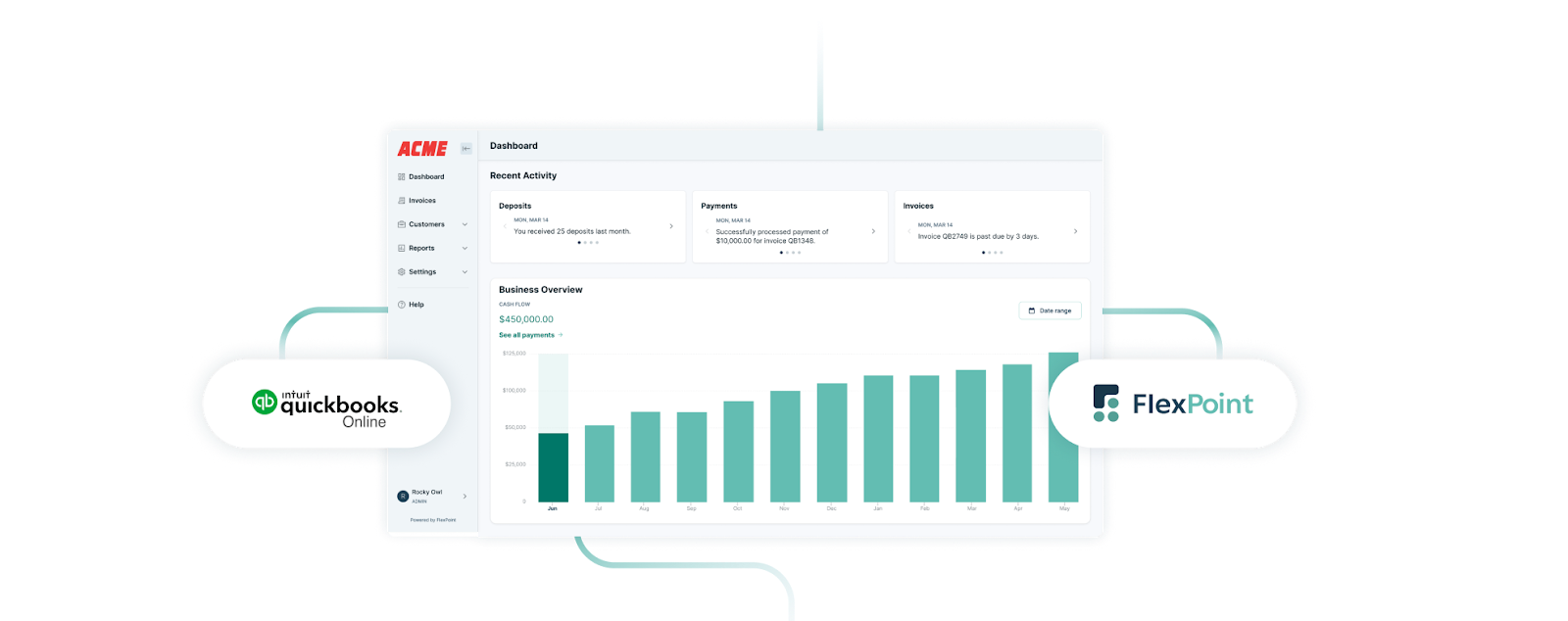
QuickBooks Online is suitable for core accounting, but MSPs often need a boost to turn it into a truly efficient billing system. This is where FlexPoint’s integration with QuickBooks Online comes in.
FlexPoint works alongside QBO to automate and enhance every step of the collections process, without replacing QuickBooks as your accounting ledger.
Here’s how FlexPoint + QBO transforms payment collection for MSPs:
Automated Invoice & Payment Sync:
With FlexPoint connected to QuickBooks, every invoice and payment syncs between the systems in real time. You can generate invoices in your PSA or FlexPoint, and they are automatically imported into QuickBooks.
When a client pays (through FlexPoint’s portal), the payment is instantly recorded in QuickBooks and applied to the right invoice.
This two-way sync eliminates manual data entry and reconciliation errors. No more duplicate entries or manual deposit matching: the integration keeps your PSA, FlexPoint, and QBO in sync.
Seamless PSA Integration:
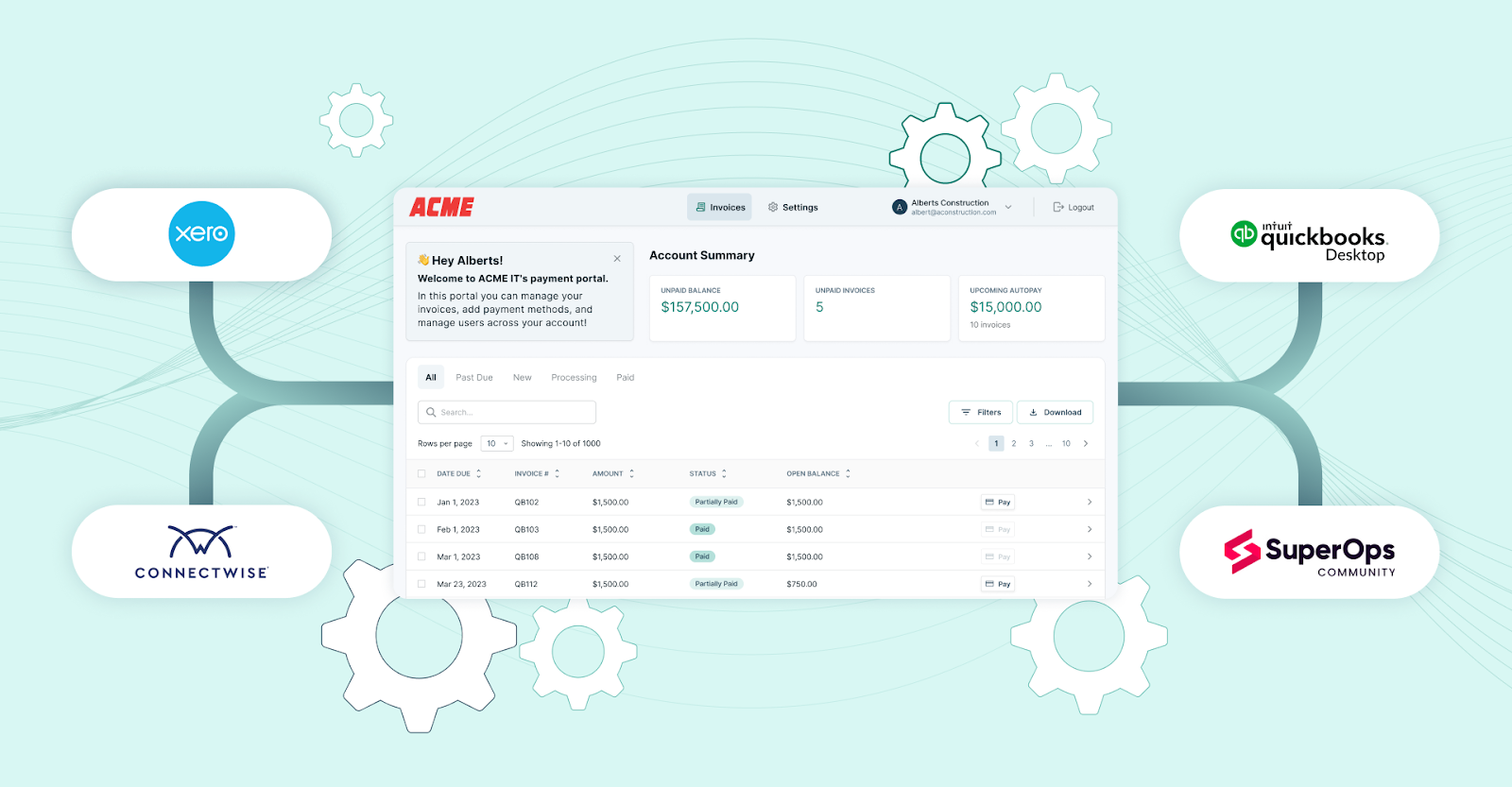
FlexPoint connects directly with your PSA (Professional Services Automation) tool, syncing billing data between your service operations and your financial systems. This link eliminates the need to manually re-enter invoice details or service records between platforms.
Whether you use ConnectWise PSA, Autotask, SuperOps, or HaloPSA, FlexPoint ensures that everything from time entries to recurring service plans flows automatically into your invoicing and payment processes.
Once payments are received, they’re applied and reflected in both QuickBooks and your PSA, giving you a unified view of revenue, receivables, and client accounts across systems.
Branded Client Portal:
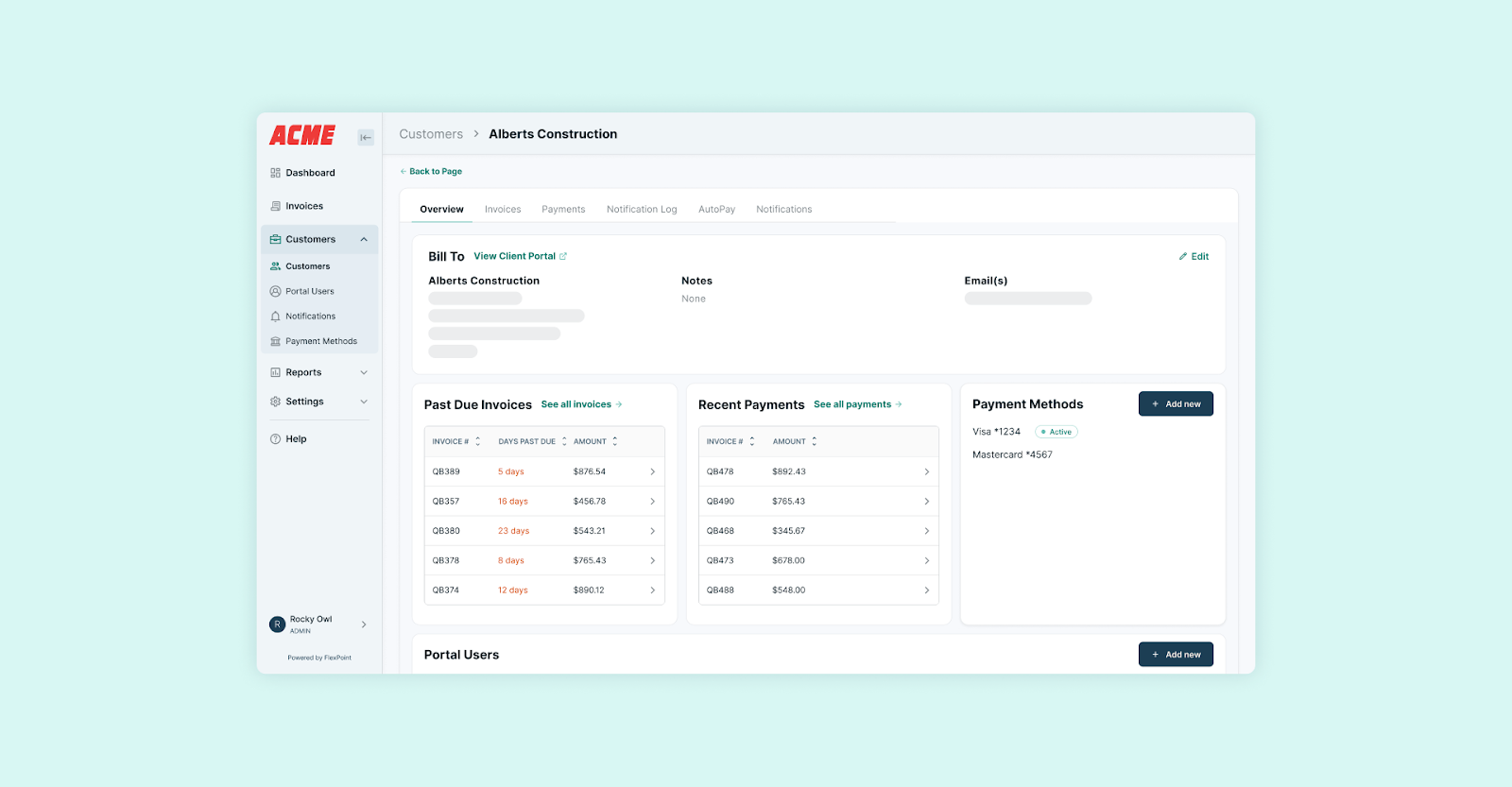
Unlike QuickBooks’ generic payment pages, FlexPoint gives you a white-labeled client payment portal.
Your clients can log in to a secure portal with your company’s branding: your logo, colors, and even your domain name.
Within this portal, clients can view all their invoices, save their preferred payment methods, and pay online with a few clicks.
Clients can also set up AutoPay for recurring charges (a feature QBO doesn’t offer out of the box).
The portal delivers a professional, seamless experience that builds trust. Clients know they are dealing directly with your MSP in a secure environment, which can encourage timely payments.
Credit Card Fee Recovery & Flat-Rate ACH:
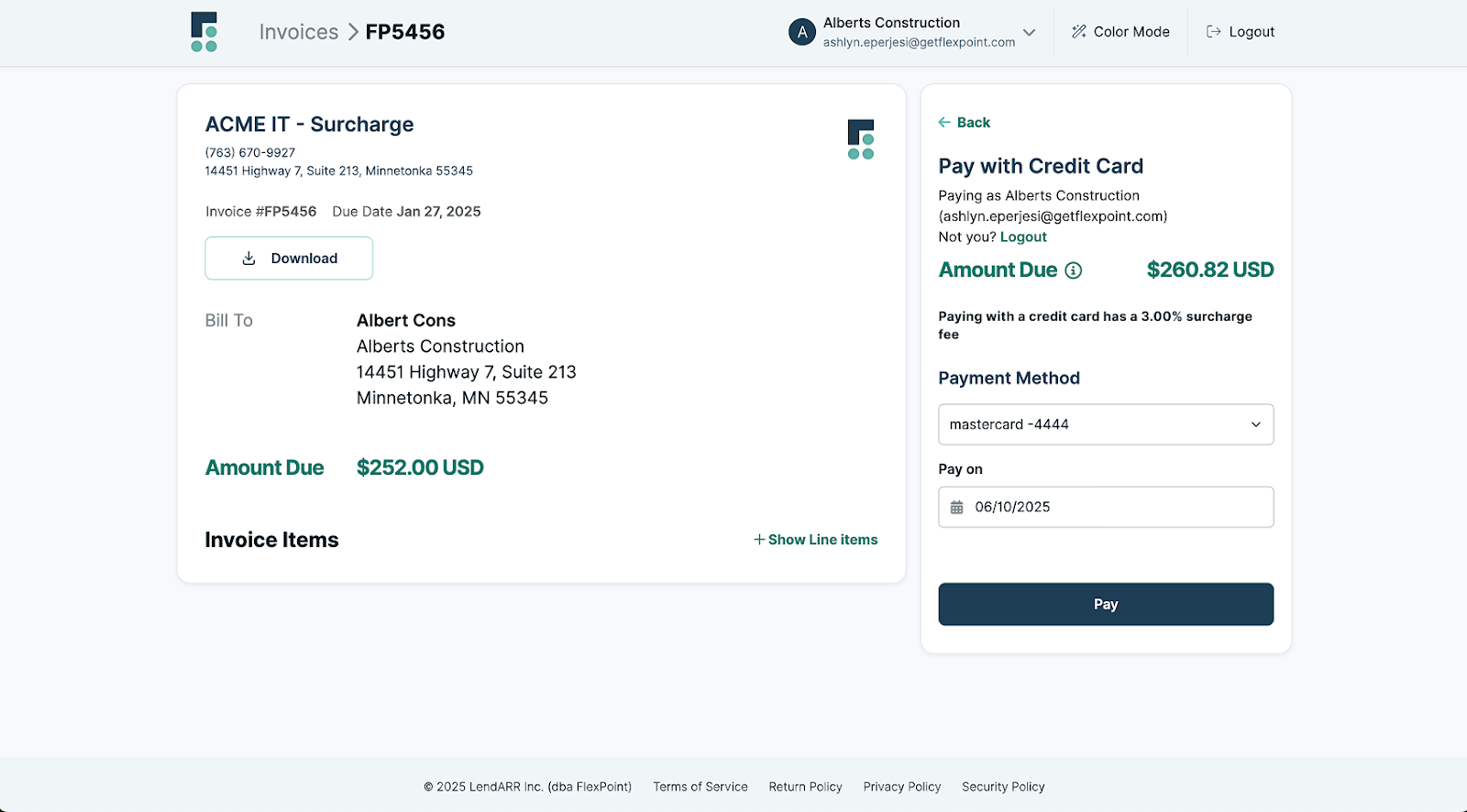
FlexPoint allows legally compliant credit card surcharging.
You can have clients cover the processing fee for card transactions.
For example, if a client pays a $5,000 invoice by credit card, QuickBooks would charge you roughly $150 in fees, whereas with FlexPoint, you could add a small surcharge so the client covers that cost.
For ACH, FlexPoint uses a flat fee ($0.25 per transaction) instead of a percentage, saving you money on bank payments.
These capabilities protect your margins.
Over the course of the year, this can save your MSP thousands in fees.
Multiple Payment Options:
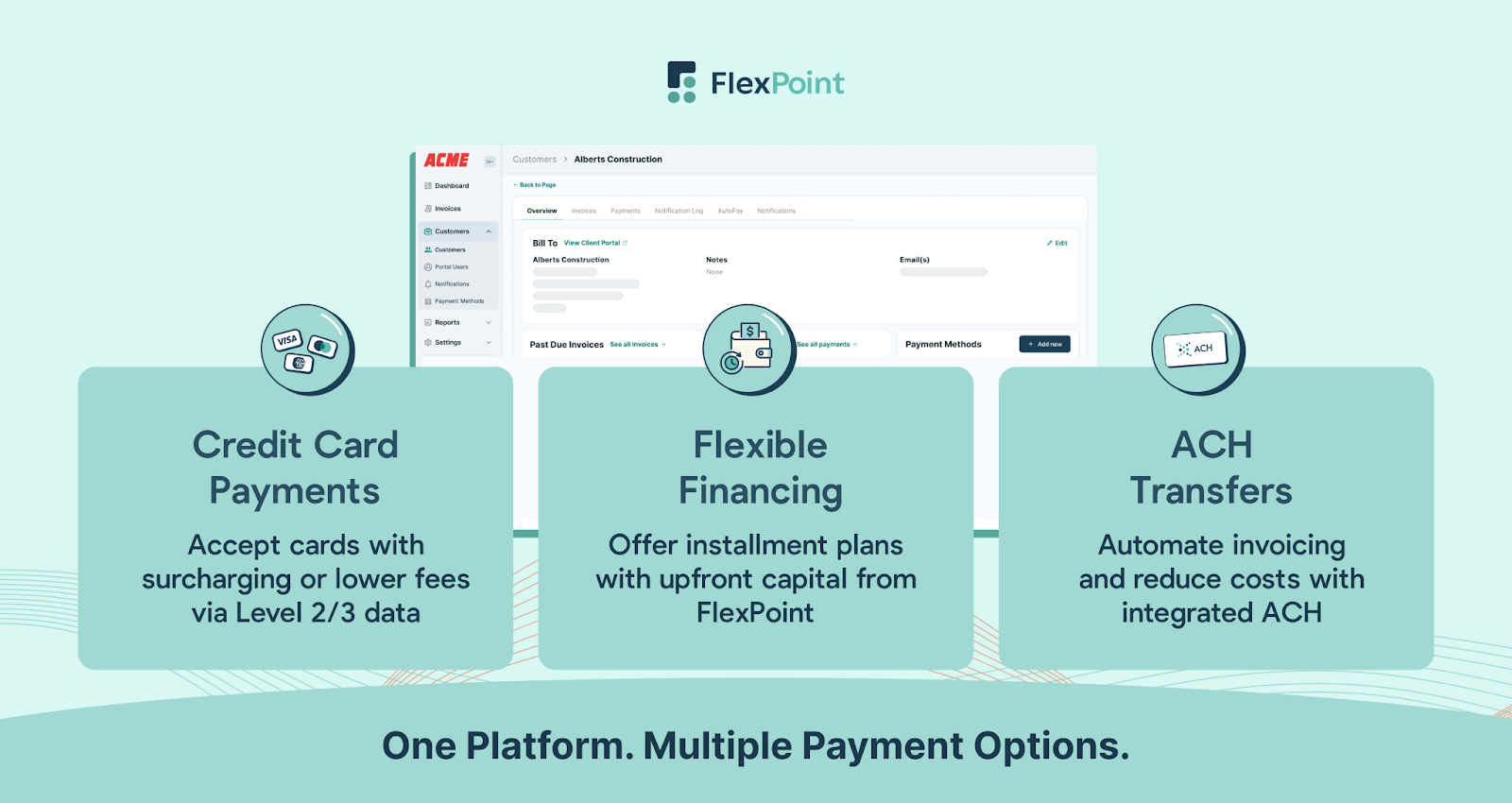
FlexPoint enables MSPs to offer more payment flexibility. You can accept credit cards, ACH transfers, and even options such as Same-Day ACH or installment financing for larger bills.
Clients can choose the method that works best for them, helping remove payment barriers and encouraging faster turnaround.
These options enable MSPs to maintain predictable margins while meeting diverse client payment preferences.
Improved Collections Workflow:
FlexPoint brings powerful automation to the collections process. The platform can send invoices and payment reminders with your branding and track email delivery and open rates.
If an invoice becomes overdue, FlexPoint can automatically send a follow-up (that looks like it came from you, not an @intuit.com address). You configure the cadence and messaging, and the system does the polite prodding.
This level of automation means faster payments with less admin time. Your team spends less time writing emails or making calls, and more invoices get paid on time thanks to consistent, structured follow-ups.
Scalability:
FlexPoint also scales with your business.
As your MSP grows, you can handle more invoices and payments without a corresponding increase in manual work. The integration ensures that whether you have 20 clients or 200, the payment collection runs smoothly in the background.
It’s a future-proof solution that grows with you, whereas manual QuickBooks processes might start to break under volume.
FlexPoint doesn’t replace QuickBooks Online, but the platform complements it for MSPs.
QuickBooks continues to do what it does best (accounting and record-keeping), while FlexPoint adds MSP-specific billing enhancements: branding, automation, fee optimization, and advanced integrations.
The result is a secure, efficient payment collection system tailored to MSP operations. You get paid faster, spend less time on billing tasks, and provide a better experience for your clients.
Conclusion: Transform Your MSP’s Payment Collection with FlexPoint + QBO
QuickBooks Online provides a reliable foundation for invoicing and basic collections; however, it was never built for the MSP billing model.
Beyond an accounting tool, MSPs also need branding, automation, flexibility, and integration with the rest of their operations.
By adding FlexPoint to QuickBooks, you bridge that gap.
You gain automated billing workflows, real-time payment syncing, a branded client portal, and cost-saving payment options that standard QBO simply doesn’t offer.
The payoff is clear: faster payments, improved cash flow, and stronger client relationships through a modern payment experience.
Instead of chasing down payments or dealing with clunky processes, your team can focus on higher-value work.
Consider Excellent Networks, an MSP in El Paso, Texas, which wanted to move away from mailed checks and manual credit card processing in QuickBooks.
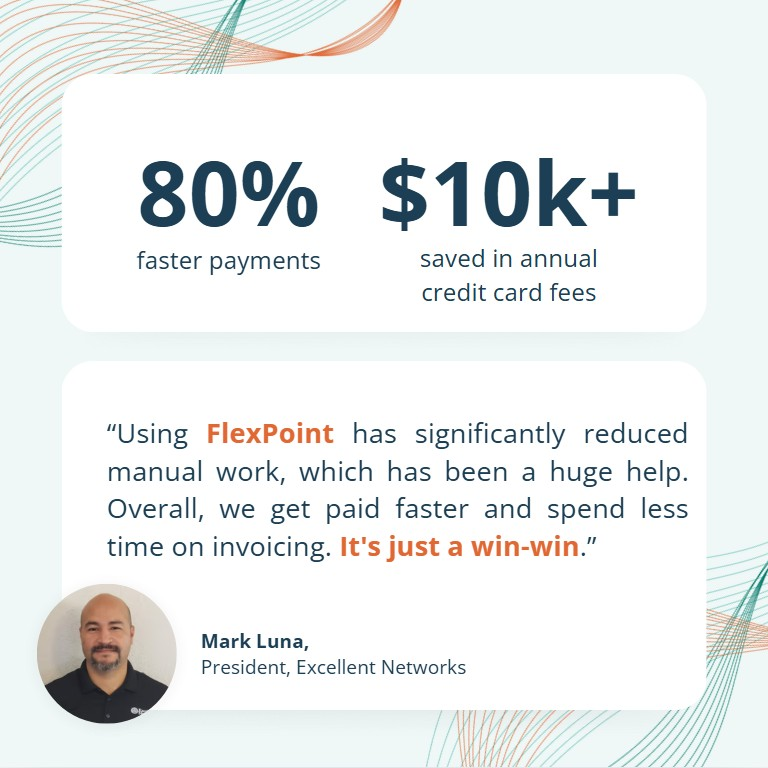
After connecting FlexPoint, invoices synced automatically, clients paid through a branded portal, and new payment habits formed quickly.
The result was 80% faster payments, 24 hours saved per year, and more than $10,000 saved in annual credit card fees.
In the words of President Mark Luna, “Using FlexPoint has significantly reduced manual work. Overall, we get paid faster and spend less time on invoicing.”
This is the type of improvement MSPs can expect when FlexPoint and QuickBooks work together.
Ready to enhance QuickBooks with MSP-focused automation and branded payment workflows?
See how FlexPoint + QuickBooks Online can transform your collections and client experience.
Schedule a demo to see how FlexPoint + QBO can streamline your billing operations.
Additional FAQs: QuickBooks Payment Collection for MSPs
{{faq-section}}