

.png)
Automation has become a must-have for improving MSP billing efficiency, as manual invoicing wastes time and can lead to revenue gaps.
In fact, poor cash flow management is a top reason businesses fail: a U.S. Bank study found that 82% of business failures stem from it.
Manual billing also invites mistakes. A Sigitek study found that 12.5% of manually created invoices contain errors, contributing to payment delays.
Many MSPs also struggle with late client payments and tight margins.
One industry report revealed 81% of MSPs have clients who pay invoices late (often 60+ days overdue), and 72% of MSPs worry about cash flow stability.
QuickBooks Online provides entry-level tools to automate invoicing, helping get bills out on schedule.
However, QuickBooks’ built-in automation wasn’t designed for the invoicing complexity MSPs face, especially those managing hundreds of recurring contracts, usage-based billing, and customized pricing models.
In this article, we will focus specifically on invoice automation: what QuickBooks Online can handle today, where it falls short for MSP billing workflows, and how FlexPoint extends QuickBooks to deliver true automation from invoice generation through to reconciliation.
{{toc}}
The Limitations of QuickBooks Online for MSP Invoice Automation
QuickBooks Online’s automation features cover basic recurring invoices. However, as they scale, MSPs often struggle with what QuickBooks can’t do.
Here are the key limitations where QBO’s automation ends:
Limited Billing Model Flexibility:
QuickBooks can create simple recurring invoices. However, it lacks full support for usage-based, pass-through, or tiered pricing adjustments.
The software will repeat the same invoice each cycle until someone manually updates it.
If a client’s user count increases or you need to bill for variable services, QuickBooks won’t adjust those charges automatically. This can lead to tedious manual edits and potential mistakes.
No PSA Integration or Dynamic Updates:
MSPs rely on PSA tools (such as ConnectWise PSA or Autotask) to track client service delivery. While QuickBooks Online can be connected to these systems through middleware or third-party tools, the integration is often limited in scope.
In most cases, there’s no live two-way sync that automatically updates invoices when mid-cycle contract changes occur.
For example, if a client adds a service or adjusts their user count mid-month, those updates don’t flow seamlessly into QuickBooks invoice templates.
Instead, finance teams often have to re-enter that data manually, either into QuickBooks or through an external tool. This increases the risk of billing errors and slows down the process.
Generic Email Sender (Lacks Branding):
When QuickBooks auto-emails an invoice, it sends from an Intuit email domain, not your MSP’s address. Clients receive a generic “from QuickBooks” message.
A generic message can feel less professional or even get caught in spam filters.
You also can’t fully customize the email or use your branding.
As explained by Intuit: “Currently, in QuickBooks, you can only edit the email message and change the color of the email form. The option to modify or remove the box in the middle of the email is unavailable.”
Again, this lack of customization can hurt the client experience and may reduce trust.
Minimal Invoice Tracking & Collections:
QuickBooks only provides basic tracking. You can see if an invoice was sent and marked as viewed, but there’s no insight into whether reminder emails were opened.
The platform doesn’t automate collections beyond sending scheduled reminders.
There’s no escalating sequence for seriously past-due accounts, so your staff ends up manually chasing late payments.
This lack of intelligent collections can delay cash flow.
Limited Security and Audit Controls:
When clients click your QuickBooks invoice’s payment link, they are taken to an Intuit-hosted payment page. You have minimal oversight or custom security options on that payment process.
For instance, you can’t enforce multifactor authentication for invoice payments or get detailed audit logs of payment activity.
This limited control can be a concern for MSPs that handle sensitive client billing data or need strict compliance tracking.
Complex Reconciliation Process:
QuickBooks can match payments to invoices. However, without native PSA integration, that data doesn’t automatically reflect service delivery.
When clients pay invoices, finance teams often must manually reconcile those payments against PSA records, exported usage reports, or emails from account managers.
As you grow, this process doesn’t scale.
How Invoice Automation Works in QuickBooks Online
QuickBooks Online includes several automation features that simplify invoicing. These tools can handle routine billing tasks for MSPs. However, they also have clear stopping points.
Here’s what QuickBooks automates (and where it stops short):
Recurring Invoices:
QBO lets you set up recurring invoice templates for services that bill on a regular schedule.
Once you create a template (for example, a monthly managed service contract), QuickBooks will automatically generate and email the invoice at the specified interval. This ensures invoices go out on time without manual effort.
However, recurring invoices in QuickBooks are static templates: they won’t adjust amounts if usage or contract terms change mid-period without manual editing.
Scheduled Email Delivery:
You can configure QuickBooks to automatically email invoices on a specific day.
For instance, invoices can be sent on the 1st of each month, and you can choose to be CC’d or have QBO mark them as sent.
All invoice emails, though, come from Intuit’s generic address as noted above, not your own domain.
Online Payment Links:
Every QuickBooks invoice can include a “Pay now” link that lets clients pay online via ACH bank transfer or credit card. This makes it convenient for clients to click and pay.
However, the trade-off is processing fees.
QuickBooks Payments charges around 2.99% for credit card transactions and 1% for ACH.
While ACH fees were previously capped at $10, that’s no longer guaranteed. New accounts opened after September 6, 2023, have no cap, and older accounts may see caps as high as $15.
QuickBooks lacks a built-in feature to pass credit card processing fees on to clients. As a result, your MSP covers the full cost, which can reduce profit margins, particularly on high-value or recurring payments.
Automatic Late Fees & Reminders:
QBO can automatically add late fees to overdue invoices if you enable that setting (either a flat fee or a percentage after a due date).
You can also schedule gentle reminder emails to clients.
For example, a reminder 7 days before an invoice is due and another if it becomes overdue.
These reminders help prompt clients. However, QuickBooks provides no insight into whether a client opened the reminder email or just ignored it.
There’s also no escalation beyond sending the email; collections remain a manual effort if the client still doesn’t pay.
Batch Invoicing:
For MSPs who need to bill multiple clients for the same item (e.g., a software license fee), QuickBooks offers batch invoicing, but only in its higher-end Advanced plan.
You can create a single invoice and apply it to multiple clients at once, saving time compared to creating each invoice individually.
That said, you still need to review those invoices for accuracy, especially if any client has custom terms.
Basic Invoice Status Tracking:
QuickBooks gives you a simple view of invoice status.
You’ll see if an invoice was sent, whether the customer viewed it, and if it’s been paid. This is useful to confirm delivery and receipt.
What’s missing is deeper analytics: QBO won’t tell you which email reminders were clicked or provide detailed engagement metrics.
It’s a surface-level tracking that doesn’t replace having a dedicated accounts receivable follow-up process.
QBO lacks the real-time intelligence, integration, and personalized client experience that MSPs need for fully streamlined billing operations. It automates the send, but not the complex logic, security, or follow-up that ensures healthy cash flow.
Step-by-Step: Invoice Automation in QuickBooks
Even with its limits, QuickBooks Online has several basic tools MSPs can use to streamline invoice creation, delivery, and follow-up. With the right setup, these features reduce repetitive work and help maintain predictable cash flow.
Follow these steps to improve your MSP’s invoicing process in QBO:
Step 1: Create Clear Recurring Templates
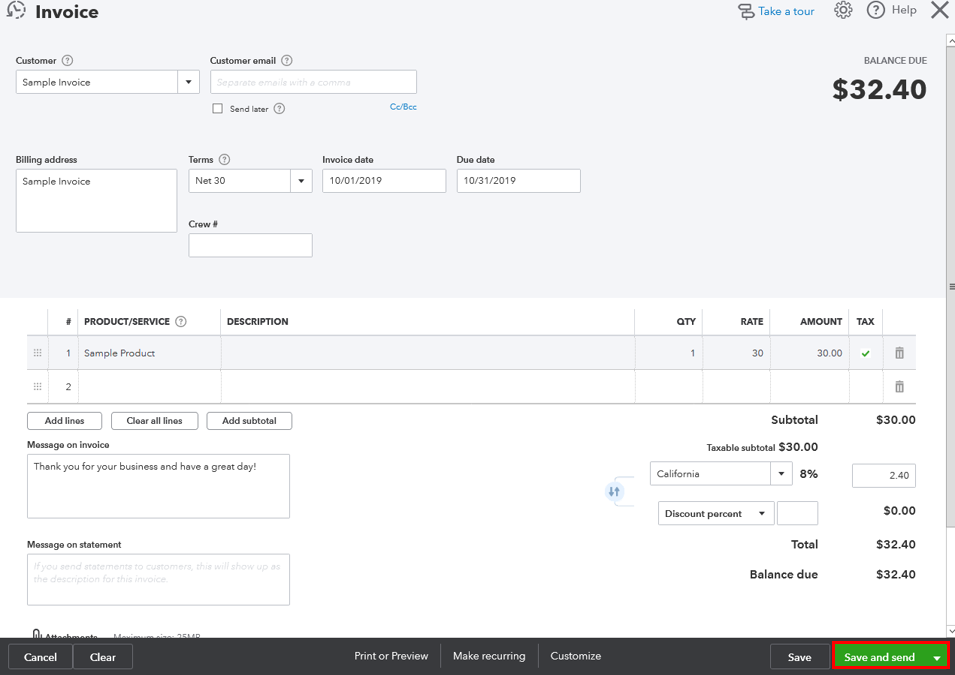
Set up recurring invoices for clients who are on managed service contracts or fixed monthly plans.
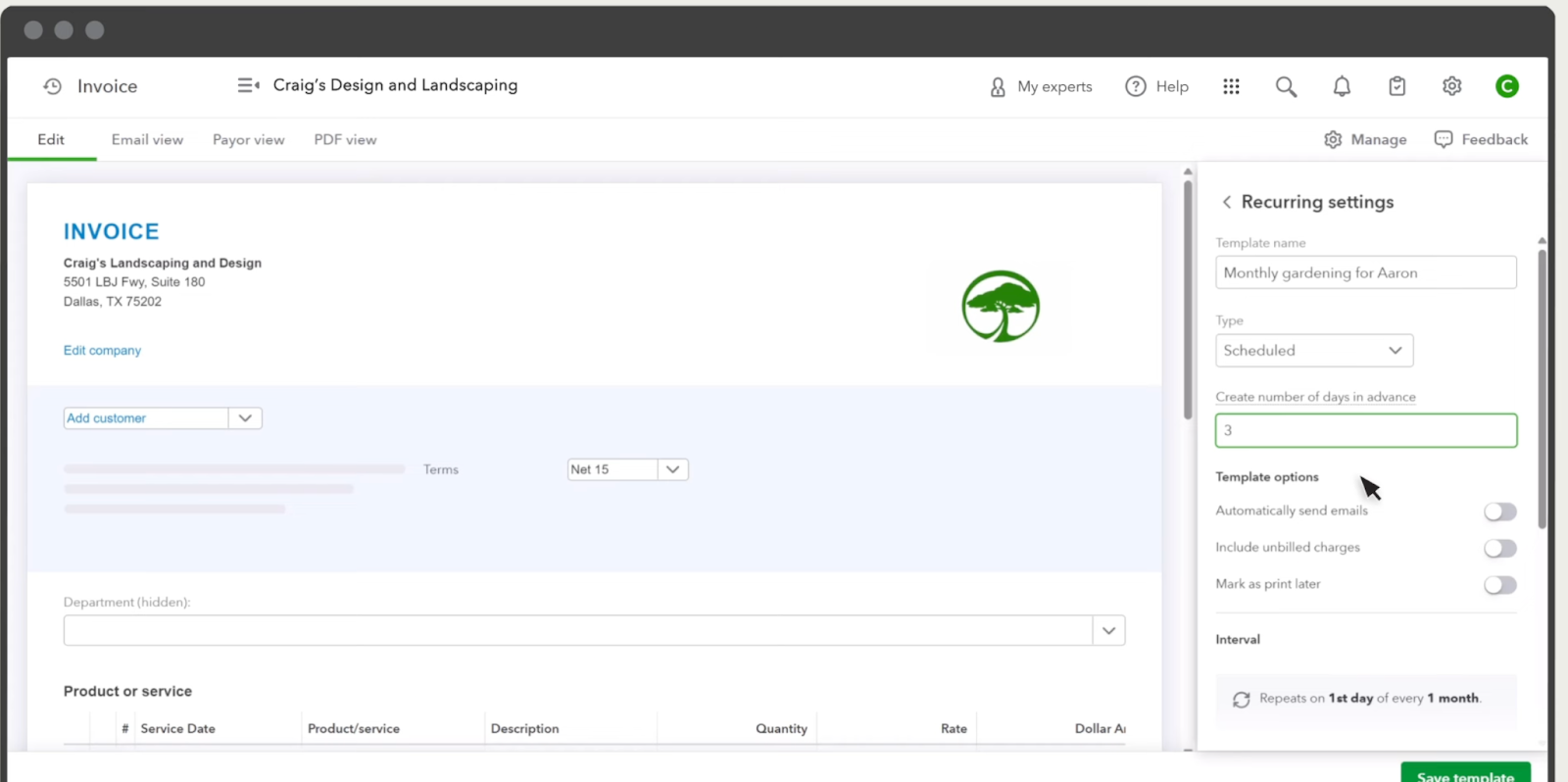
Intuit shares the following steps to follow to create a recurring template in QBO:
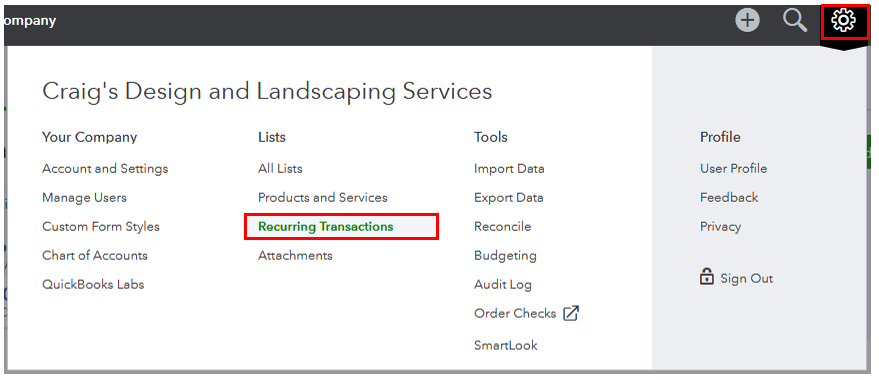
- Click the ⚙️ Gear icon in the upper right corner.
- Select Recurring Transactions under the Lists section.
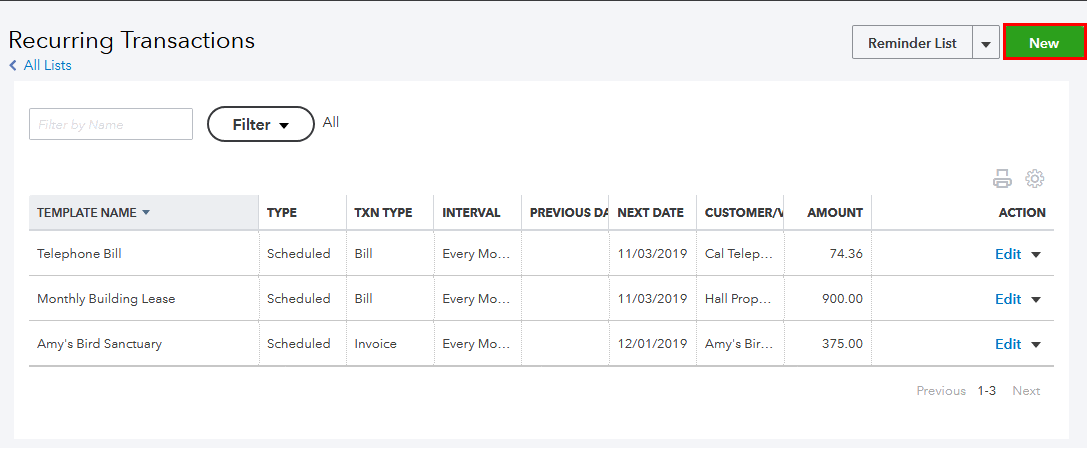
3. Click the New button.
4. Choose Invoice as the transaction type and click OK.
5. Enter a recognizable name for the template.
6. Set the Type to Scheduled.
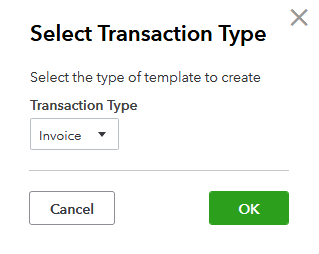
7. Define the Interval (e.g., Monthly) and start date.
8. Choose Automatically send emails to have QuickBooks email invoices without review.
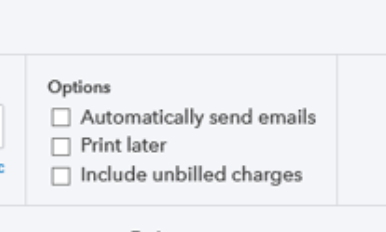
9.Fill out the invoice details, including service descriptions, amounts, and terms.
10. Click Save Template.
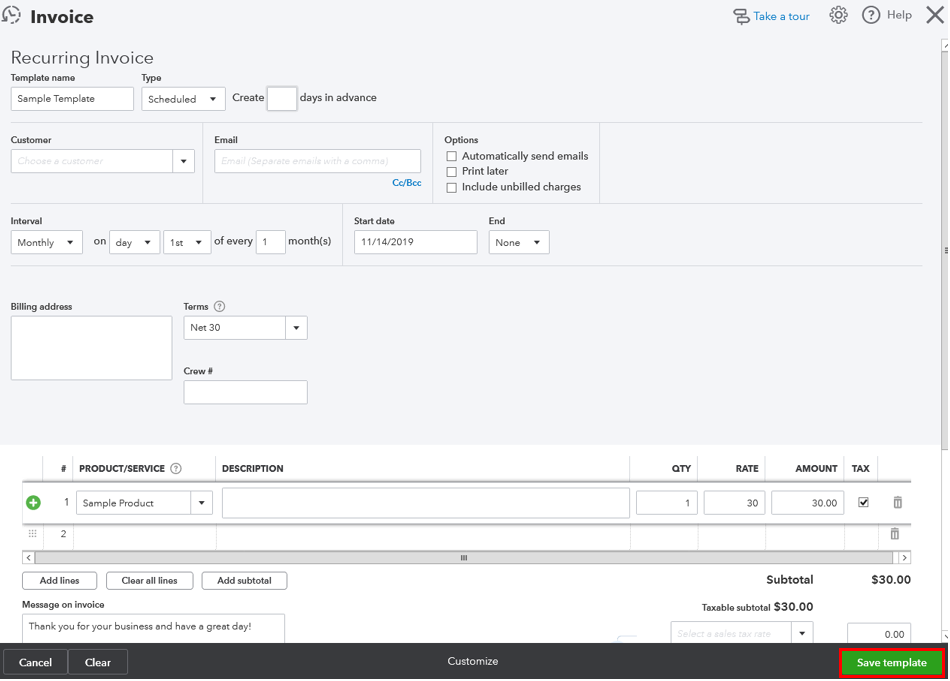
QuickBooks will now automatically generate and send this invoice based on the schedule you defined.
Just keep in mind: if the client’s contract or pricing changes, you’ll need to manually update the template.
Step 2: Customize Invoice Design and Terms
As explained earlier, QuickBooks limits the control MSPs have over their invoice communications.
QuickBooks Online offers limited branding control over invoice emails and templates. You can customize basic elements. However, core formatting, such as the prominent QuickBooks-branded box and sender domain, cannot be removed.
Still, it’s worth updating what you can to present a more polished client experience.
To customize your invoice template in QuickBooks Online:
- Click the ⚙️ Gear icon in the upper right corner.
- Under the Your Company section, select Custom Form Styles.
- Click New style and choose Invoice.
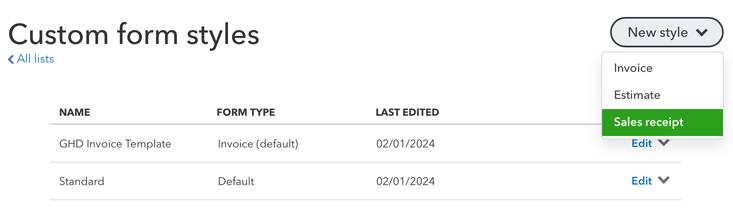
4. In the Design tab:
- Upload your logo.
- Choose your font and color scheme.
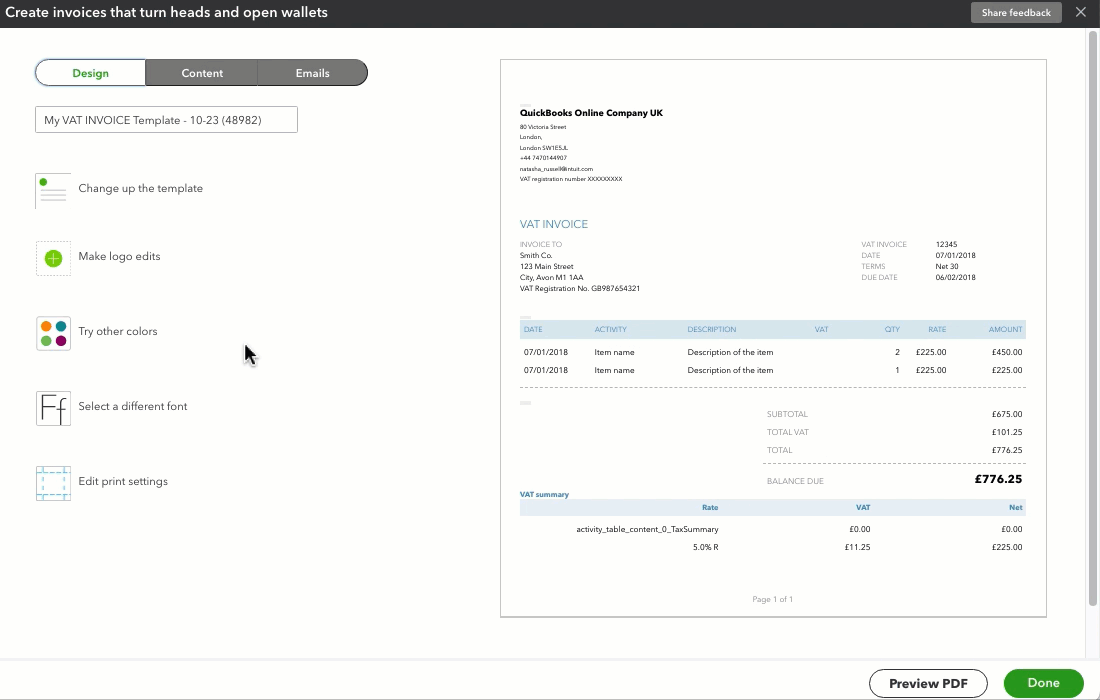
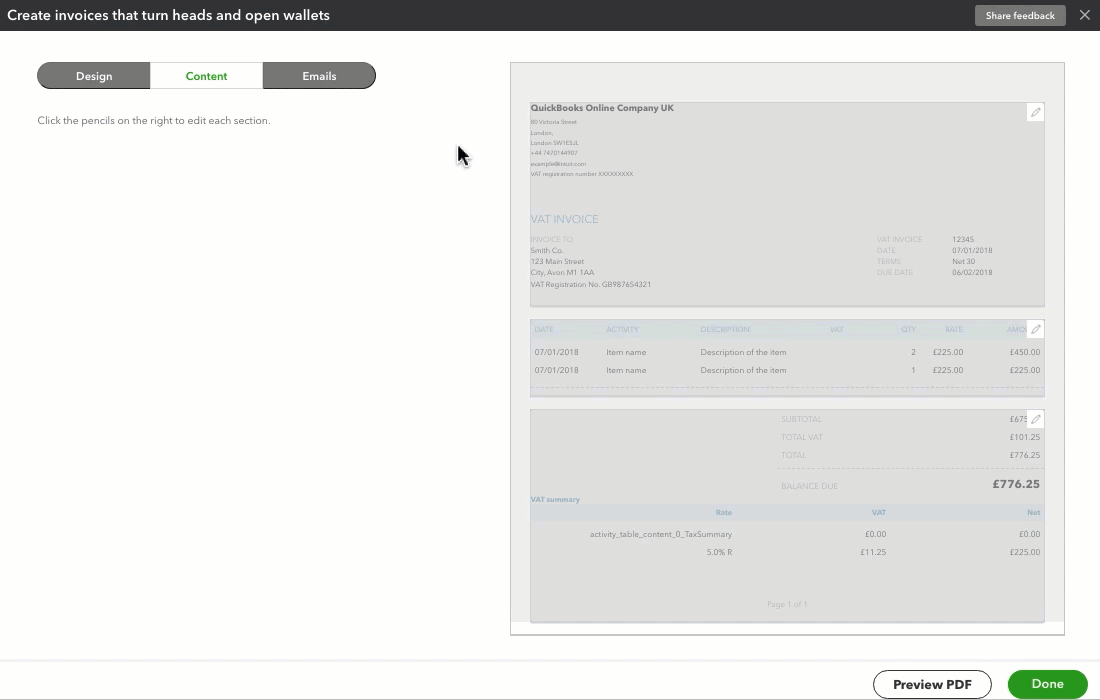
5. In the Content tab:
- Edit section headers, service item labels, and layout.
- Add custom messages in the footer (e.g., support contact details).
- In the Emails tab:
- Customize the subject line and message body that clients see when invoices are emailed.
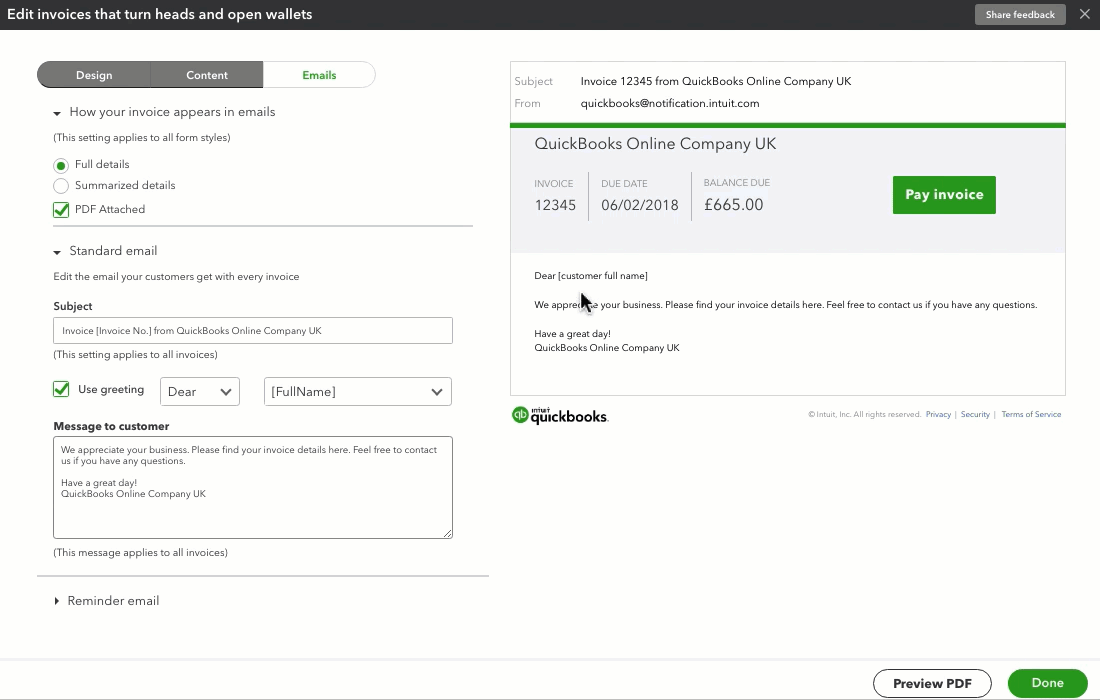
Once finished, click Done, and set your custom style as the default if needed.
Keep in mind:
- All emailed invoices are sent from a QuickBooks address (e.g., quickbooks@notification.intuit.com), not your company domain.
- You cannot remove the QuickBooks branding from the email layout itself.
- The central content box in the email is controlled by Intuit and can’t be redesigned.
Because of these limitations, invoice emails may feel generic or disconnected from your brand. For MSPs that emphasize trust and service quality, this lack of control can reduce the professionalism of billing interactions.
Step 3: Automate Delivery and Reminders
QuickBooks Online can automatically email invoices and send follow-up reminders, helping reduce manual work and late payments.
To enable automatic email delivery for recurring invoices:
- Click the ⚙️ Gear icon in the top right.
- Select Recurring Transactions.
- Find your recurring invoice and click Edit.
- Under the Type dropdown, choose Scheduled.
- Check the "Automatically send emails" box.
- Confirm the schedule and recipient email address, then click Save Template.
Note: You must select "Scheduled" to enable auto-sending. “Reminder” or “Unscheduled” types won’t auto-send invoices.
To turn on and customize invoice reminders:
- Click the ⚙️ Gear icon > Account and settings.
- Go to the Sales tab.
- Find the Reminders section and click the pencil icon to edit.
- Enable Automatic invoice reminders.
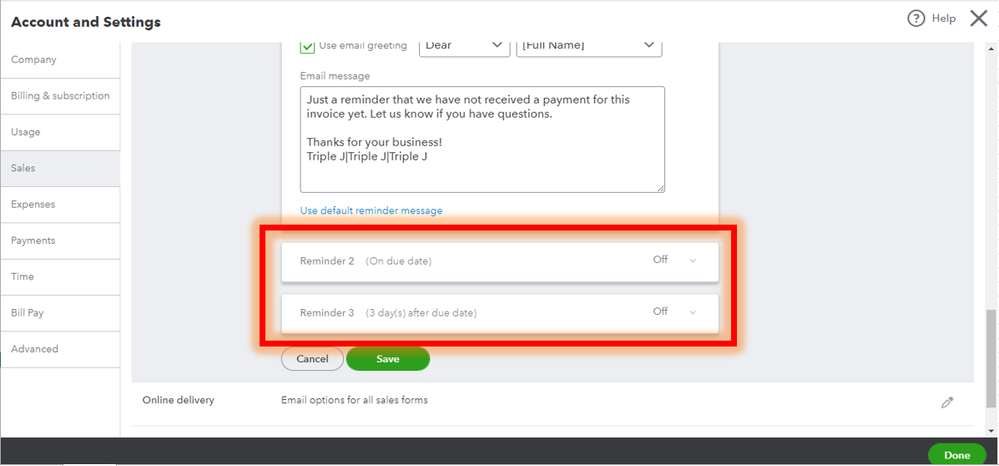
- Set up your reminder schedule (e.g., 3 days before due, 1 day after due, etc.).
- Customize the subject line and message body for each reminder email.
- Click Save, then Done to exit settings.
While this setup helps ensure consistent follow-up, the limited branding and lack of engagement tracking can affect client responsiveness.
If you need escalated reminders or branded delivery, consider supplementing QuickBooks with a third-party platform such as FlexPoint.
Keep in mind that the emails will come from QuickBooks’ system address.
Step 4: Apply Late Fees Automatically
To encourage timely payments, use QuickBooks’ automatic late fees feature. You can define a late fee (say, 1.5% interest or a fixed $20) that QBO will automatically add to invoices that go past due.
Intuit offers two methods to implement automatic late fees:
Method 1: From Settings (Apply to All Invoices by Default)
- Click the ⚙️ Gear icon > Account and settings.
- Go to the Sales tab.
- In the Late fees section, click Edit.
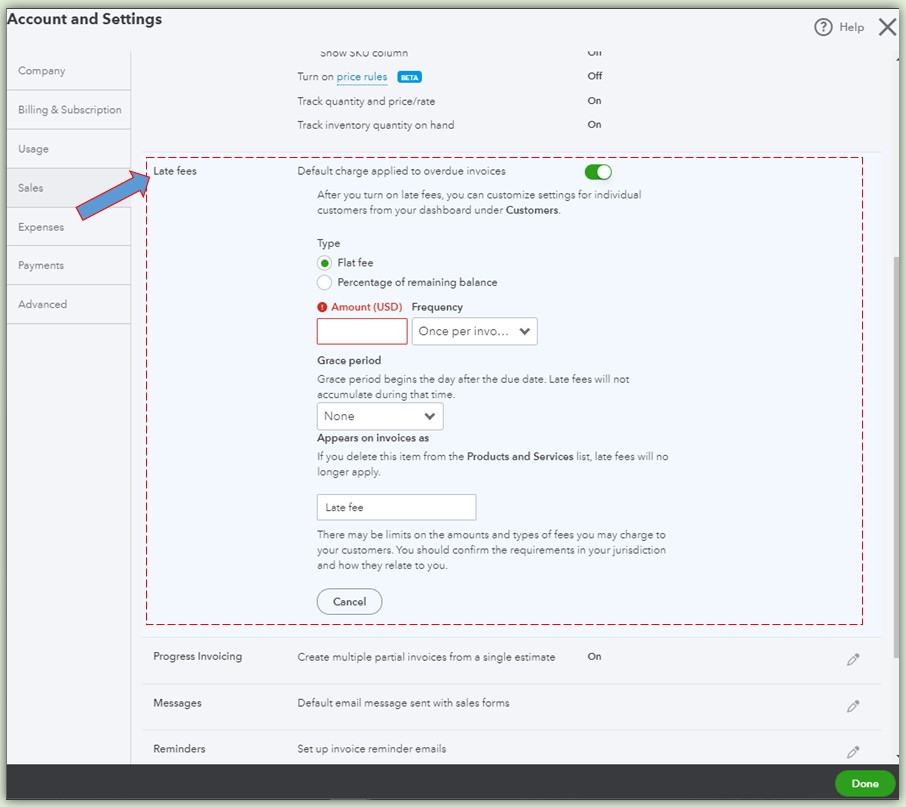
- Turn on the default charge applied to overdue invoices.
- Choose the amount, percentage, and frequency (e.g., one-time or daily).
- (Optional) Set a grace period to delay when fees begin.
- (Optional) Rename the line item from "Late fee" to something more specific.
- Click Save, then Done.
This automatically sets a standard late fee policy across all future invoices.
Method 2: While Creating an Invoice
- Open +New or +Create, then select Invoice.
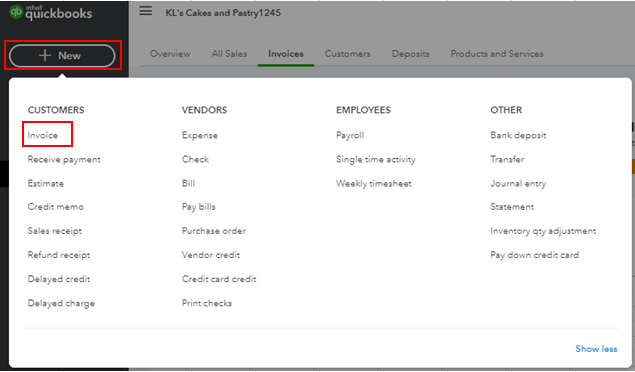
- In the right panel under Payment options, click More options.
- Select Late Fees.
- Define or edit the late fee settings as above.
- Click Save.
This method is convenient if you're inside an invoice and want to confirm or enable late fees without leaving the screen.
- Late fees are only applied to new overdue invoices after the feature is turned on; existing overdue invoices won’t be updated retroactively.
- You need to send a reminder or resend the invoice to notify the client of the fee.
By setting this up, you reduce the need for manual tracking and ensure there's a consistent consequence for overdue payments.
Step 5: Track and Adjust Regularly
Use QuickBooks reports, such as the Open Invoices report or the A/R Aging Summary, to monitor unpaid invoices. Regularly review these to catch any overdue accounts early.
To monitor unpaid invoices using reports:
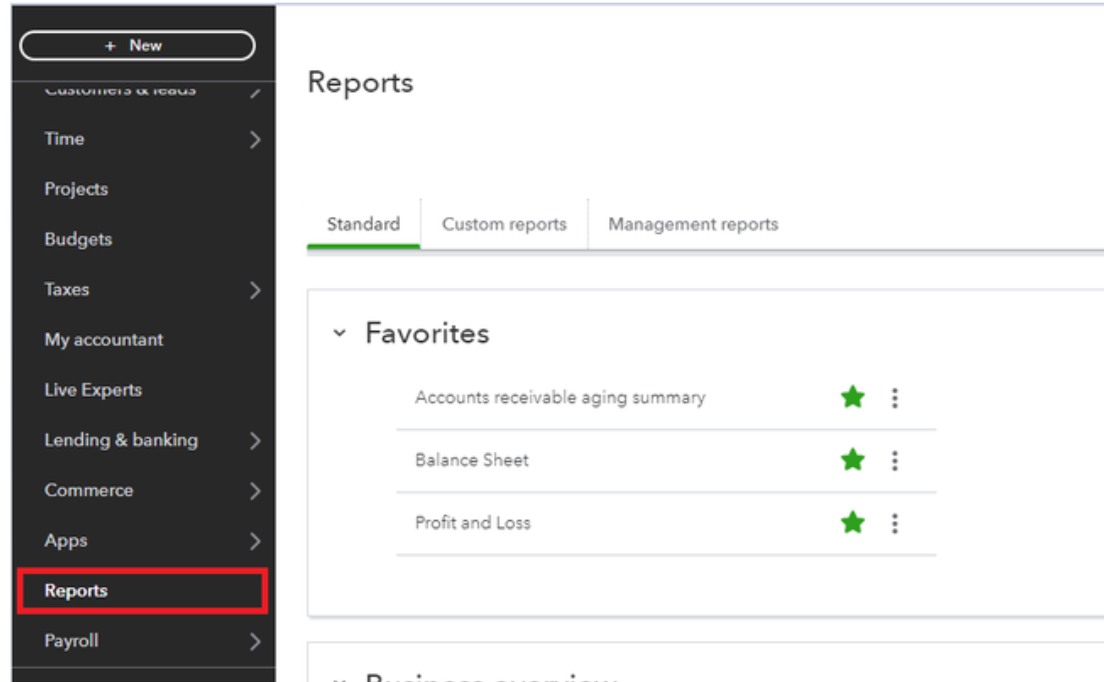
- Go to the Reports menu in QBO.
Monitor Unpaid Invoices Using Reports
- Go to the Reports menu in QuickBooks Online.
- Use key reports such as:
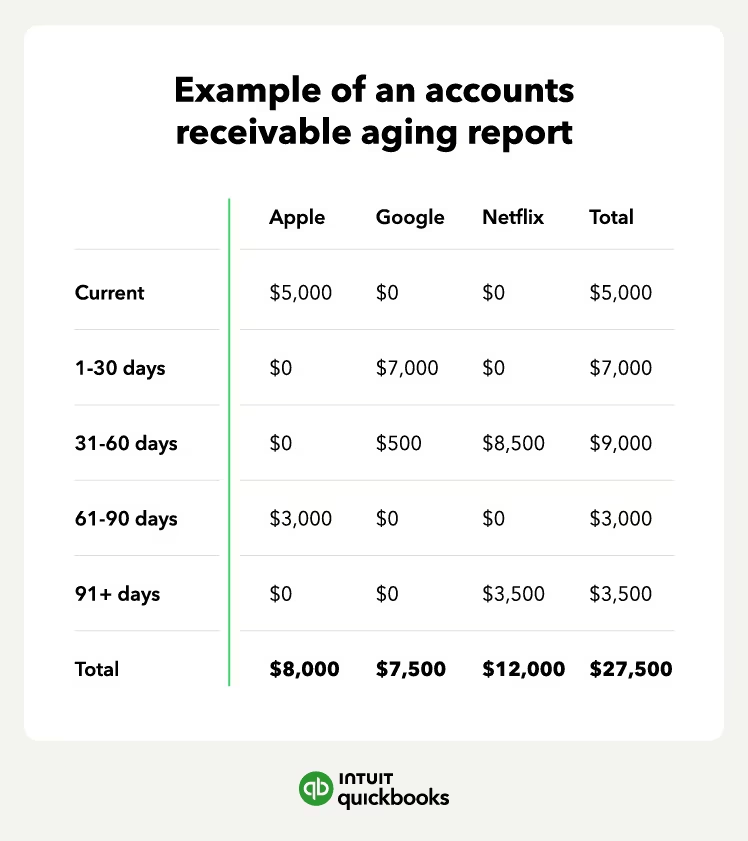
- A/R Aging Summary: Shows unpaid invoices grouped by how long they’ve been outstanding (e.g., 0–30, 31–60 days).
- A/R Aging Summary: Shows unpaid invoices grouped by how long they’ve been outstanding (e.g., 0–30, 31–60 days).
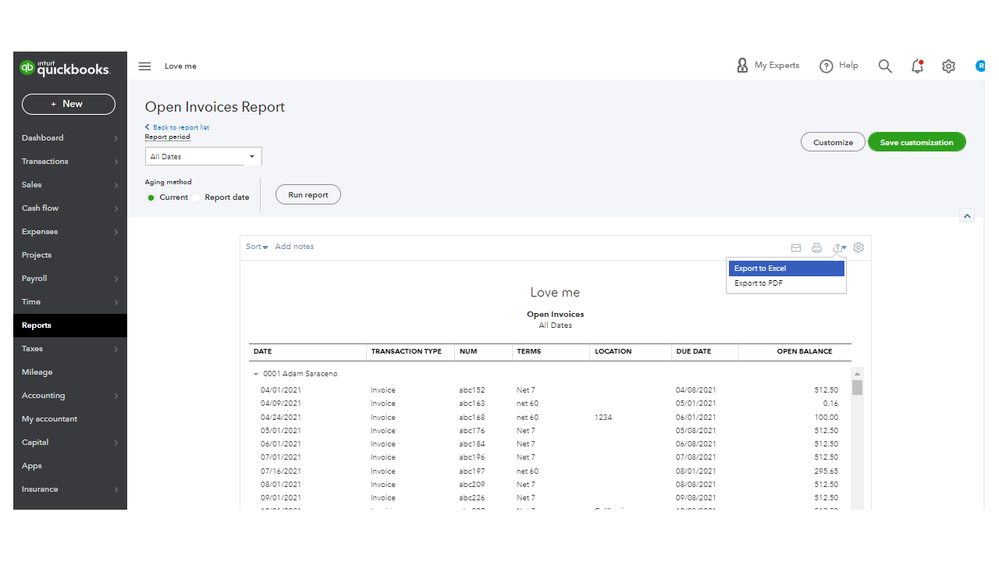
- Open Invoices Report: Lists all currently unpaid invoices by customer.
- Review these reports weekly or monthly to spot late accounts before they become a problem.
Additionally, periodically revisit your recurring invoice templates and settings: if a client’s contract changes or you add a new service, update the template so the next invoice reflects it.
Intuit explains how to edit a recurring template:
- Go to Settings. Select Recurring transactions.
- From the Action column, select Edit for the transaction you want to edit.
- Edit the template name, type, and the client or payee name as needed.
- If you're editing a Scheduled or Reminder type template, you can adjust how far in advance QuickBooks creates the template or sends you a reminder. You can also set the frequency in the Interval section.
- Add or remove any product or service details in the Item details section.
- When you're done, select Save template.
However, note that altering a recurring invoice in QuickBooks can cancel a customer’s Autopay enrollment. In turn, they would have to re-enroll, which can create payment friction and inconvenience for the client.
By keeping templates up-to-date and watching your accounts receivable reports, you’ll maintain control over your billing and can adjust automation settings as your MSP business grows.
FlexPoint + QuickBooks Online: True End-to-End Invoice Automation for MSPs
QuickBooks handles basic invoicing, but FlexPoint is built to automate the entire MSP billing process. Integrating FlexPoint with QBO gives you features tailored for managed services.
For example:
Full PSA and QuickBooks Integration:
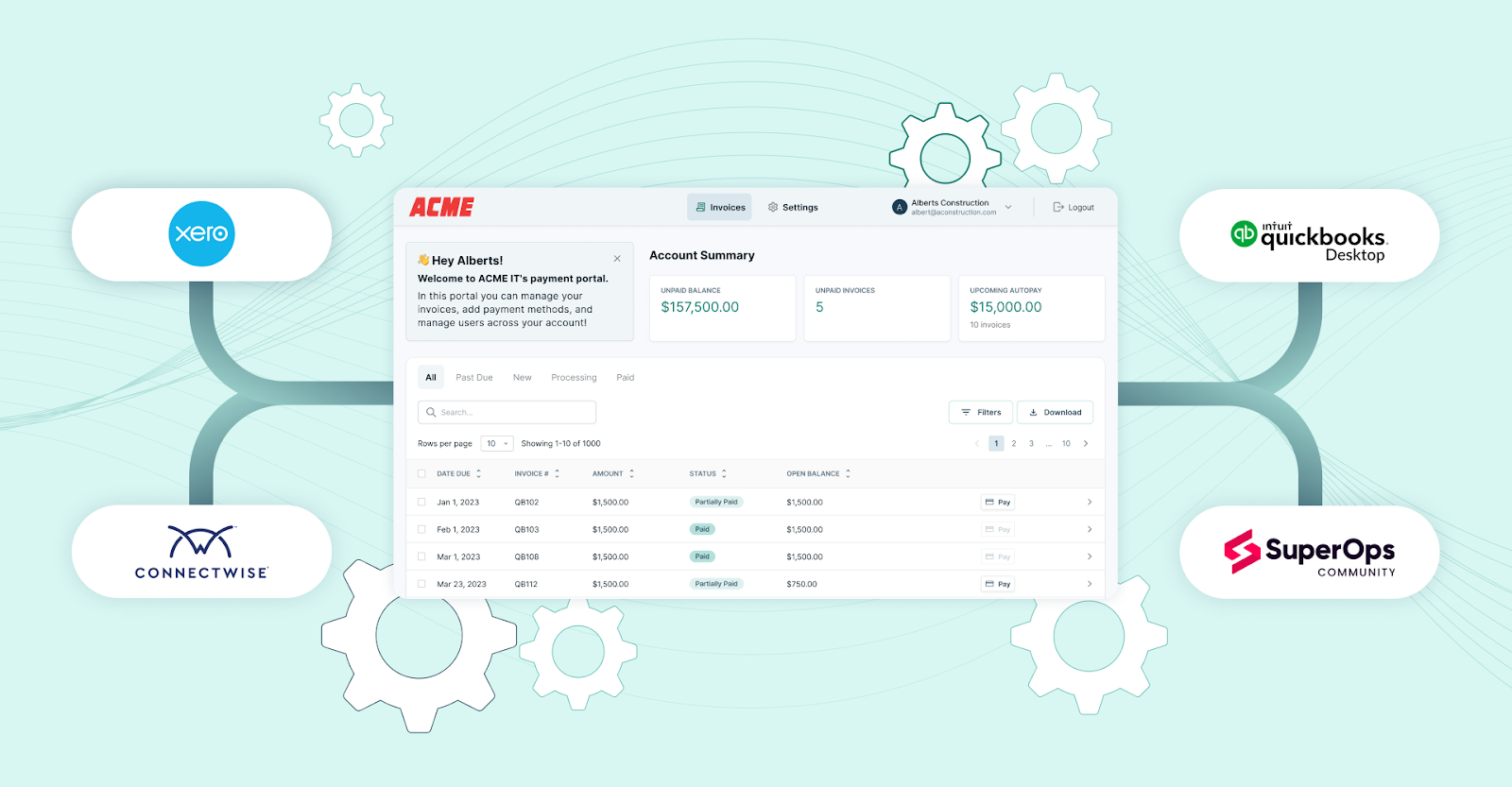
FlexPoint connects your PSA tools and QuickBooks, enabling live two-way data sync. Service entries from the PSA flow into FlexPoint for invoicing, and payments sync back into QuickBooks automatically.
Two-way sync eliminates manual data transfers and ensures billing, PSA, and accounting records are always consistent.
Dynamic Billing Automation:
FlexPoint supports complex billing scenarios that QuickBooks alone can’t handle. The platform automatically adjusts invoices for usage-based or tiered pricing, prorated mid-cycle changes, and one-off fees.
If a client’s usage changes or a new service is added, FlexPoint updates the next invoice for you.
This way, you maintain accurate billing without manual intervention.
Branded Client Experience:
FlexPoint provides a secure, branded payment portal for your clients.
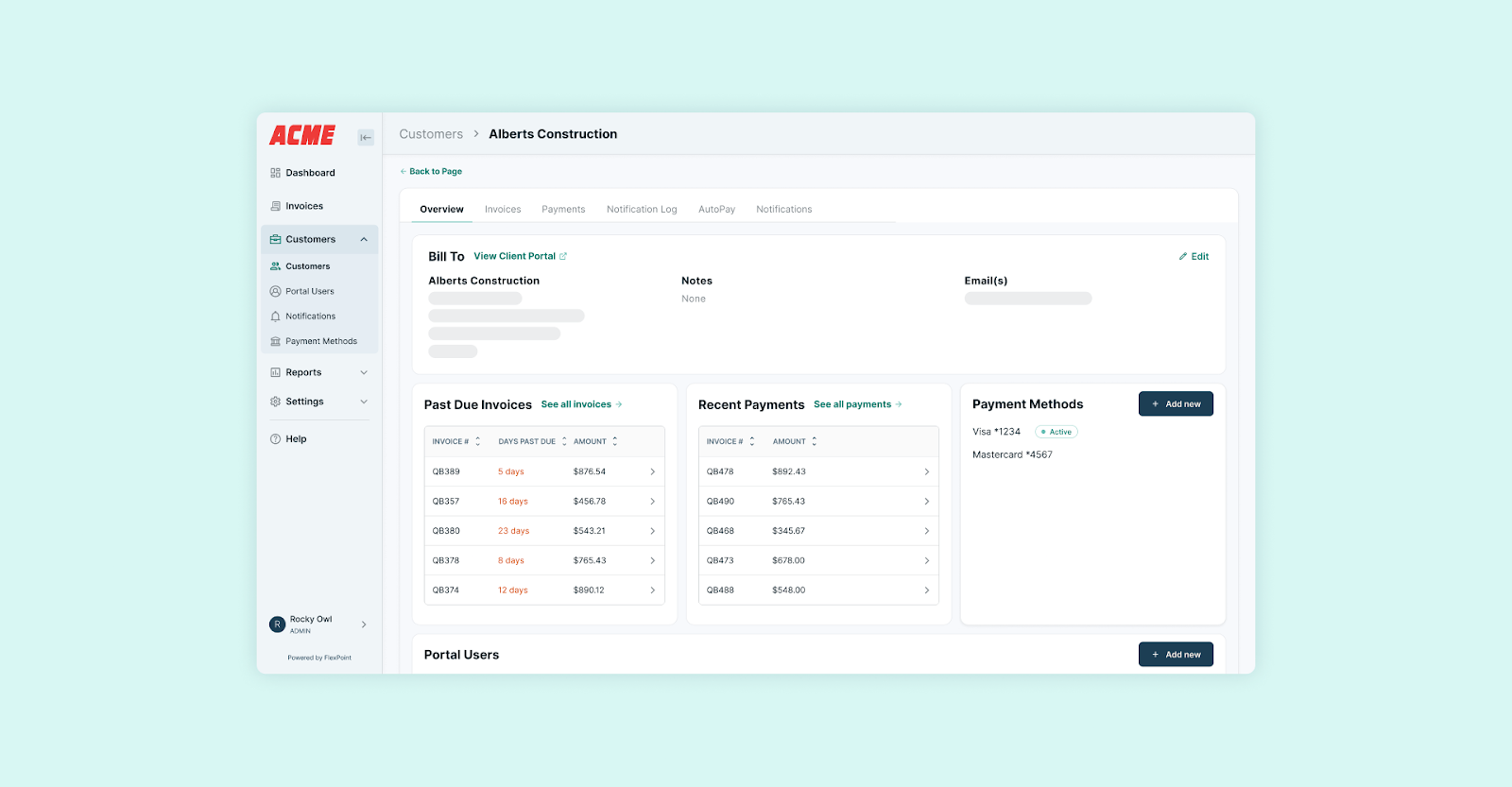
Clients can view and pay invoices under your company’s name (not an Intuit link), even enabling AutoPay for recurring charges.
Because invoices and emails come from your domain, they reinforce your brand and build trust compared to generic QuickBooks notifications.
Automated Collections:
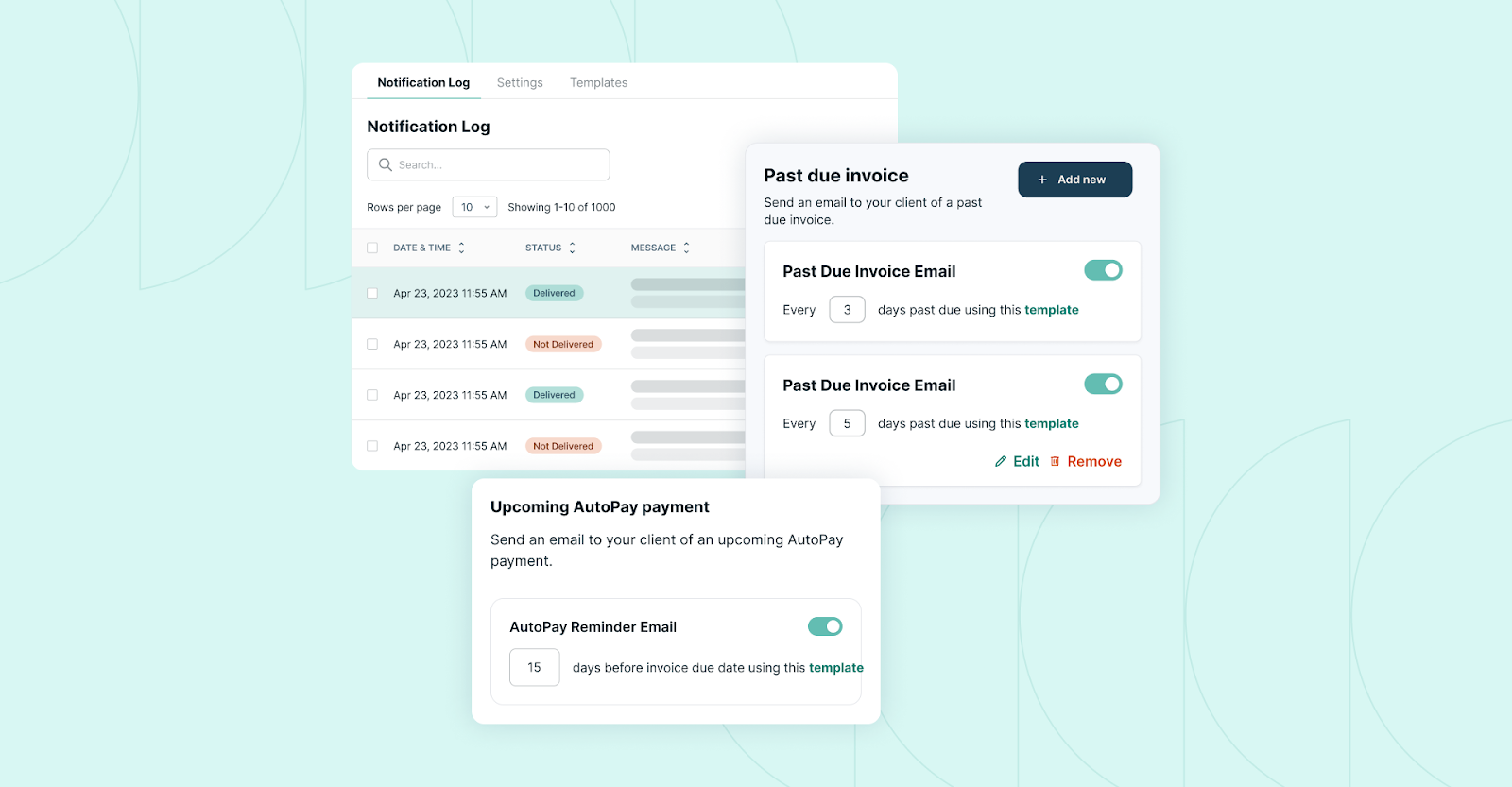
FlexPoint has built-in A/R automation to get you paid faster.
The platform tracks when clients open invoices and sends timely follow-up reminders if payments are late. You can set multiple reminder stages and escalation notices for delinquent accounts.
This hands-off collections workflow reduces the time your team spends chasing payments.
Lower Fees & Surcharging:
FlexPoint helps protect your margins.
ACH payments processed via FlexPoint cost a flat $0.25 (QuickBooks charges about 1% per ACH transaction).
FlexPoint also supports compliant credit card surcharges. If enabled, the platform can automatically add the card fee for clients who pay by credit card, unlike QuickBooks.
When you combine QuickBooks Online with FlexPoint, you turn QBO into a truly automated, end-to-end invoicing system for your MSP.
QuickBooks continues to manage your general ledger, while FlexPoint handles the advanced billing, payments, and integrations that MSPs need to streamline operations and accelerate cash flow.
Conclusion: Automate Smarter Invoicing With FlexPoint + QuickBooks Online
QuickBooks Online can handle basic invoice automation on its own. However, it’s not enough for modern MSP billing operations.
As your client base grows and billing gets more complex, relying solely on QBO means more manual work, potential errors, and slower payments.
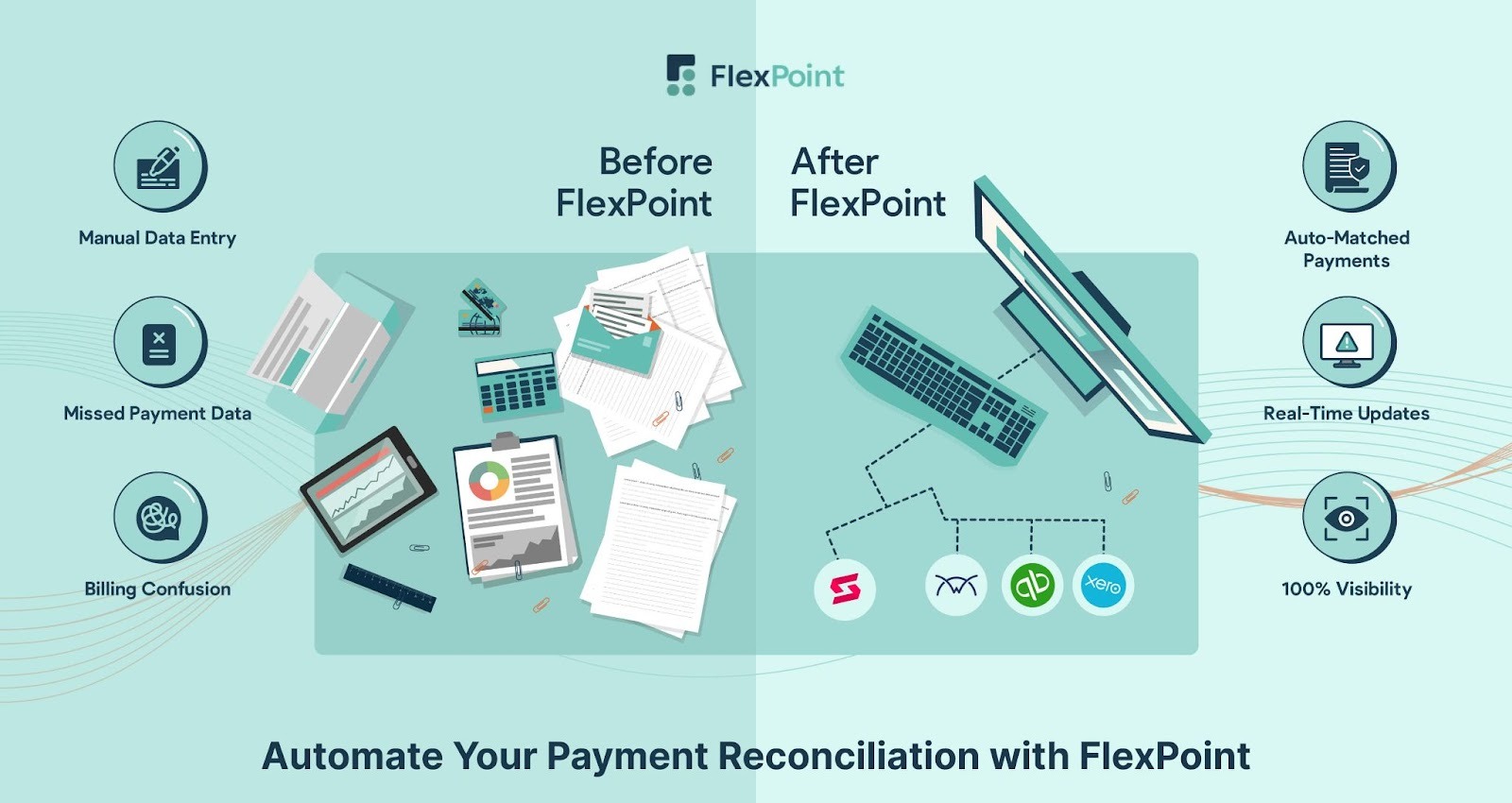
FlexPoint takes the solid foundation QuickBooks provides and upgrades it into a powerful, secure, and client-friendly billing engine for MSPs.
Pairing FlexPoint with QuickBooks Online eliminates billing and collections bottlenecks by automating complex invoices and streamlining client payments.
The result is faster cash flow, fewer mistakes, and more time for your team to focus on service (not paperwork).
Ready to automate your MSP’s billing and invoicing?
Schedule a demo to see how FlexPoint + QBO can streamline your billing operations.
Additional FAQs: QuickBooks Invoice Automation for MSPs
{{faq-section}}





.png)