Consistent cash flow keeps MSP operations running smoothly and supports long-term stability. Yet too often, MSPs find themselves chasing unpaid invoices and dealing with late-paying clients. In fact, 70% of MSPs struggle with cash flow issues due to slow collections and billing inefficiencies. Furthermore, more than half of U.S. business invoices are paid after their due date.
These challenges, including manual invoicing, slow follow-ups, and limited visibility into who owes what, can lead to delayed payments and mounting accounts receivable (AR) balances.
Fortunately, QuickBooks Online offers built-in tools to simplify and automate AR billing. When used effectively, QuickBooks helps MSPs streamline invoice management, speed up collections, and gain real-time insight into receivables.
In this article, we will explain why accounts receivable billing matters for MSPs, how QuickBooks helps manage AR, and provide a step-by-step workflow to optimize your AR process.
We will also demonstrate how integrating QuickBooks with an MSP-focused billing platform, such as FlexPoint, can automate manual tasks and further expedite cash collections.
The result? Fewer billing headaches, faster payments, and a healthier cash flow for your MSP business.
{{toc}}
How Accounts Receivable Billing Works in QuickBooks for MSPs
QuickBooks Online simplifies many aspects of accounts receivable management for MSPs.
At its core, AR billing is about tracking who owes you money, sending invoices, collecting payments, and following up on overdue accounts.
Here are four of the key QuickBooks AR features and how they help MSPs manage receivables and collections:
Client and Invoice Records:
QuickBooks keeps a detailed record of each client’s invoices and payments. You can easily see what each client owes and their payment history in one place.
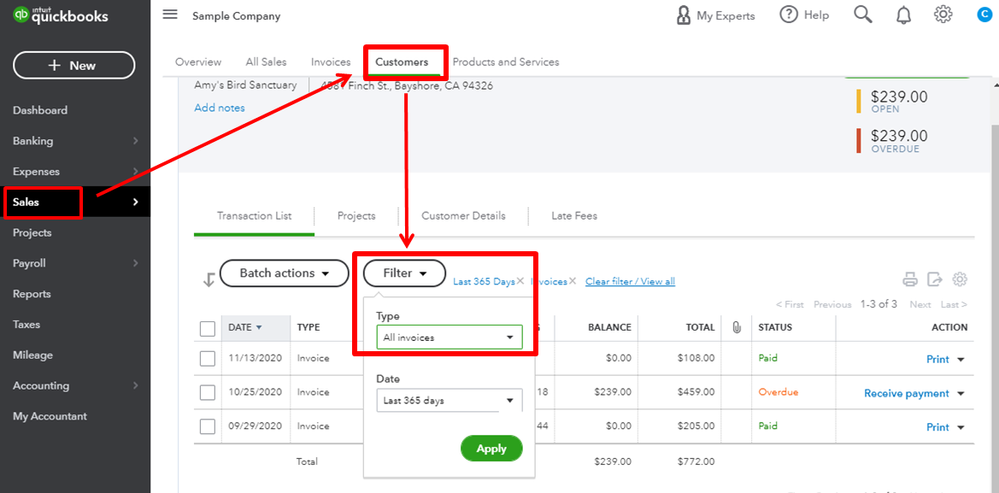
Every invoice you create is linked to the client’s account. Then, at a glance, you know which invoices are open (unpaid) versus paid.
This centralized tracking means you no longer need to juggle spreadsheets to figure out who has an outstanding balance.
Payment Collection Tools:
QuickBooks enables MSPs to accept online payments directly from the invoices they send. With QuickBooks Payments, you can add a “Pay Now” button to your digital invoices, allowing clients to pay by ACH bank transfer or credit card in just a few clicks.
This convenience helps you get paid faster; QuickBooks makes it easy to send invoices and accept payments online through the invoice.
Each payment is automatically recorded and matched to the invoice, reducing manual data entry. By offering clients multiple easy payment options (such as ACH and credit card), you remove payment friction from the collections process.
Invoice Status Tracking:
QuickBooks provides real-time status updates on your invoices. When you email an invoice from QuickBooks, you can see whether the client has viewed it, paid it, or if it’s still outstanding.

This visibility lets MSPs act quickly on unpaid invoices. For example, you will know if a client hasn’t even opened the invoice email, which might explain a delayed payment.
QuickBooks also lets you send invoice reminders with just a few clicks.
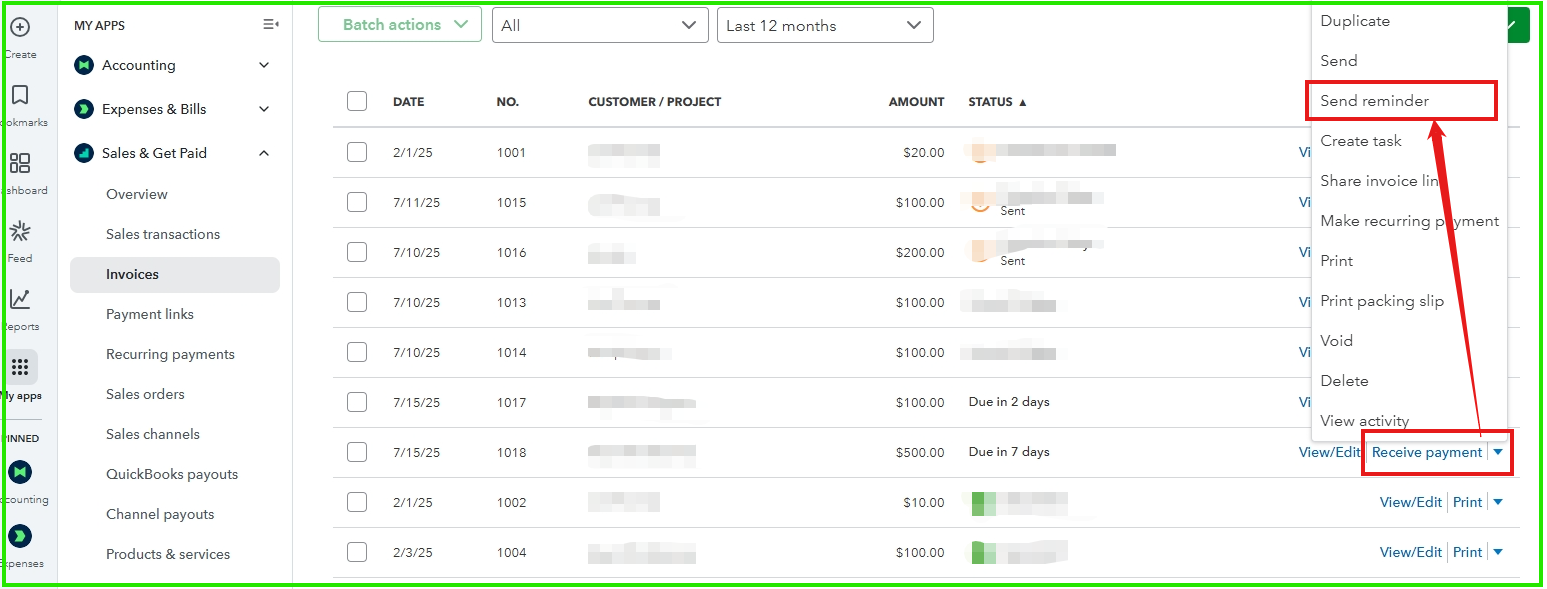
This way, clients have a prompt in their inbox if a due date passes. Staying on top of invoice status ensures unpaid bills don’t go unnoticed.
- A/R Aging Reports:
One of the most powerful AR tools in QuickBooks is the Accounts Receivable Aging report. This report breaks down all your unpaid invoices by age.
For example, current, 1-30 days past due, 31-60 days past due, and so on. It shows which clients are late on payments and by how long.
By running an A/R aging report, MSPs can quickly identify which accounts require urgent follow-up (e.g., any invoices over 60 or 90 days past due) and which ones are coming due soon. This helps prioritize your payment collection efforts where they’re needed most.
QuickBooks makes it easy to generate reports, such as the Outstanding Invoices report, for complete visibility into receivables.
All of these features in QuickBooks give MSPs the visibility and tools needed to stay on top of receivables. By tracking invoices and payments in a single system, accepting online payments, and reviewing aging reports, you can ensure no unpaid invoices are neglected.
In the next section, we’ll outline a step-by-step workflow in QuickBooks to manage AR billing and improve your collection rate efficiently.
Step-by-Step: Managing AR Billing Effectively in QuickBooks
Below is a step-by-step AR billing workflow for MSPs using QuickBooks Online. By following these steps, you can standardize your billing process, reduce delays, and collect payments more efficiently.
This routine covers everything from setting up client terms to automating reminders and running reports.
Step 1: Set Client Terms and Due Dates
Start by defining payment terms for each of your clients in QuickBooks. Establishing clear payment terms (e.g., NET 15, NET 30, due on receipt) sets expectations for when payment is due.
You can configure default payment terms for each client in QuickBooks so that every invoice automatically includes the correct due date. Consistent terms make it transparent to clients how long they have to pay, and they provide a clear timeline for your follow-up process.
Communicate these terms upfront in your MSP service agreements and on the invoices themselves (QuickBooks allows you to display terms on the invoice).
By standardizing payment terms, you’ll know exactly when an invoice is considered “late” and can schedule your collection efforts accordingly.
In addition to setting terms, define a regular billing cycle for your MSP services. Many MSPs bill clients monthly for recurring services. If so, decide whether to invoice on the 1st of the month, on the last day of the month, or on a consistent schedule. QuickBooks can accommodate any schedule you choose.
By setting clear cycles and due dates in QuickBooks, you create a predictable rhythm: clients receive invoices on time, and they understand when payment is expected.
This foundation of clarity and consistency is the first step in improving AR outcomes.
Step 2: Automate Invoice Creation
Manual invoicing is not only time-consuming but also prone to errors and omissions.
To save time and reduce errors, utilize QuickBooks' automation features to create invoices efficiently. If your MSP bills the same amount each period (for example, a fixed monthly managed services fee), take advantage of Recurring Invoices in QuickBooks.
You can set up a recurring invoice template once, and QuickBooks will automatically generate and send those invoices on the schedule you choose (monthly, quarterly, etc.).
This ensures that invoices are sent out on time without you lifting a finger, and no client is ever accidentally forgotten. It also eliminates data entry errors that can occur when invoices are created manually.
For any usage-based or variable charges (e.g., hourly support overages or one-time projects), you can still streamline the creation process: QuickBooks Online Advanced supports batch invoicing and invoice data import.
Many MSPs use a Professional Services Automation (PSA) tool, such as ConnectWise PSA or Autotask, to track billable time and services. Rather than re-keying that information, consider integrating with the PSA to pull data into QuickBooks (or use FlexPoint’s integration, discussed later).
At a minimum, export your PSA data and import it into QuickBooks to generate those invoices in bulk.
The goal of this step is to minimize manual effort in creating invoices. As an MSP, your time is better spent on clients and business growth, not typing invoice line items. Additionally, automation ensures that every billable service is invoiced accurately.
One study found that MSPs using manual billing undercharge by an average of 5% per month due to oversight. By automating invoice creation, you can send out complete, error-free invoices faster, which directly improves your cash flow.
Step 3: Activate Online Payment Links for Invoices
One of the simplest ways to speed up receivables is to make it easy for clients to pay you. In QuickBooks Online, ensure that you activate online payments on your invoices.
This adds a payment link or button to the digital invoice, allowing clients to pay by credit card or ACH bank transfer instantly.
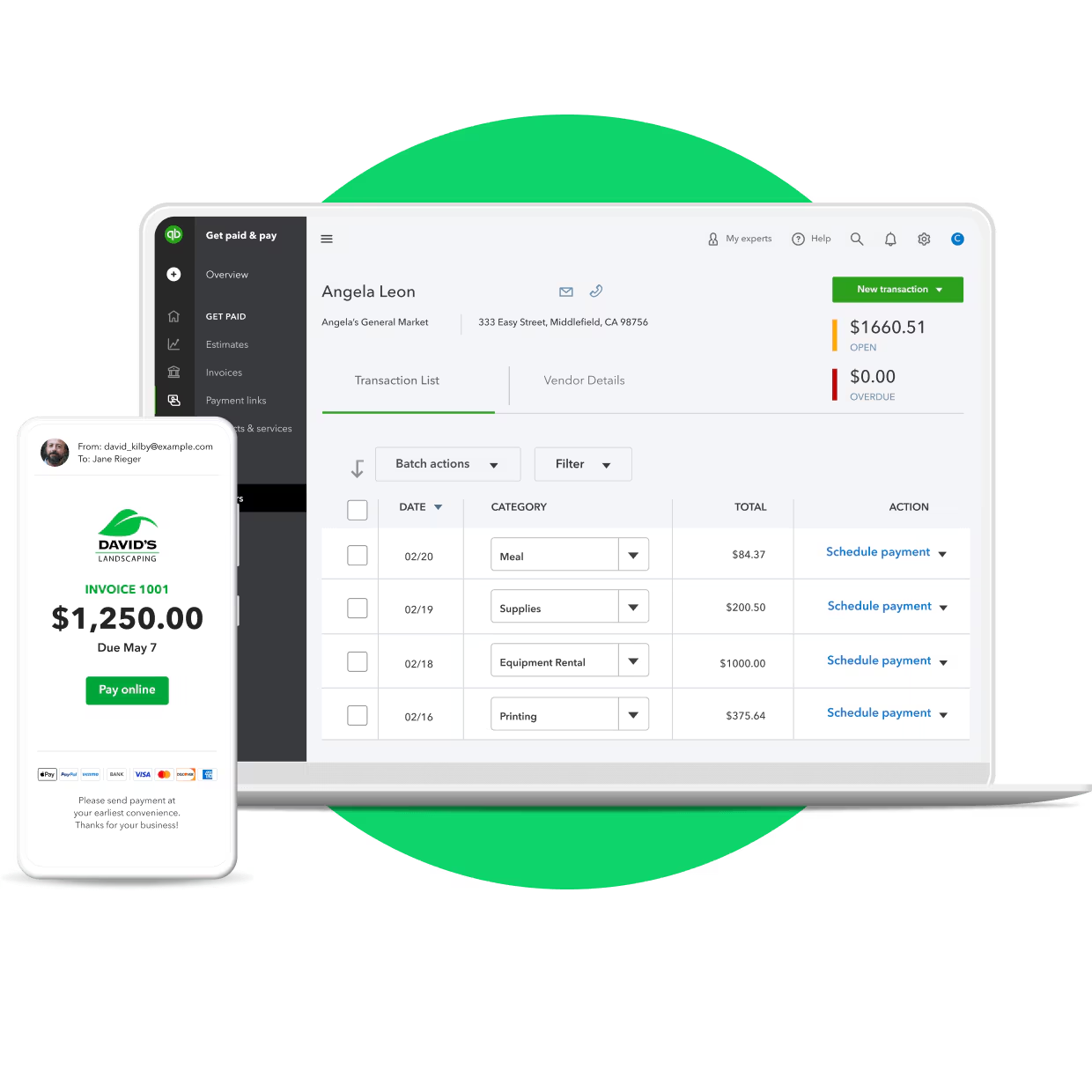
For MSPs, offering an online payment option is a notable advantage: your clients can click the invoice email and pay on the spot, rather than mailing a check or initiating a bank transfer themselves. The convenience often means you’ll see invoices paid days or weeks sooner.
To use this feature, you’ll set up QuickBooks Payments (if you haven’t already). Then, when creating an invoice, simply check the option to allow online payments. You can choose to enable ACH (bank) payments, credit/debit cards, or both.
Many MSPs prefer ACH for larger invoices to avoid high card fees (QuickBooks Payments supports ACH at a low cost).
Regardless of the methods you enable, the client will see a “Pay Now” link in both the invoice email and the PDF. QuickBooks will process the payment and automatically update your records to mark the invoice as paid.
Not only does this make life easier for your clients, but it also saves you from manually recording payments and reduces the chance of errors in applying payments.
In short, online payment links transform your invoices into a two-click payment experience for clients, accelerating the whole AR cycle.
Offering multiple payment options can improve collections. For example, 67% of businesses use credit cards, and 87% use ACH for B2B payments. The easier it is for your client to pay in their preferred way, the faster you get the money.
Step 4: Enable Automated Payment Reminders
Even with clear terms and easy payment options, some invoices will inevitably slide past their due dates. Clients get busy, or invoices get overlooked. Instead of manually tracking each overdue invoice and sending nag emails, let QuickBooks do the reminding for you.
Automated payment reminders are a simple yet effective tool for reducing late payments. In QuickBooks Online, you can set up rules to automatically email a reminder to the client if an invoice hasn’t been paid by a certain number of days after the due date.
For example, you might schedule a polite reminder 1 day after the due date, and another if the invoice becomes 10 days overdue. These reminder emails include the invoice details and a note (you can customize the message) prompting the client to pay or to reach out if there’s an issue.
Using automated reminders takes a huge burden off your plate: you no longer have to remember to individually follow up on each past-due invoice. It also ensures consistency: every overdue invoice receives a follow-up on time, without any emotion or hesitation a person might have.
QuickBooks’ reminder feature can be configured to your preferences, and once enabled, it runs in the background. This kind of timely nudge can significantly improve collections.
Often, clients pay simply because the reminder popped up in their inbox (sometimes they genuinely forgot or missed the original invoice). QuickBooks also allows you to send manual reminder emails or statements with a couple of clicks, but the automated schedule is a helpful tool for busy MSP teams.
By reducing the number of invoices that go seriously outstanding, automated reminders help you maintain a healthy cash flow. (And as an MSP, you want to spend less time chasing payments and more time on delivering services.)
Overall, this step helps reduce your Days Sales Outstanding (DSO) by promptly addressing slow payers.
Step 5: Run A/R Reports Weekly
Lastly, make it a habit to regularly monitor your receivables.
A best practice is to review your A/R Aging report in QuickBooks on a regular basis (for example, every Friday morning or Monday afternoon). This routine review keeps you fully informed about the status of your outstanding invoices.
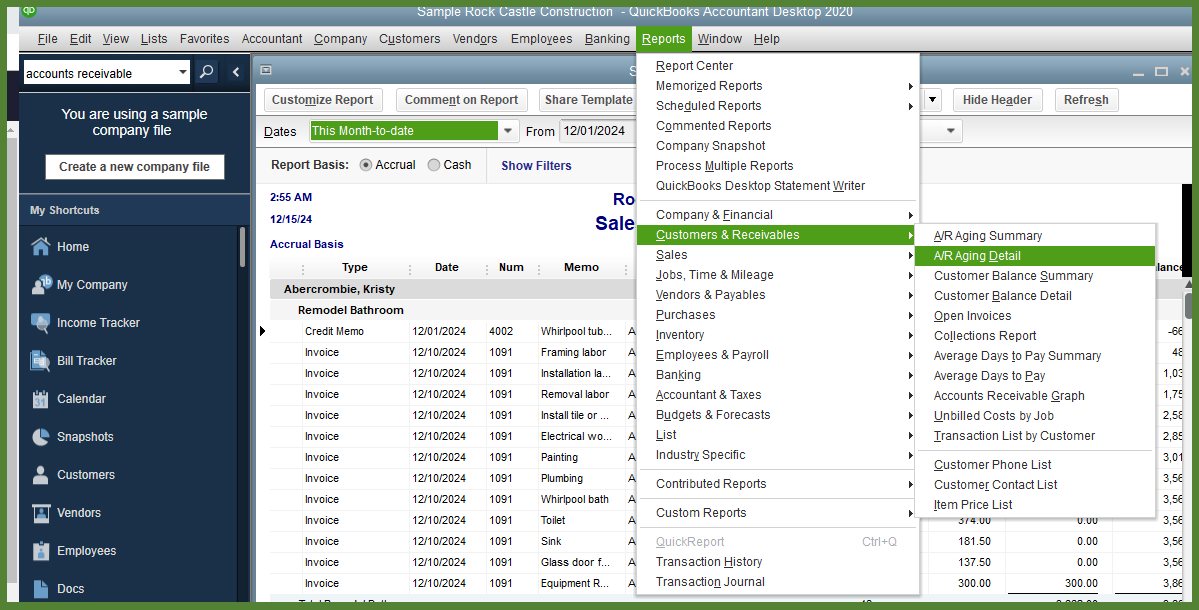
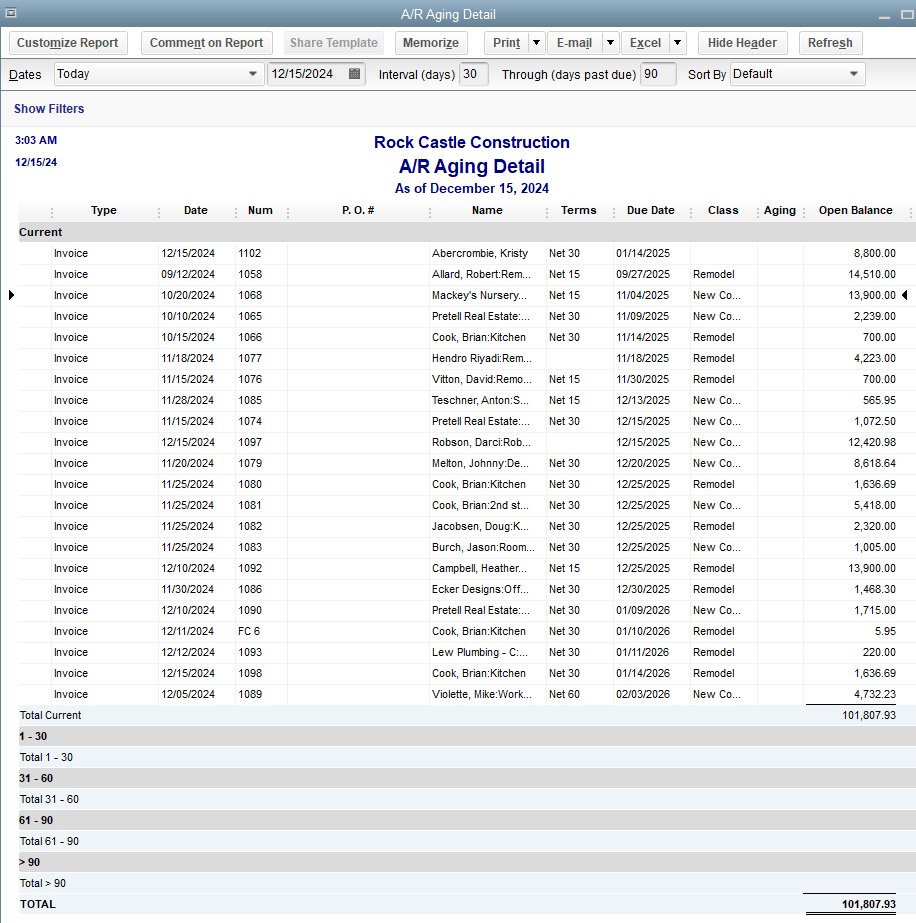
When you run the aging report, note any invoices that have moved into older aging buckets (30+ days overdue) and ensure they are addressed, whether through additional reminders, phone calls, or, if necessary, escalation to collections.
Frequent reviews mean there are no surprises; you’ll spot if a particular client is falling behind or if overall receivables are growing abnormally.
QuickBooks can also generate an Open Invoices or Outstanding Balances report, which lists all unpaid invoices.
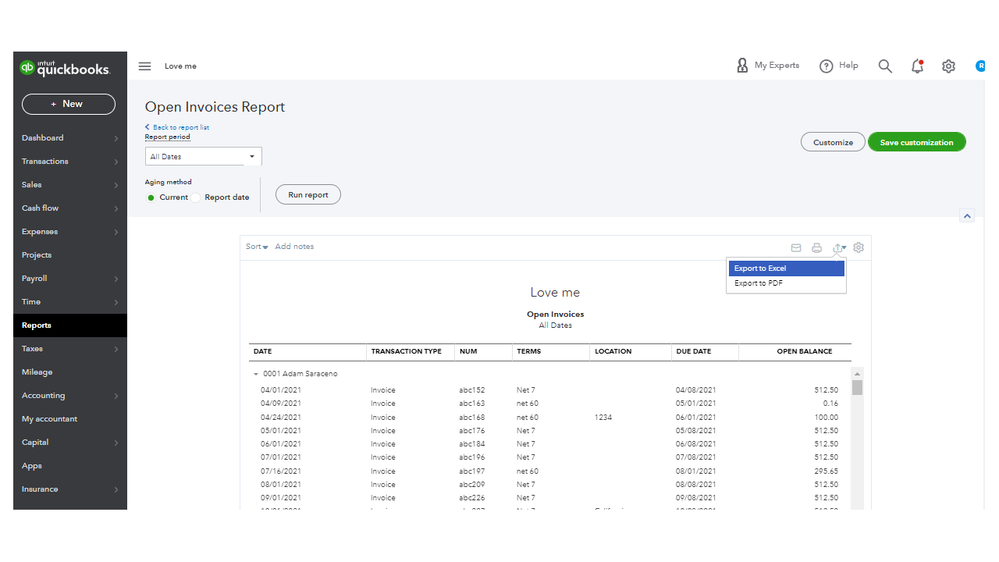
Reviewing these reports on a weekly basis helps you prioritize your collection efforts for the upcoming days.
During your weekly AR review, you may also want to check the status of recent payments.
Confirm that expected payments (from clients who promised to pay or from automated credit card payments) have been received. QuickBooks’s dashboard and reports will show you if, for instance, your total receivables have decreased since last week (a good sign) or if certain accounts remain unpaid.
By keeping a close eye, you can take early action as needed. This might include contacting a client who is 45 days past due to discuss a payment plan, or pausing work for a chronically late-paying client until they catch up.
Think of this step as your AR safety net: it ensures nothing slips through the cracks. It only takes a few minutes with QuickBooks reports to get a clear picture of your cash inflows and outflows. This discipline will help prevent minor payment issues from becoming major problems.
Remember, the longer an invoice remains unpaid, the more difficult it becomes to collect, so regular monitoring is crucial. Industry data from Upflow shows that invoices over 90 days are 60% more likely to remain unpaid. Consistent follow-up and review can prevent invoices from becoming overdue.
By following these five steps in QuickBooks, MSPs can create a repeatable AR process that runs smoothly each billing cycle smoothly. You’ll be invoicing promptly, making it easy for clients to pay, nudging them when needed, and keeping a close eye on aging accounts.
Next, let’s look at how pairing QuickBooks with FlexPoint (a platform built for MSP billing) can take your AR efficiency to the next level.
FlexPoint + QuickBooks Online: Automate AR Billing for MSPs
While QuickBooks Online provides a strong foundation for AR management, MSPs often face complexities beyond basic invoicing. This is where FlexPoint, an MSP-focused billing and payments platform, complements QuickBooks to create an end-to-end automated AR workflow.
FlexPoint directly integrates with QuickBooks Online (and popular MSP PSA systems), acting as a bridge that automates the most time-consuming parts of the billing-to-collections process for MSPs.
Here are the ways FlexPoint + QBO together can supercharge your AR billing:
Automated Invoice Syncing with PSA and Accounting Software:
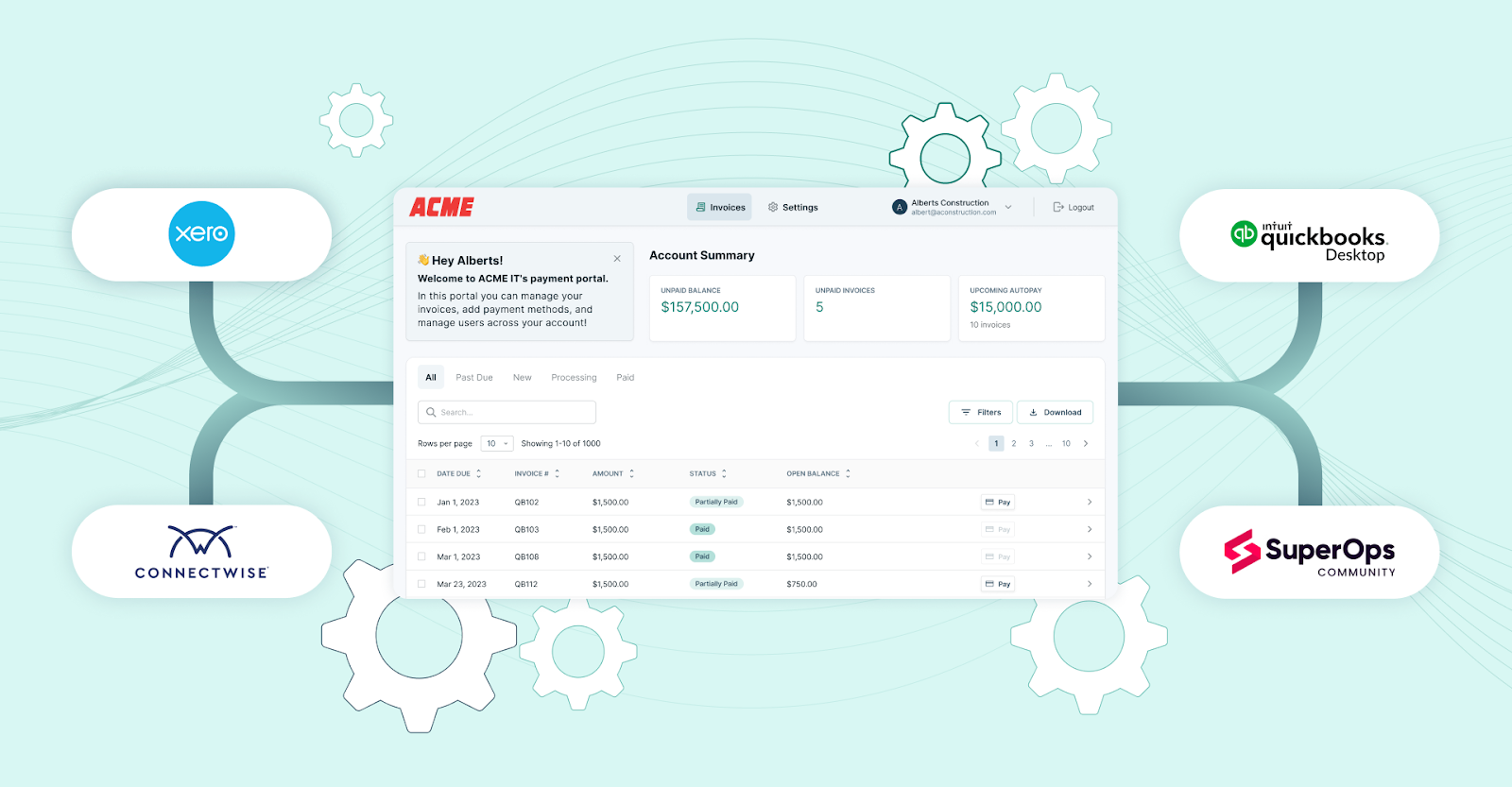
FlexPoint connects to your PSA (Professional Services Automation) tool and QuickBooks simultaneously. It can pull billing data (such as hours logged, tickets, recurring charges) from the PSA and automatically create invoices in QuickBooks with all the correct line items.
FlexPoint generates the invoice and automatically pushes it to QuickBooks, eliminating the need for manual entry. This ensures that your invoices are always based on actual service data, so nothing gets missed.
Likewise, if you create an invoice or subscription in FlexPoint, it will sync to QuickBooks instantly.
By automating invoice creation and syncing, MSPs eliminate duplicate data entry across systems and avoid errors from retyping information.
Real-Time Payment Updates and Deposit Reconciliation:

When your clients make payments, FlexPoint handles the heavy lifting in QuickBooks.
For example, suppose a client pays an invoice through FlexPoint’s online portal (via ACH or credit card). In that case, the payment is immediately recorded in QuickBooks and matched to the correct invoice in the PSA (such as ConnectWise PSA, Autotask, SuperOps, or HaloPSA).
FlexPoint automates the payment reconciliation for you, marking invoices as paid, updating balances, and even reconciling bank deposits.
This automated reconciliation is a significant benefit for MSPs that process numerous payments, as manually matching payments to invoices and deposits can consume hours of administrative time each week.
FlexPoint eliminates QuickBooks deposit reconciliation errors by ensuring every payment and payout is synced accurately.
In other words, the numbers in your PSA, FlexPoint portal, bank account, and QuickBooks all align perfectly without requiring manual effort.
Automating this matching process saves significant time and reduces errors. The result is up-to-date books and less time spent on month-end accounting tasks.
Support for Complex MSP Billing Models:
FlexPoint is purpose-built for MSPs, which means it understands recurring revenue, usage-based billing, and other nuances of the IT services business.
FlexPoint can handle:
- Monthly recurring invoices
- Annual contracts billed monthly
- One-off project fees
- Advanced billing, such as proration or tiered usage
All of these sync properly with QuickBooks.
Because FlexPoint was designed around MSP workflows, it accommodates service bundling, multiple agreements per client, and other scenarios that generic accounting software may not handle gracefully.
FlexPoint adds an automation layer tailored to MSP billing needs, on top of QuickBooks’ accounting foundation. This allows you to scale your billing without scaling admin workload; whether you have 20 clients or 200, the process stays efficient.
PSA and Accounting Alignment:
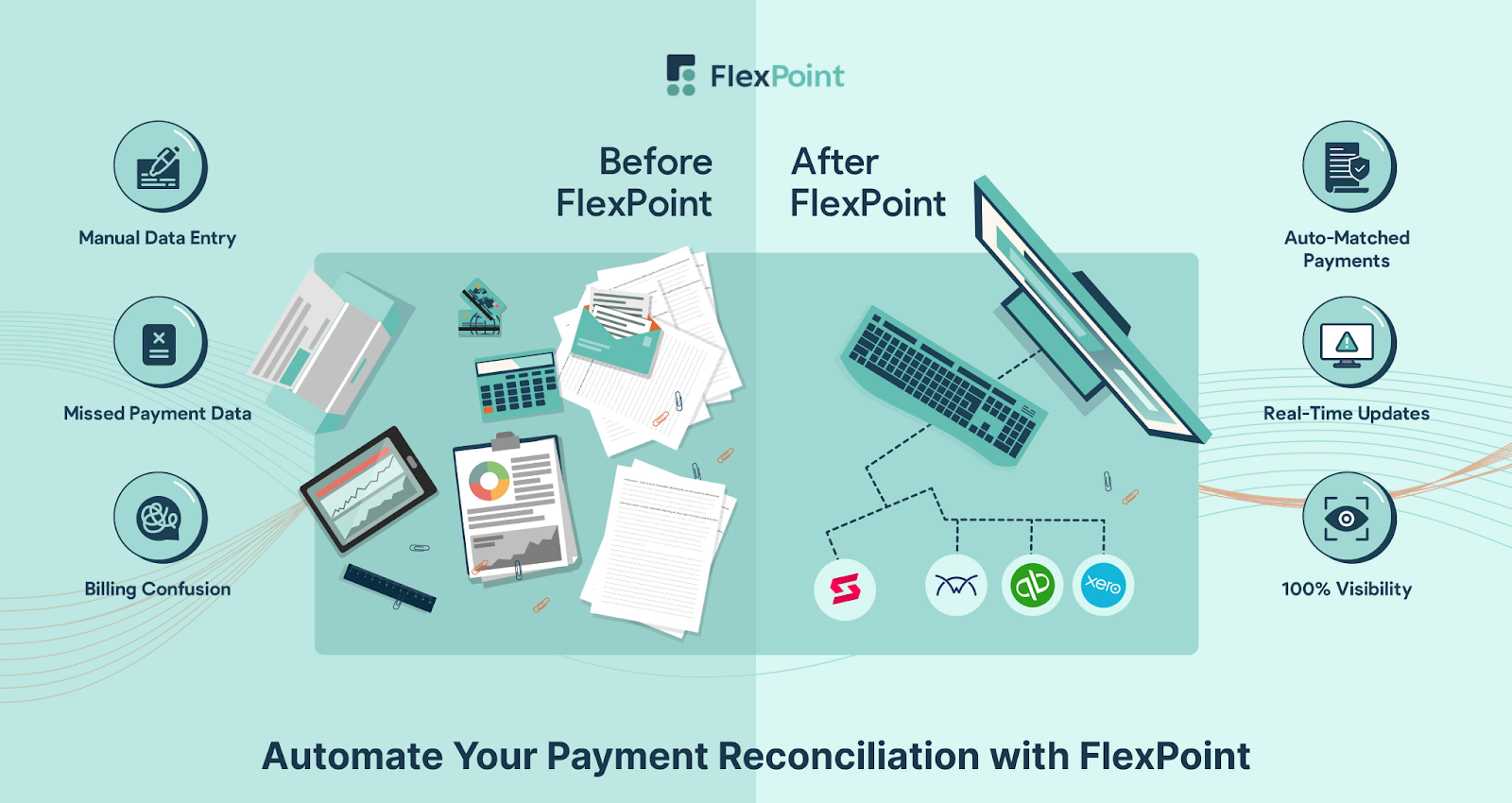
A significant benefit of FlexPoint is its ability to synchronize data across your systems. MSPs can struggle with disconnected PSA and accounting platforms, leading to constant import/export or manual data re-entry (e.g., entering time in PSA, then re-entering it in QBO to create invoices).
FlexPoint solves this by connecting to both your PSA and QuickBooks and sharing data between them.
Tickets, time entries, or services logged in the PSA flow through FlexPoint into QuickBooks invoices, and payments received in QuickBooks (or FlexPoint) flow back into the PSA as updates. This two-way integration means your finance and operations systems are always in sync.
No more discrepancies between what your techs say was billed and what finance sees in QuickBooks. It also means that everyone, from service managers to accounting staff and owners, can trust that they’re looking at the same, single source of truth.
By aligning PSA and accounting data, FlexPoint helps MSPs avoid revenue leakage (missed billables) and maintain clean records without double-entry.
Email Tracking and Automated Follow-ups:
FlexPoint goes beyond what QuickBooks alone can do by providing enhanced accounts receivable automation features. For instance, FlexPoint’s platform tracks when clients view or click on an invoice email.
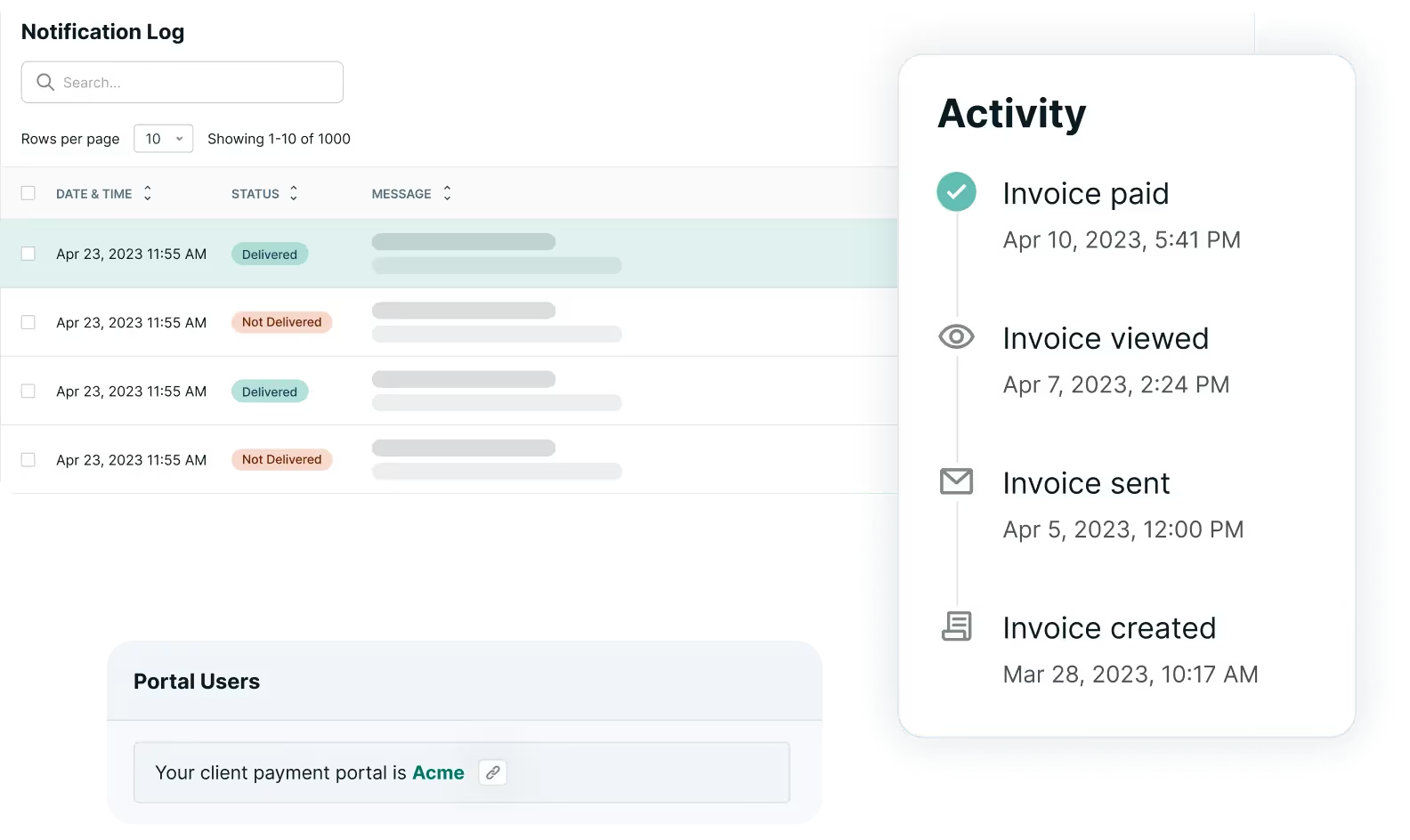
This visibility can alert you if a client hasn't seen a bill (perhaps the email went to spam), so you can resend it or reach out to them.
Moreover, FlexPoint can send its own automated payment reminders and past-due notices using your configured schedule, thereby eliminating the need for manual work in collections.
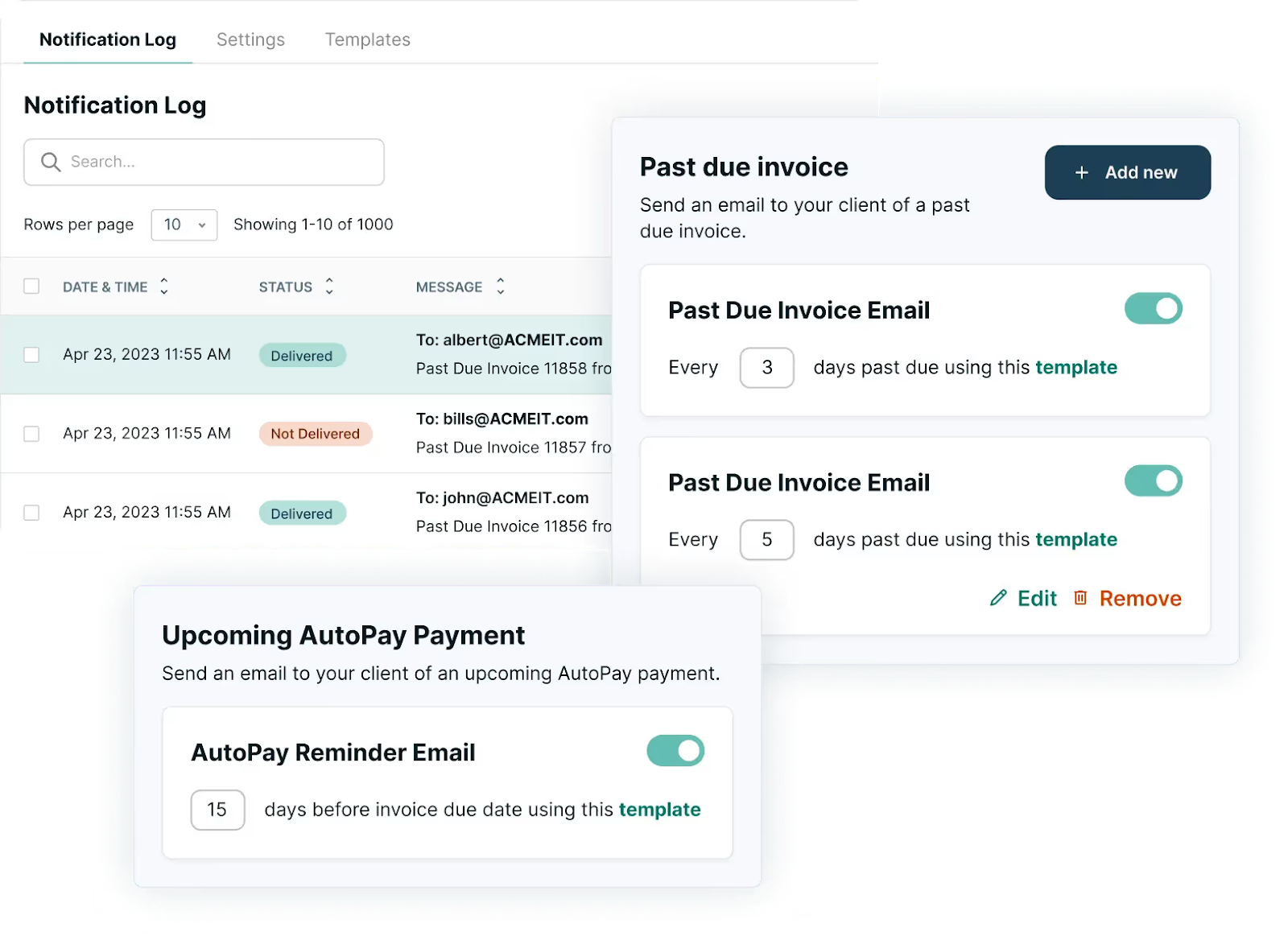
FlexPoint even supports customizable email templates, and you can send reminders from your own domain for a professional touch.
These features enable MSPs to effectively automate invoice follow-up. Instead of individually emailing clients about overdue invoices, FlexPoint ensures that no invoice is forgotten and that clients receive timely reminders.
This type of automation has a direct impact: companies that utilize AR automation experience shorter payment cycles and increased efficiency. According to recent statistics, businesses that utilize AR automation experience 40% faster payments and 90% fewer reporting errors.
For an MSP owner, it’s peace of mind to know that once an invoice goes out, the system will handle the routine follow-ups and keep you notified of any issues.
Client Self-Service Portal:
Finally, FlexPoint enhances the client experience of paying you. With FlexPoint, MSPs can offer a branded client payment portal where clients can log in to view all their invoices, make payments, and even set up AutoPay for recurring charges.
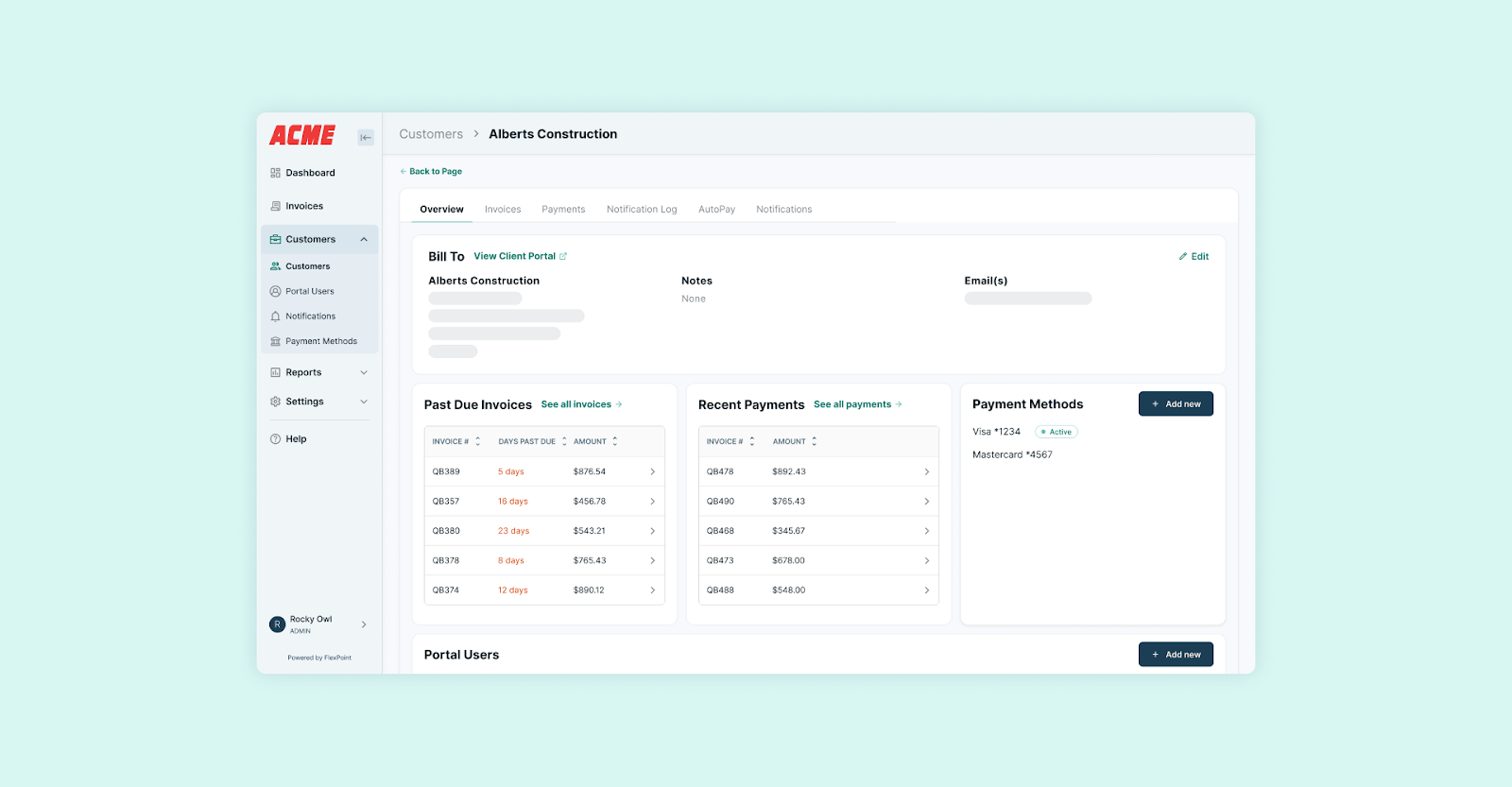
The portal is white-labeled with your company’s branding. This way, it feels like an extension of your business rather than a third-party site.
Plus, by enabling features such as AutoPay through FlexPoint, you can have specific clients’ invoices paid automatically on their due dates, further improving on-time payments.
Overall, the portal and automation features mean less work for your AR team and fewer barriers to your clients paying on time.
FlexPoint effectively creates an end-to-end billing ecosystem: from the moment an invoice is generated in QuickBooks to the moment payment is received and reconciled, every step is streamlined.
In summary, combining QuickBooks Online with FlexPoint enables MSPs to eliminate manual billing steps, prevent billing errors, and significantly accelerate collections.
QuickBooks provides the accounting backbone and basic AR tools, while FlexPoint adds the intelligent automation and MSP-specific workflows to supercharge the process.
Many MSPs, including TekRescue, report saving dozens of hours per month on billing admin and other operational improvements by implementing this integration.
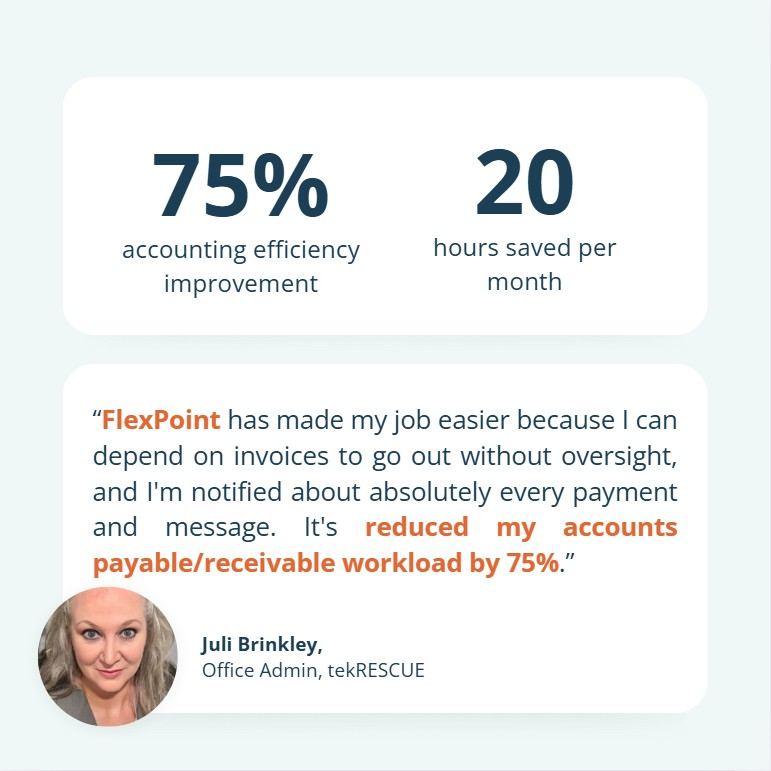
By automating invoice syncing, payment processing, and follow-ups, FlexPoint + QBO helps you get from billable work to cash in the bank faster than ever.
Conclusion: Optimize AR Billing and Collections With QuickBooks Online and FlexPoint
Efficient accounts receivable management is essential for every MSP. QuickBooks Online gives you the fundamental tools to take control of AR billing, from easy invoicing and online payment acceptance to overdue account tracking reports.
By implementing the step-by-step practices outlined above, MSPs can use QuickBooks to stay organized with receivables, reduce billing errors, and encourage clients to pay sooner. The payoff is a smoother billing cycle, fewer late payments, and healthier cash flow.
Remember, automation and consistency are your allies: scheduling invoices, enabling payment links, and using automatic reminders in QuickBooks all help remove friction and human error from the process.
To truly accelerate collections and minimize administrative work, consider extending QuickBooks with an MSP-specific solution, such as FlexPoint.
As discussed, FlexPoint’s integration with QuickBooks Online provides powerful automation for invoicing, payments, and reconciliation, resulting in a seamless end-to-end workflow.
MSPs who leverage FlexPoint alongside QuickBooks can save dozens of hours on manual billing tasks and see payments deposited sooner, all while maintaining accurate books.
The combination of QuickBooks’ robust accounting features and FlexPoint’s MSP-tailored automation lets you manage receivables with complete visibility and control.
With QuickBooks and the proper practices (and integrations) in place, you’ll transform AR from a chore into a streamlined, predictable process. That means improved cash flow, reduced stress over outstanding invoices, and increased focus on growing your MSP business.
Ready to automate your AR and accelerate collections?
FlexPoint + QuickBooks Online gives MSPs complete visibility and control over their receivables.
Schedule a demo to see how FlexPoint + QBO can streamline your billing operations.
Additional FAQs: QuickBooks AR Billing for MSPs
{{faq-section}}
.png)

.png)
.png)