

Many MSPs depend on recurring revenue from ongoing IT services. According to Scribe, a typical MSP serves around 122 clients, each billed $99–$250 per user monthly. However, managing hundreds of repeat invoices manually is tedious and risky. Cash flow can suffer if invoicing slips through the cracks: a U.S. Bank study found 82% of business failures stem from poor cash flow management.
Fortunately, QuickBooks Online offers tools to automate recurring billing, ensuring a steady revenue stream.
QuickBooks recurring invoices enable you to schedule invoices for regular intervals (e.g., monthly or quarterly) so they are sent out on time without requiring manual effort.
Once set up, QuickBooks automatically generates and emails these invoices to clients each time they recur. This ensures every managed services client contract is billed promptly, improving cash flow stability.
In this article, we will explain how recurring invoices work for MSPs, provide a step-by-step guide to set them up in QuickBooks Online, and show how integrating FlexPoint with QuickBooks takes recurring billing automation even further.
{{toc}}
How Recurring Invoices Work in QuickBooks Online for MSPs
Recurring invoices in QuickBooks Online are essentially invoice templates that repeat on a set schedule.
Below, we will discuss the critical components for creating recurring invoices in QuickBooks Online.
1. Recurring Templates:
You create a template once, define the interval (daily, weekly, monthly, or yearly), and QuickBooks will automatically generate each invoice when it is due.
Your clients are then invoiced regularly (e.g., monthly) for ongoing services, without you having to re-enter the data each time. If you enable online payments on these invoices, clients can even set up their own Autopay.
This means QuickBooks will charge them automatically on the schedule you choose. This makes recurring billing almost hands-off for you and convenient for your clients.
According to TechGrid, subscription models can increase revenue predictability by 20-30%. Considering that impressive statistic, it is not surprising that subscription-style billing is now mainstream.
Switching to recurring invoices can be a significant advantage for MSPs. When most of your revenue comes from monthly service agreements, timely invoices are critical. QuickBooks’ recurring transaction feature lets you “set and forget” those invoices.
2. Flexible Billing Intervals:
You can schedule your recurring invoices to go out on a specific day (for example, the 1st of each month). Depending on contract terms and what suits your MSP best, you can choose from daily, weekly, monthly, or custom schedules.
You can also include any fixed charges for services such as:
- Managed IT support
- Cloud subscriptions
- Backup solutions
Invoices are emailed to clients automatically at each interval, and you can choose to be CC’d or to have QuickBooks mark them as sent.
Some MSPs also use recurring Sales Receipts (with stored payment information) to automatically charge clients' credit cards for faster collection. To do so, you must first sign up for QuickBooks Payments (Merchant Services).
If you stick with recurring invoices, clients receive bills on schedule and can pay each time via their preferred payment method.
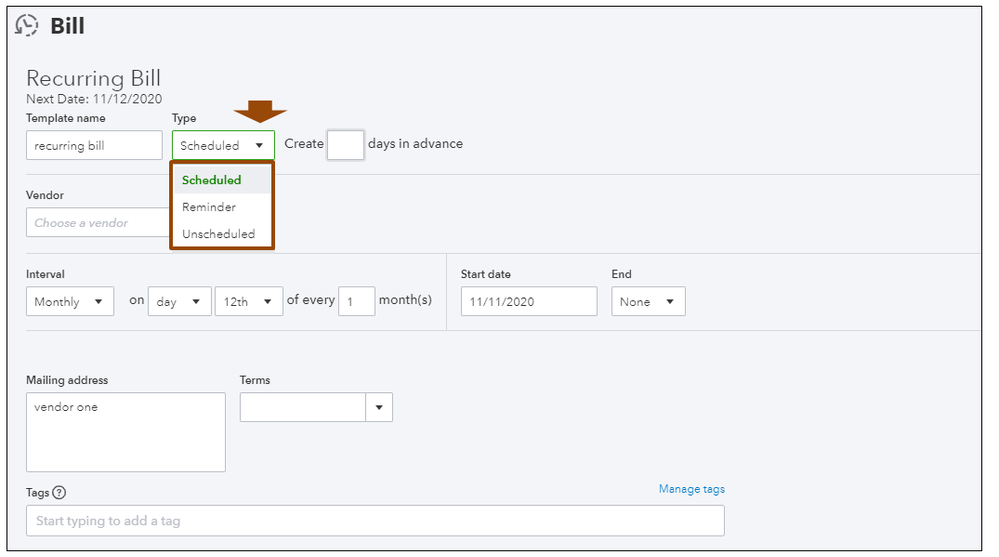
Recurring invoice templates in QuickBooks can be set as:
- Scheduled: Automatically generates and optionally emails invoices.
- Reminder: Prompts you to review and send manually.
- Unscheduled: Saved for use when needed.
3. Client-Specific Settings:
You can create unique templates for each client to reflect their specific pricing models, service bundles, payment terms, and contract lengths.
For example, one client may be billed a flat monthly rate for 24/7 support, while another client pays per user for select services such as remote monitoring or antivirus licensing.
Each recurring invoice template can be tailored to match the exact structure of the client’s service agreement, down to the frequency, line items, tax rules, and due dates.
You can also apply unique payment terms, such as NET 15 or NET 30, and include personalized descriptions that align with the client’s expectations.
This level of customization helps reduce payment disputes or confusion and ensures your invoices are always aligned with what was promised. Template customization also allows MSPs to efficiently manage a wide range of contract types without manually tweaking invoices every month.
4. Auto-Send and Auto-Copy Options:
You can also decide whether to auto-send emails and whether to include any unbilled charges on the invoice (for example, if you track billable time or expenses in QuickBooks).
Once a recurring invoice template is active, QuickBooks handles the repetitive work, ensuring each client is billed the correct amount at the right time.
Such automation directly benefits your cash flow.
Timely, consistent invoicing means clients are more likely to pay on time, preventing revenue gaps. MSPs that rely on manual invoicing often experience delays.
Studies show that manual billing processes require 67% more follow-up time, result in longer payment cycles, and lead to 30% higher Days Sales Outstanding (DSO).
By using recurring invoices, MSPs streamline invoicing and reduce human error, a key step in overcoming MSP billing challenges. It’s important to remember, however, that QuickBooks by itself treats recurring invoices like any other invoice.
You will still want to reconcile payments and monitor your accounts receivable.
In the next section, we’ll walk through setting up a recurring invoice in QuickBooks Online step by step. Then, you can start automating your billing and avoid those end-of-month invoicing scrambles.
Step-by-Step: Setting Up Recurring Invoices in QuickBooks Online
Setting up a recurring invoice in QuickBooks Online is straightforward.
Follow these steps to automate your MSP billing in just a few minutes:
Step 1: Navigate to the Recurring Template Setup
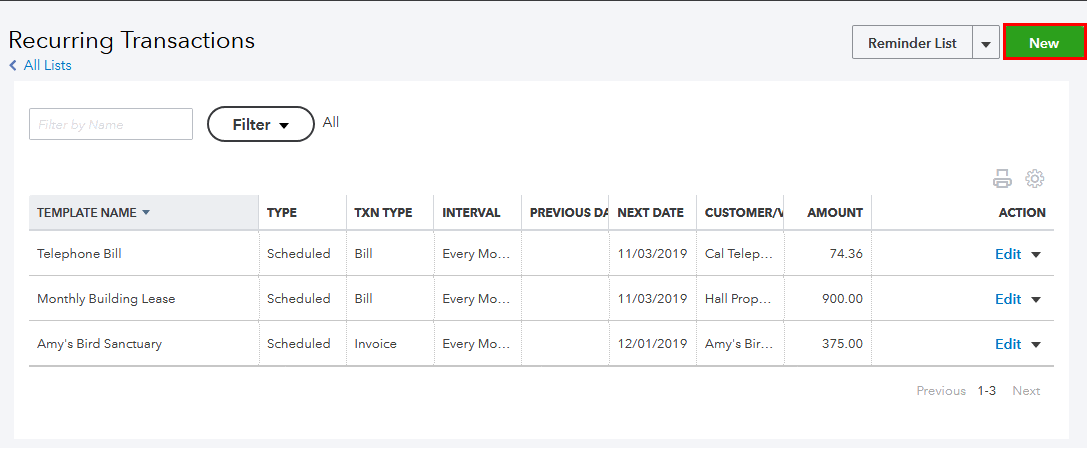
Log in to QuickBooks Online and go to the dashboard.
Click the Gear icon (⚙️) in the top right corner. In the dropdown under Lists, select Recurring Transactions. This opens the Recurring Transactions page, where all your recurring templates are stored.
From here, you can view existing recurring templates (if any) and create a new one.
Step 2: Choose Invoice as the Transaction Type
On the Recurring Transactions page, click the New button (usually at the upper right). QuickBooks will prompt you to choose a Transaction Type.
Select Invoice and click OK. This tells QuickBooks that you want to set up a recurring invoice (as opposed to a bill, expense, or other transaction).
Selecting Invoice will launch the recurring invoice template form, where you can configure the details.
Step 3: Define the Recurrence Schedule and Start Date
Now you’ll fill out the template for your recurring invoice.
At the top, give the template a name (e.g., “Monthly Service Contract – Client A”) to identify it later. Set the Type to Scheduled for automatic creation.
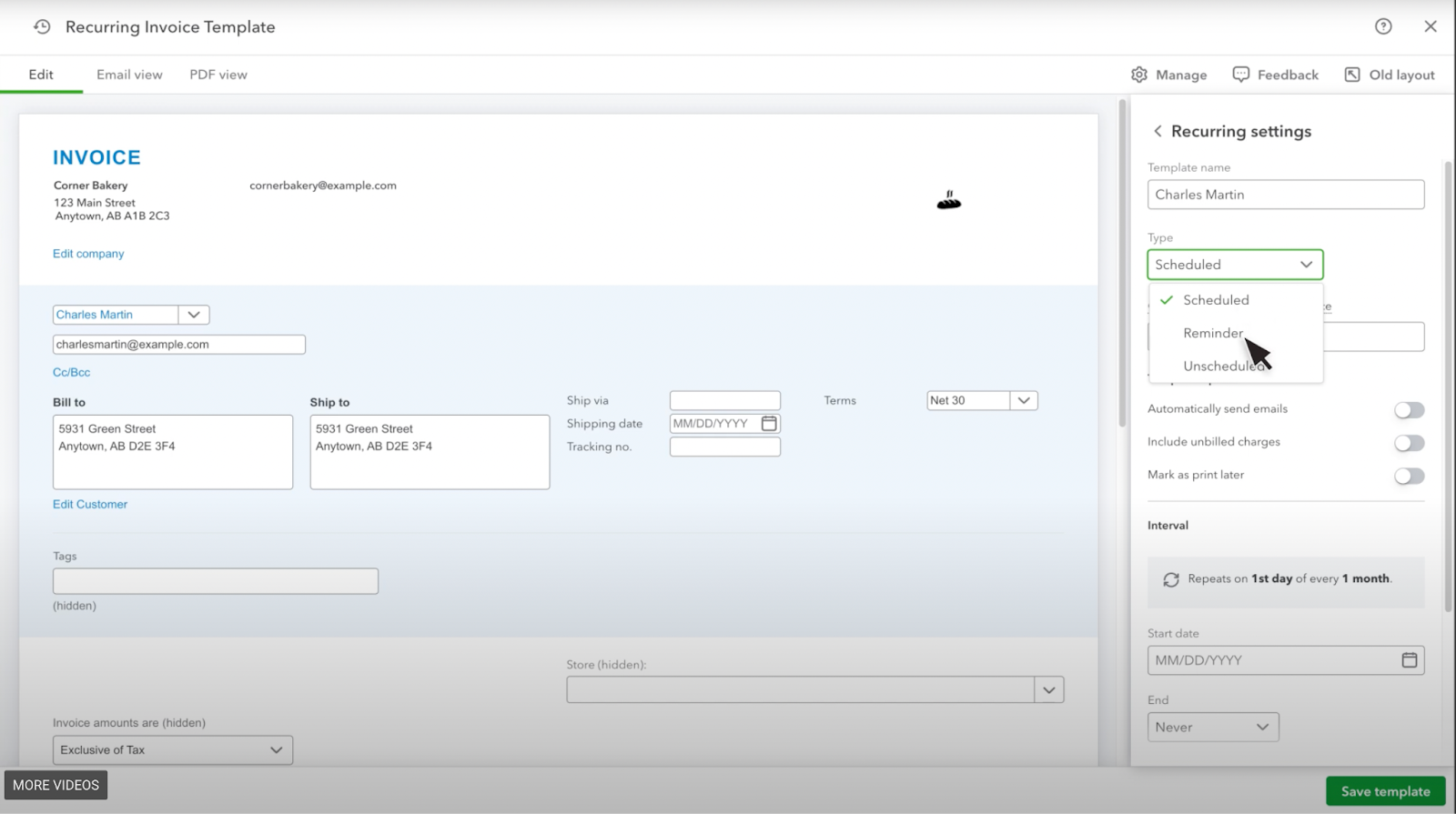
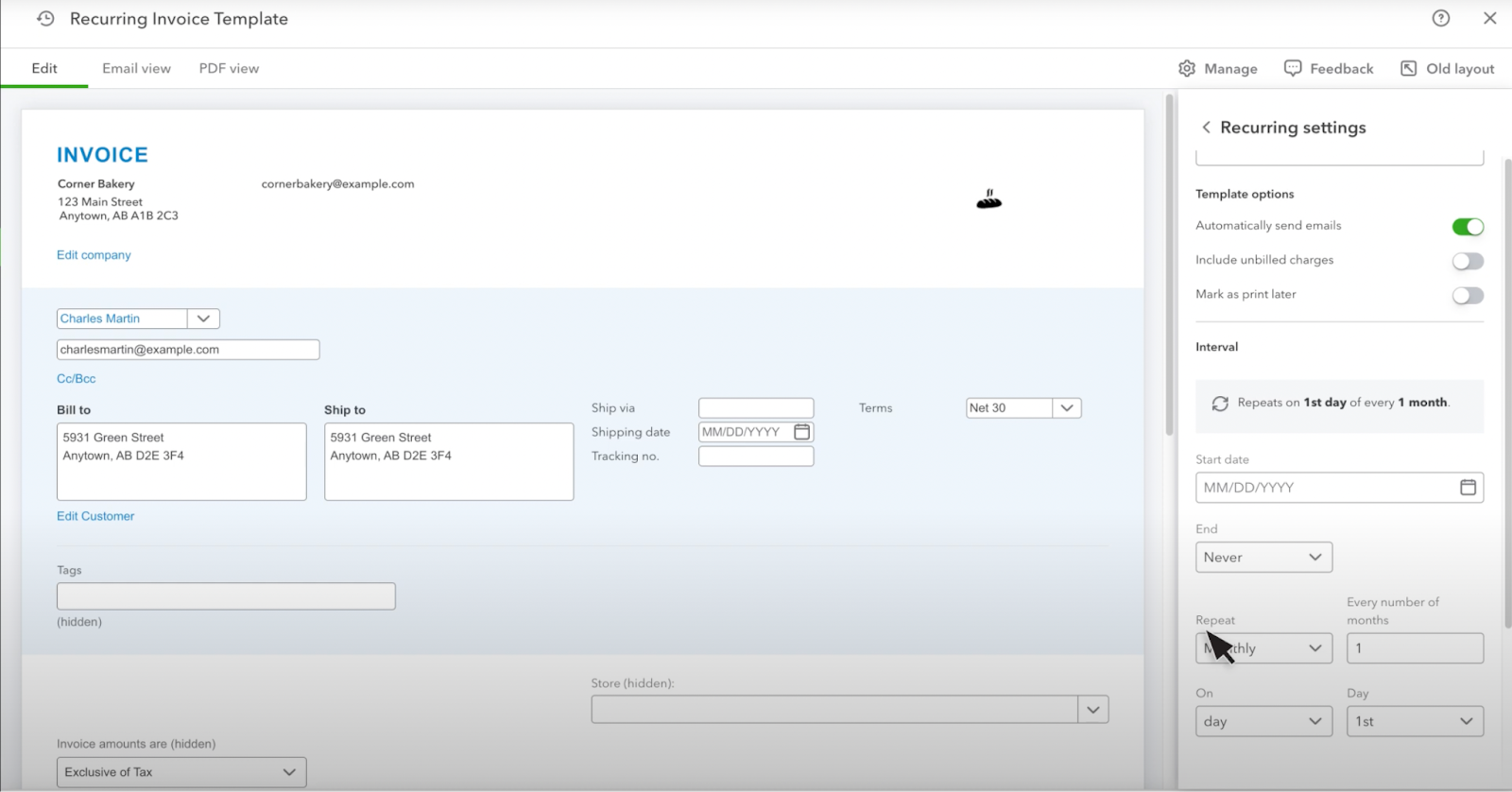
Choose the Interval (for example, Monthly and every 1 month), and set the Start Date (and End Date, if the contract is time-limited).
Step 4: Add Client Info and Line Items
Next, select the customer to whom this invoice will be sent (you can only choose one client per template).
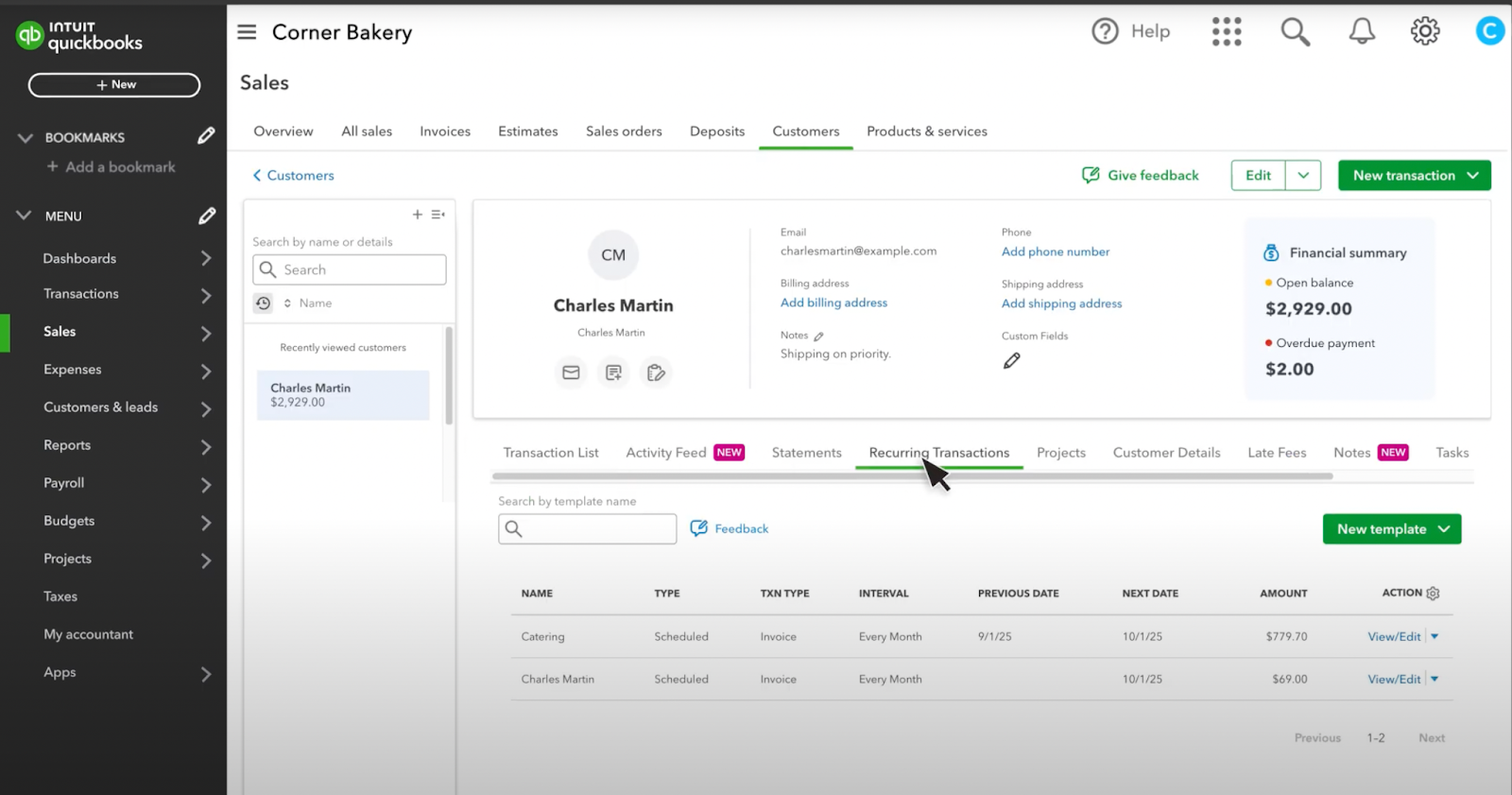
In the invoice detail section, enter the Products/Services, description, and rate just like you would on a regular invoice.
Include all the recurring charges for this client (e.g., 50 users @ $100/user for the month, or a flat managed services fee). If there are any taxes or discounts, please include them as well.
Step 5: Select Auto-Send or Draft Mode
Be sure to review the Options section on the form: you can check Automatically send emails to have QuickBooks email the invoice to the client on your behalf each time it recurs. You can also choose to Auto CC yourself or others, and decide whether to print later.
If you have a payment method on file or use QuickBooks Payments, you might see an option to allow your client to set up Autopay for this recurring invoice. Enabling Autopay means the invoice will be paid automatically via the client’s saved credit card or bank info.
Fill in any remaining fields (like payment terms or memo) as needed for your invoice.
Step 6: Save Template and Test
Double-check all the details you entered for accuracy. When you’re ready, click Save Template (located at the bottom right of the form).
QuickBooks will now save this recurring template and schedule the invoices. You should see your new template listed on the Recurring Transactions page, along with the next scheduled send date.
From this point forward, QuickBooks Online will automatically generate invoices at the interval you set. For example, QBO will create and email the invoice to your client on the anniversary of the start date each month.
You will get notifications or can check the Recurring Transactions list to see upcoming scheduled invoices.
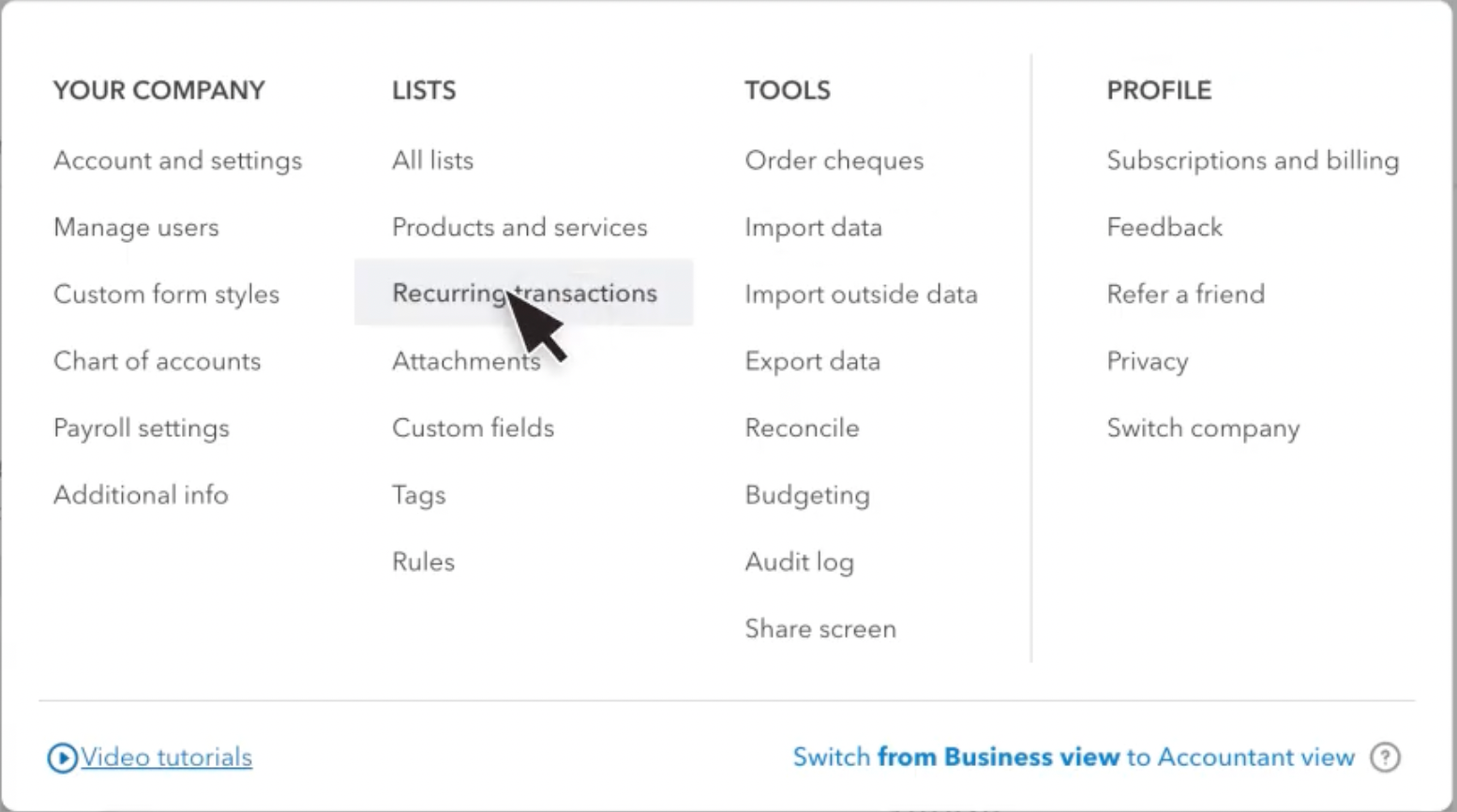
Remember that if you need to make changes (such as price updates or adding a line item), you can edit the recurring template at any time, and those changes will apply to future invoices.
Now, you’ve set up a recurring invoice in QuickBooks Online.
The invoice will now recur on schedule, saving you the effort of recreating it each billing cycle. Your client will receive their invoice automatically, and if they’ve enabled Autopay, QuickBooks will charge them and even email a paid receipt.
This simple setup ensures your MSP billing is consistent and timely, so no revenue is missed.
FlexPoint + QuickBooks Online: Advanced Recurring Billing for MSPs
QuickBooks recurring invoices are helpful for basic automation. However, they stop short of addressing the unique billing demands of MSPs. Most MSPs work with a PSA, such as ConnectWise PSA, Autotask, SuperOps, or HaloPSA, and QuickBooks alone can’t synchronize contracts, usage changes, or complex payment rules from those systems.
QuickBooks wasn’t built initially with MSP-specific needs, such as PSA integrations or contract profitability tracking, in mind.
This is where FlexPoint comes in to supercharge the process. The platform connects your PSA software directly with QuickBooks Online to automate end-to-end recurring billing, collections, and reconciliation, all without the manual work.
Unlike QuickBooks, FlexPoint was explicitly built for MSP operations. The platform acknowledges the complexity of monthly service agreements, variable seat counts, and mixed payment preferences, providing you with control and flexibility where QuickBooks falls short.
1. Real-Time PSA Sync and Automated Invoicing
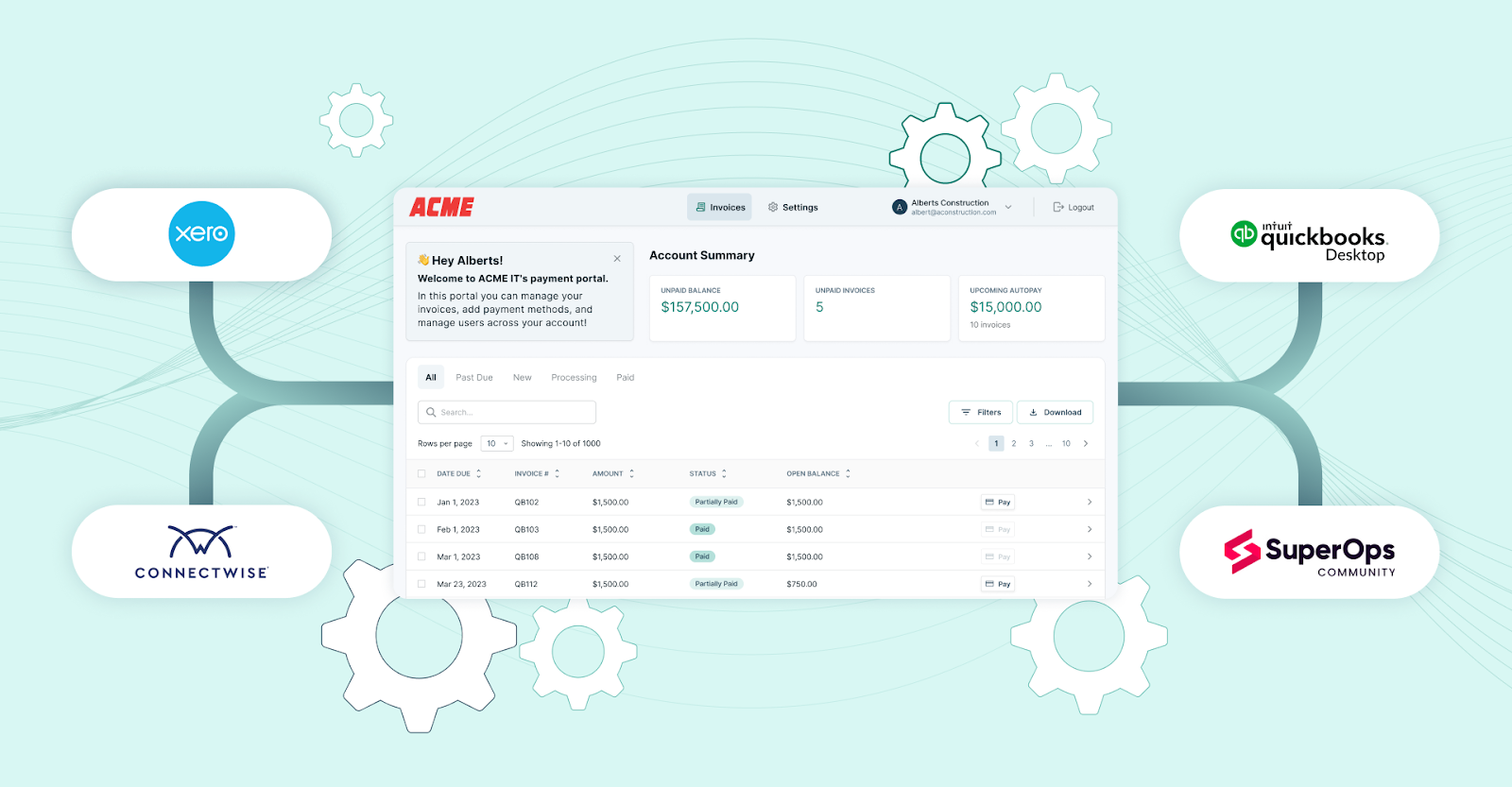
With FlexPoint, every client invoice or payment in your PSA is automatically reflected in QuickBooks. Add or remove users, update licenses, or modify contract terms, and FlexPoint synchronizes the changes in real-time.
This eliminates double data entry, ensures accurate invoices, and captures every dollar of recurring revenue.
2. Branded Client Portals with Payment Transparency
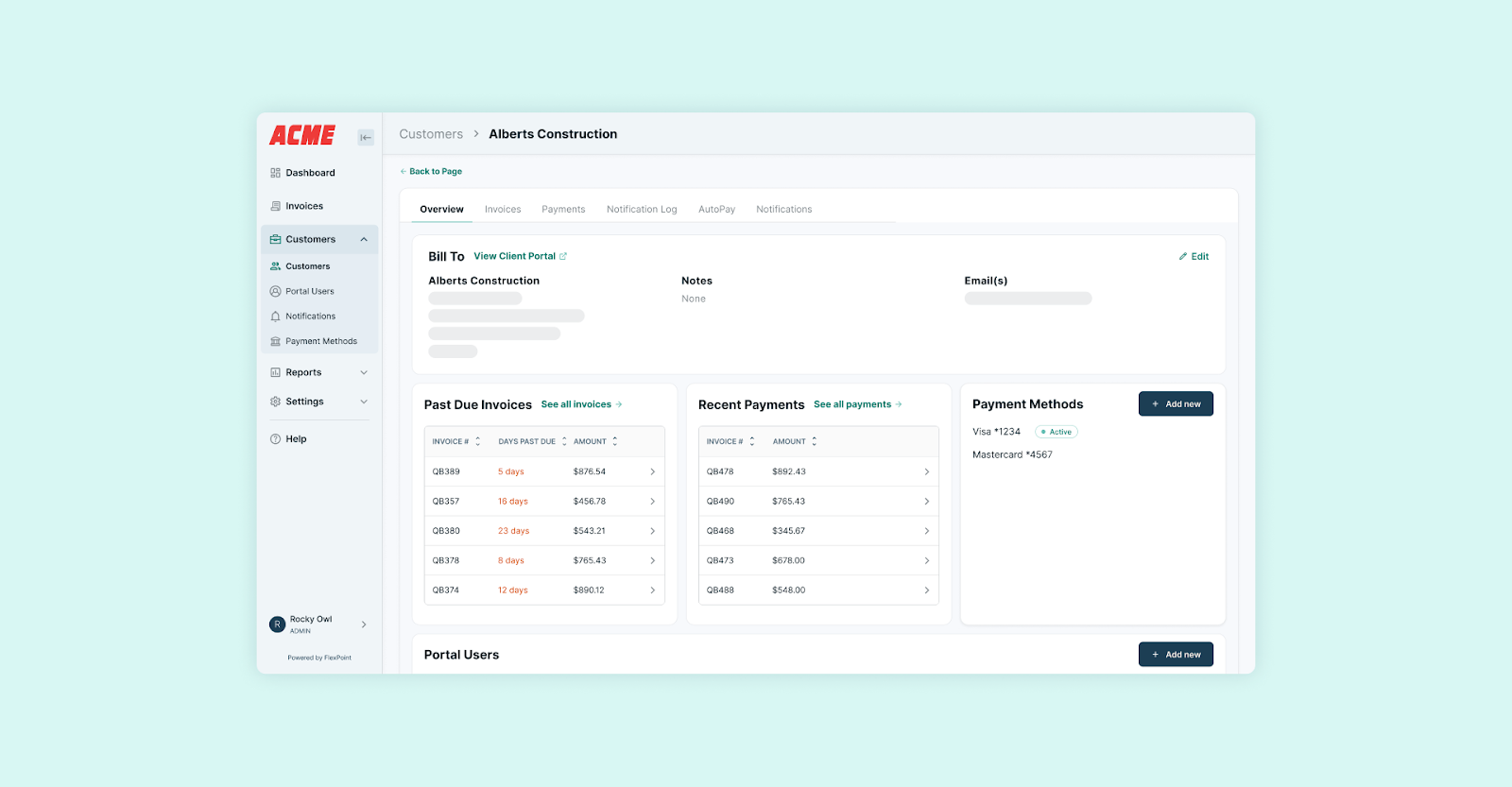
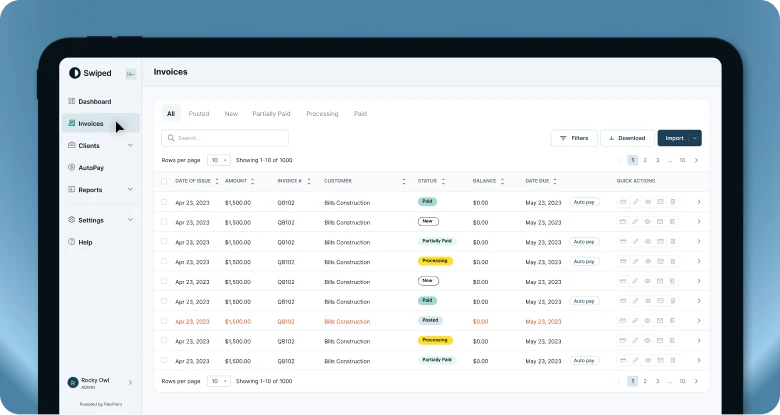
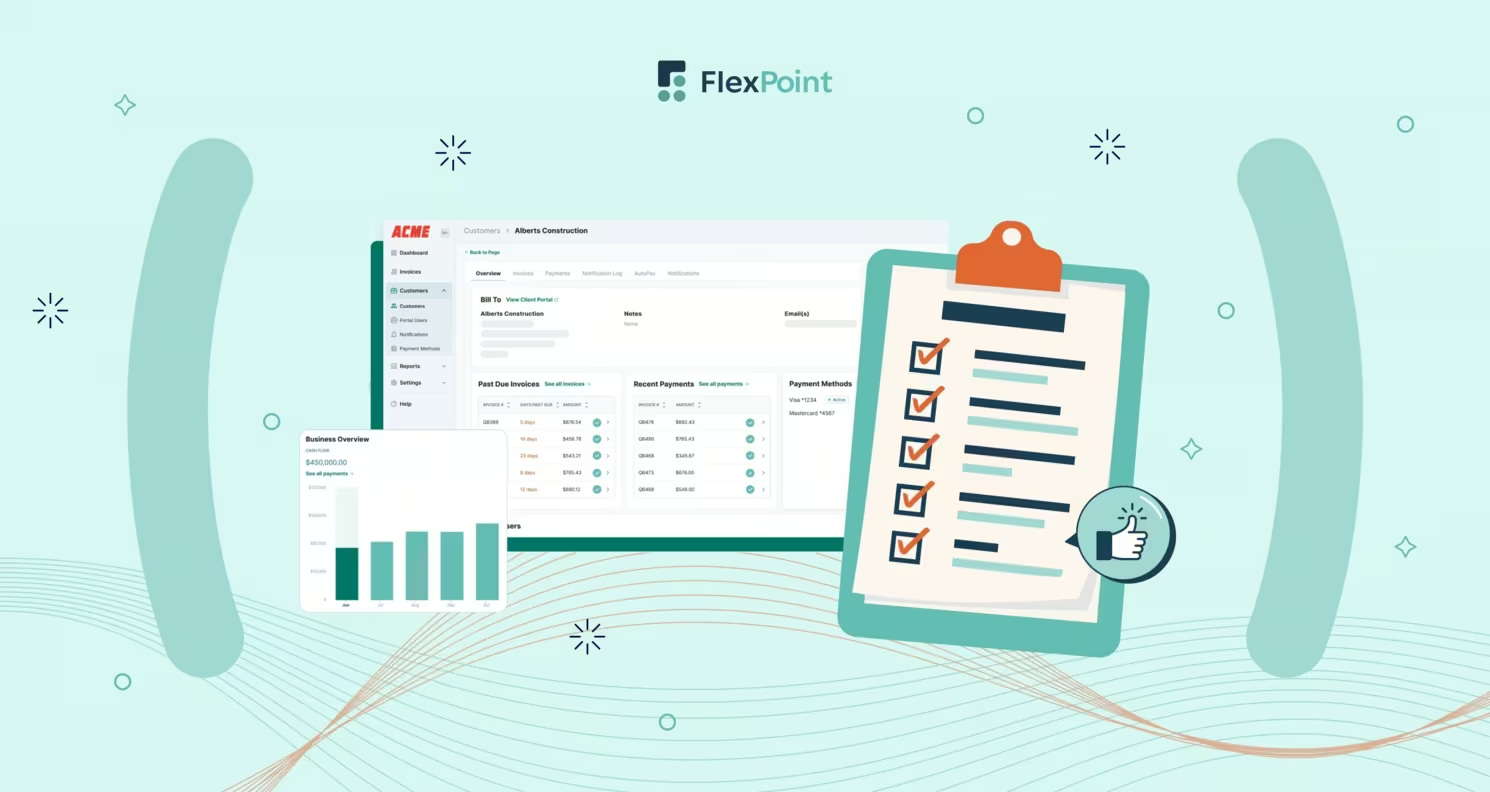
While QuickBooks sends standard invoices, FlexPoint gives clients a branded, self-service payment portal where they can view invoices, manage payment methods, and track receipts, all under your MSP’s logo.
This professional presentation strengthens trust, improves payment visibility, and reduces billing questions, since clients always have access to their billing history and active subscriptions.
3. Flexible Payment Options and Installment Plans
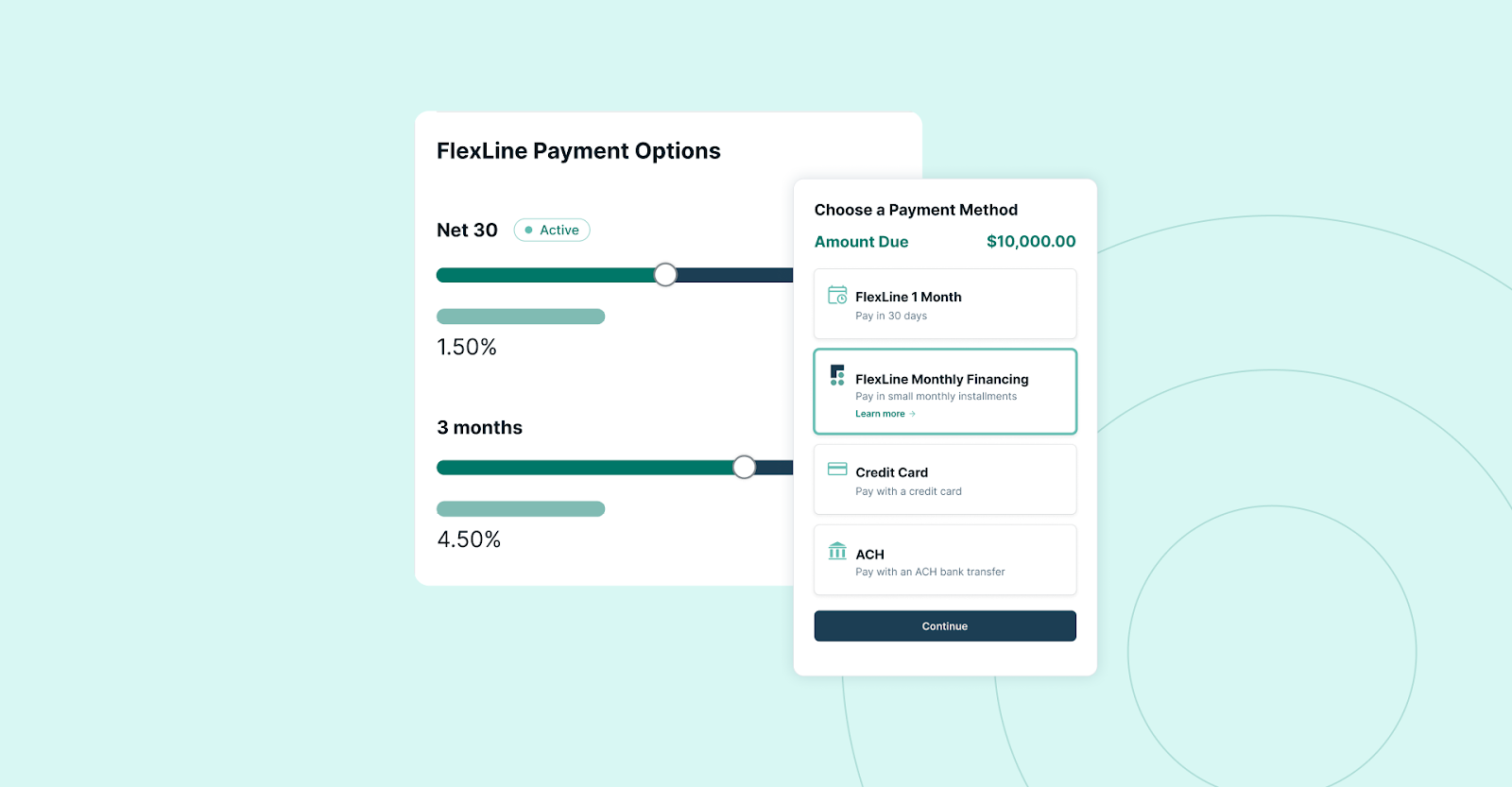
MSPs often deal with clients who prefer flexible terms for larger projects or hardware costs. FlexPoint allows you to offer installment plans or split payments without creating separate invoices in QuickBooks.
Clients can choose their preferred method (credit card, ACH, stored Autopay, or flexible financing), making it easier to close deals and maintain predictable cash flow.
4. Lower ACH Fees and Credit Card Surcharging
While QuickBooks Payments charges higher transaction fees, FlexPoint keeps your processing costs lower. Same-Day ACH payments through FlexPoint cost less than the standard QuickBooks rate.
FlexPoint’s built-in credit card surcharging allows you to pass processing fees directly to clients (where permitted by law).
This means you can accept any payment method without sacrificing margin.
5. End-to-End Automation and Reconciliation
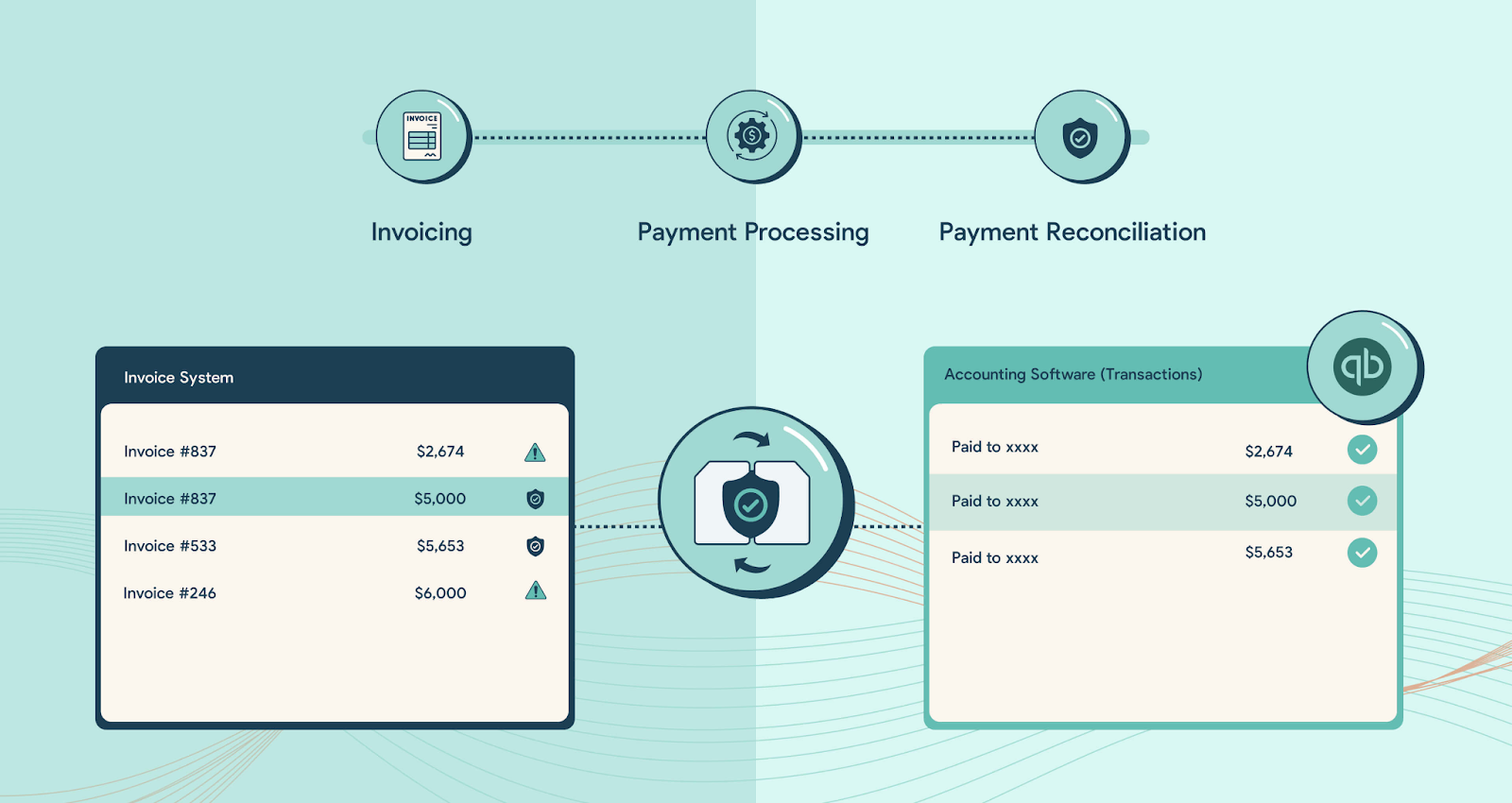
Once invoices are created, FlexPoint automatically charges clients on the due date, applies payments, and reconciles deposits in QuickBooks. No more chasing down payments or waiting for manual batch imports.
Your billing cycle runs itself, with clear visibility into cash flow and real-time reporting synced across your PSA and QuickBooks.
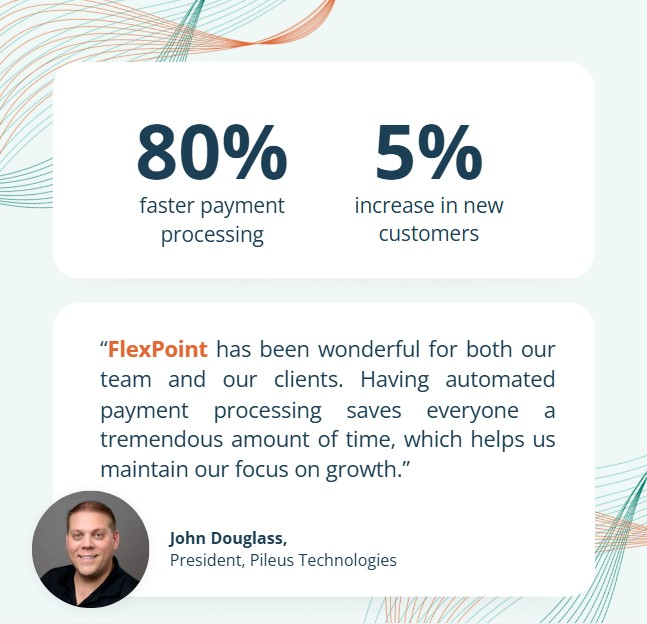
MSPs using FlexPoint report significant reductions in administrative time and payment delays. For instance, Pileus Technologies cut payment processing time by 80% after automating billing through FlexPoint.
With FlexPoint, recurring billing becomes smarter, faster, and more profitable:
- Your invoices stay perfectly aligned with PSA agreements.
- Your clients appreciate flexible and transparent payment experiences.
- Your business benefits from lower fees, fewer errors, and faster cash flow.
No more exporting data, chasing invoices, or reconciling manually. FlexPoint transforms QuickBooks into a fully automated billing engine built for MSPs ready to scale.
Conclusion: Automate Recurring Invoices and Improve Cash Flow With QuickBooks and FlexPoint
By automating scheduled invoices, you ensure every monthly service, subscription, or managed contract is billed promptly and consistently. This not only saves significant admin time but also helps maintain a healthy cash flow by reducing late or forgotten bills.
We’ve walked you through the step-by-step process of creating recurring invoices in QuickBooks, from accessing the Recurring Transactions menu to configuring your template and saving it.
Once in place, your recurring invoices will work quietly in the background, sending out on schedule so you can focus on delivering excellent service instead of chasing payments.
For MSPs wanting to take automation a step further, integrating FlexPoint + QuickBooks Online is the path forward.
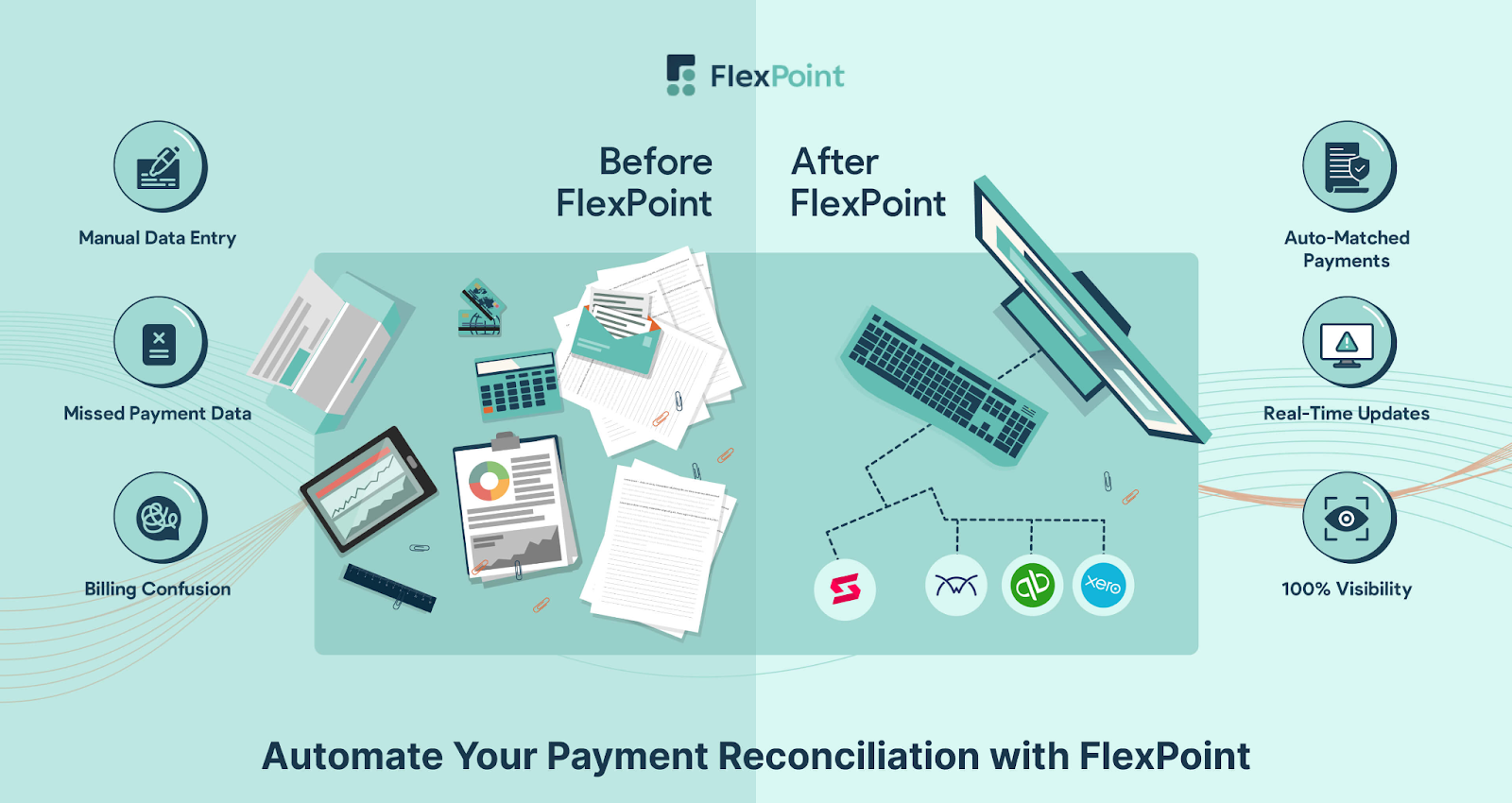
FlexPoint integrates your PSA system and QuickBooks into a single, cohesive billing platform, automating everything from invoice creation to payment collection. The efficiency gains and error reduction can be transformative for your finance workflow.
You’ll spend less time double-entering data or fixing invoices, and more time on strategic activities to grow your business. If you’re ready to modernize your billing and eliminate the monthly invoicing scramble, it’s time to see these tools in action.
Want to automate recurring invoices and boost your MSP’s cash flow?
Schedule a demo to see how FlexPoint + QBO can streamline your billing operations.
Additional FAQs: Recurring Invoices in QuickBooks for MSPs
{{faq-section}}