

If you’re using QuoteWerks to build proposals, you already know how powerful it is for quoting and deal management.
But when it comes to getting paid, things can get more complicated.
Out of the box, QuoteWerks supports credit card processing through compatible gateways and QuoteValet. And for most MSPs, that works just fine up to a point. But if you want to offer ACH, reduce processing fees, collect deposits, or provide financing options, you’ll quickly hit limitations.
That’s where payment friction starts.
This guide walks you through how to make payments easier for your clients and more predictable for your business.
Why Use a Payment Terminal Link?
A billing link, or payment terminal link, allows MSPs to collect payment without waiting for a separate invoice.
Because QuoteWerks does not natively support ACH or financing, clients who prefer those options must complete payment through a secure hosted payment platform such as FlexPoint. Using a branded payment portal ensures consistency across your quote-to-cash experience and reinforces trust at the moment payment is requested. An unbranded or unfamiliar payment page can create hesitation, especially on larger transactions.
Using your payment terminal link helps you:
- Securely collect payment as soon as a quote is approved
- Reduce manual follow-ups
- Provide a clear and simple payment experience
- Easily sync data to your accounting tool, such as QuickBooks or Xero
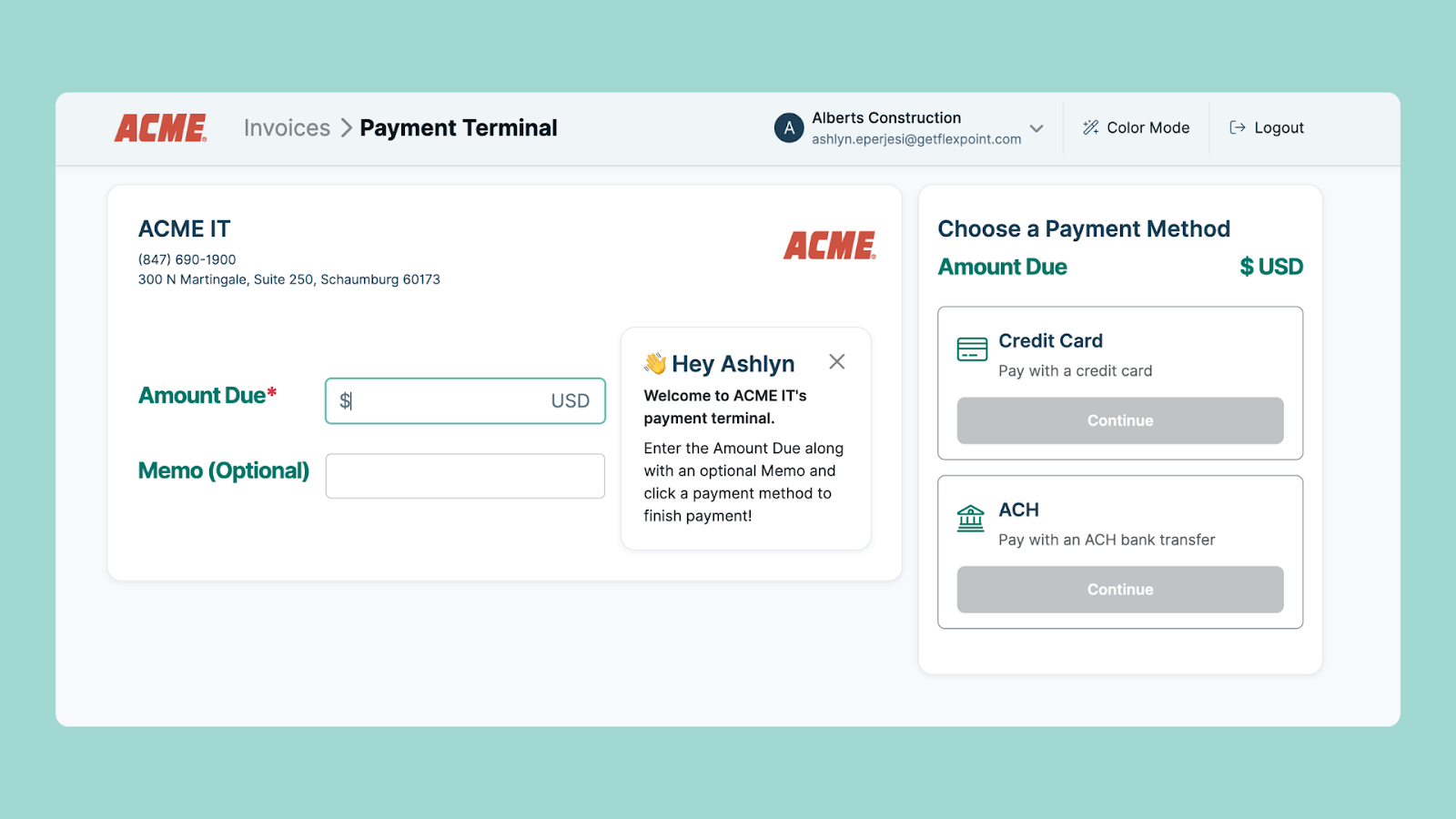
FlexPoint’s Virtual Payment Terminal supports on-demand payments. MSPs can generate a secure payment link, share it with the customer, and receive payment immediately. The link can even include pre-filled details such as the payment amount and a memo/payment description.
For example: https://yourcompany.flexpmts.com/core/VirtualTerminal
Try it for yourself, below. Take a guided tour of the FlexPoint virtual payment terminal.
How Payments Work in QuoteWerks
QuoteWerks allows you to collect credit card payments through supported gateways. When a customer views a quote through QuoteValet, they can enter card details and submit payment.
This works well if:
- You only plan to accept credit cards
- You don’t need ACH
- You’re not offering financing
- You don’t need flexible deposit structures
But many MSPs quickly realize credit card–only processing creates unnecessary friction.
Processing fees are higher than ACH. Some clients prefer bank transfer. Larger deals often require partial payments or structured terms. And financing options can close deals faster, but aren’t supported natively.
That’s where an external payment solution becomes important.
How to Add a FlexPoint Payment Link to QuoteWerks
Even though FlexPoint does not have a native, one-click integration inside QuoteWerks, you can still create a simple and reliable workflow to collect payments directly from your quotes. The idea is straightforward: place a secure FlexPoint payment link inside the same QuoteValet message where clients review and approve their quote.
This works because QuoteWerks allows you to customize your QuoteValet layouts and approval messaging. By adding a FlexPoint payment link, payment becomes the natural next step immediately after approval.
Step 1: Copy Your Payment Terminal Link in FlexPoint
- Log in to the FlexPoint dashboard
- Click the Payment Terminal tab
- Enter a placeholder dollar amount to obtain a formatted link
- Replace the placeholder amount with the QuoteValet total field used in your template (commonly
<<QuoteTotal>>in document layouts or[QV_DepositAmount:F=1]in QuoteValet templates)
Get a glimpse of how it works below!
At the end of the link, you will see the numerical payment amount. You will replace that placeholder amount with the QuoteWerks dynamic field for total amount when embedding it in your template.
For QuoteWerks, this typically means inserting the QuoteValet total field so the payment amount automatically matches the final approved quote.
This link directs your customer to a secure, hosted FlexPoint payment page where they can choose ACH, credit card, or financing if over $10k.
Step 2: Create a Custom FlexPoint Payment Option in QuoteWerks
Next, you’ll add FlexPoint as a selectable payment option inside QuoteWerks.
Start by logging into QuoteWerks and navigating to:
Setup > Options > Payment
Click Add to create a new payment method.
From the Payment Type dropdown, select CustomType1.
Under Payment Display Text, enter a clear, customer-facing name such as:
- FlexPoint
- Pay via FlexPoint
- Secure Client Portal
This label appears in two places:
- Under Payment Options in the QuoteValet web view
- On the Make a Payment screen after a quote is accepted
Click OK to save the new payment type.
Click OK again to confirm and exit.
Before making changes to your live QuoteValet layout, duplicate your existing template. This lets you test everything without affecting active proposals.
If your current template references other processors or outdated payment messaging, remove those sections to avoid confusion.
Step 3: Configure FlexPoint Payment Instructions in QuoteValet
Now you’ll connect your new Custom payment type to your FlexPoint hosted payment link.
Navigate to:
Setup > Options > QuoteValet > Payment Processing
Click the gateway setup icon.
For this configuration, the selected gateway is not used for processing, since FlexPoint handles the hosted payment page. You can choose any gateway type and click OK to proceed.
Next, under Payment Type Instructions, select Custom 1 from the dropdown menu.
In the Template HTML field, insert your FlexPoint payment link using code similar to this:
Replace [YOUR-FLEXPOINT-LINK] with the base payment terminal URL copied from your FlexPoint dashboard.
The variable [QV_DepositAmount:F=1] dynamically passes the deposit amount from QuoteValet. If you prefer to pass the full quote total instead, you can replace it with the appropriate QuoteValet variable used in your layout.
Save your changes.
What Happens Next
Once a client selects the FlexPoint payment option, accepts the quote, and clicks Pay Now, they are redirected to your secure FlexPoint-hosted payment page.
From there, they can:
- Choose ACH or credit card
- Select financing if enabled
- Complete payment securely
No manual invoice follow-up required.
To ensure consistency, add the same payment link to your QuoteValet approval confirmation email. This allows clients to complete payment whether they’re viewing the browser version or reading the email notification.
After updating your template, save and republish it.
Before sending to live customers, generate a test quote and confirm:
- The FlexPoint payment option appears correctly
- The payment button redirects properly
- The amount passed to FlexPoint is accurate
- The transaction records correctly in FlexPoint
At this point, payment is embedded directly into your quote approval workflow.
Advanced: Redirect “Pay Now” Directly to FlexPoint
By default, QuoteValet may display its internal Make a Payment page after approval. If you prefer customers to be redirected straight to FlexPoint immediately after clicking Pay Now, you can modify the template.
1. Open QuoteValet Template Settings
Navigate to:
Setup > Options > QuoteValet > Templates
Locate your customer-facing template and check Customize.
2. Confirm Template Selection
When prompted, confirm that you’re editing the correct template.
Click Yes to continue.
3. Locate the Payment Link Section
Search within the template for:
[QV_PaymentURL]
This is typically found within the payment request section of the template.
4. Replace the Default Payment URL
Replace [QV_PaymentURL] with your FlexPoint payment link, formatted like this:
[YOUR-FLEXPOINT-LINK]?amount=[QV_DepositAmount:F=1]
This configuration ensures that clicking Pay Now sends the client directly to your FlexPoint-hosted payment page.
You may substitute [QV_DepositAmount:F=1] with a different QuoteValet variable if you prefer passing the full quote amount or another field.
5. Save and Preview
Click Save and Preview to test the experience.
Make sure to replace [YOUR-FLEXPOINT-LINK] with the actual payment terminal link copied from your FlexPoint dashboard.
Generate a test quote and confirm:
- The redirect works correctly
- The correct amount is passed
- The payment page loads securely
What Your Clients See
From your client's perspective, the process is straightforward.
- The client receives the quote
- The client approves the quote
- The confirmation message includes a FlexPoint payment link
- The client clicks the link and completes payment
This flow allows customers to pay without leaving the moment of approval.
Payment now simply happens at the moment of approval!
After the Payment Is Complete
Once the customer submits payment:
- FlexPoint records the transaction immediately
- You control how transactions sync into your accounting system (as sales receipts or unapplied payments)
- Funds settle based on your configured payment methods, whether ACH or credit card
- Reconciliation is streamlined through your accounting integration
This approach keeps quoting and payment connected without custom development or manual follow-up.
Instead of sending a separate invoice after approval, payment becomes part of the approval flow itself, reducing friction and accelerating cash flow.
Why Are You Doing This
At this point, you might be thinking: this works fine as is, why change it?
Because the way your clients pay directly impacts how fast you get paid.
When payment happens separately from quote approval, delays creep in. Someone needs to request ACH details. Someone has to send a separate invoice. Someone follows up. And even small delays stack up across multiple deals.
Embedding a FlexPoint payment link into QuoteValet tightens that gap.
Instead of: Approve → wait → invoice → follow up → payment
It becomes: Approve → pay.
That shift may seem small, but operationally it’s significant.
You reduce friction at the exact moment the client has already said “yes.” You remove extra steps from your internal team. And you create a cleaner, more predictable quote-to-cash workflow. This isn’t just about adding ACH or financing options. It’s also about controlling the handoff between sales and cash flow. And for growing MSPs, that control matters.
Collect Payments Faster with FlexPoint and QuoteWerks
If you’re relying only on native credit card processing in QuoteWerks, you’re limiting how your clients can pay and how quickly you get paid.
Adding a secure FlexPoint payment link to your QuoteValet proposals changes the flow entirely. Instead of sending a separate invoice after approval or following up to collect ACH details, payment becomes part of the approval experience.
When a client approves the quote, they can complete payment right then and there, using ACH, credit card, or financing if needed. It feels simple on their end, and on yours it means fewer delays, fewer back-and-forth emails, and more predictable cash flow.
If you want to see how this fits into your existing QuoteWerks workflow, schedule a demo and we’ll walk you through it. It’s straightforward to implement and immediately improves how your MSP gets paid.
Closing the deal takes work. The payment process shouldn’t add more.
Ready to get started? FlexPoint’s Virtual Terminal is available now for all customers. Streamline your QuoteWerks payment processes and get paid faster. Skip the sales call and take a tour of FlexPoint now.