

For MSPs and IT service providers, getting paid quickly after a quote is approved can make a big difference for cash flow and keeping the business running smoothly. The longer it takes to collect, the more follow-ups, paperwork, and juggling of finances your team has to do.
ConnectWise CPQ (which stands for Configure, Price, and Quote) makes creating and sending quotes fast and professional, but it doesn’t handle payments. Even though there’s no official integration with FlexPoint, you can still make it easy for customers to pay right from the quote by adding a custom FlexPoint billing link.
This guide walks you through a simple, practical way to add that link to your CPQ workflow. It focuses on steps you can take today without any custom coding or complicated integrations.
The Current Payment Gap in CPQ
ConnectWise CPQ (formerly Sell) handles quoting well, but it doesn’t handle payments. After a quote is approved, teams often need to send a separate invoice, follow up with the customer, and reconcile payments manually.
This can slow down cash flow, create extra work, and lead to mistakes. Customers may need reminders, or payments can be delayed.
Adding a branded payment link directly to the quote acceptance or confirmation message solves this. Customers can pay immediately, which keeps the process simple and reduces the back-and-forth. It turns the moment of “yes” into immediate action.
Why Use a Payment Terminal Link?
A billing link, or payment terminal link, allows MSPs to collect payment without waiting for a separate invoice.
Due to the payment limitations in ConnectWise CPQ, your clients will need to be redirected to a separate payment platform, like ConnectBooster, WisePay, or FlexPoint. A branded payment portal is crucial to upholding security and branding expectations across the quote-to-cash process. Otherwise, your clients may grow suspicious of an improperly branded payment portal.
Using your payment terminal link helps you:
- Securely collect payment as soon as a quote is approved
- Reduce manual follow-ups
- Provide a clear and simple payment experience
- Easily sync data to your accounting tool, such as QuickBooks or Xero
FlexPoint’s Virtual Payment Terminal supports on-demand payments. MSPs can generate a secure payment link, share it with the customer, and receive payment immediately. The link can even include pre-filled details such as the payment amount and a memo/payment description.
For example: https://yourcompany.flexpmts.com/core/VirtualTerminal
Try it for yourself, below. Take a guided tour of the FlexPoint virtual payment terminal.
How to Add a FlexPoint Payment Link to ConnectWise CPQ
Even though FlexPoint doesn’t have a native integration with ConnectWise CPQ, you can still create a simple workflow to collect payments right from your quotes. The idea is to place a secure payment link in the same messages where customers review and approve quotes.
This works because ConnectWise CPQ lets you customize quote templates and email messages. Adding a FlexPoint link makes payment the next logical step after approval.
Step 1: Copy Your Payment Terminal Link in FlexPoint
Start by finding your payment terminal link in FlexPoint.
- Log in to the FlexPoint dashboard
- Click the Payment Terminal tab
- Enter a placeholder dollar amount to obtain a formatted link
- Copy/save that link – note that you will replace and replace the placeholder numerical value at the very end of the link with Quote.QuoteTotal
This link directs the customer to a secure payment page. See it in action, below.
Step 2: Duplicate Your ConnectWise CPQ Order Porter Quote Template
Now it’s time to easily link the payment terminal within your ConnectWise CPQ templates and emails.
- Sign in to your CW CPQ dashboard
- Head over to Settings > Document Branding > Order Porter Templates > Select the applicable template > Duplicate Group > Duplicate
Note: If you prefer to start with a prebuilt template, Order Porter offers a content vault with its standard templates. These templates come preconfigured with ConnectBooster and WisePay features. If you need to remove any mention of those platforms, open a quote, navigate to Quote Setup > Order Porter Settings > Payment Processing, and choose None.
Step 3: Insert your FlexPoint Payment Terminal Link into your Accepted Quotes
- Find the template you’d like to edit and click the pencil icon next to EntryPoint
- Search for “Order Approve” by using Control+F (Windows) or Command+F (Mac).
- Insert the following code into the email template:
Simply replace [YOURLINK] with that payment terminal link you copied earlier, removing the numerical value at the end of the link. Make sure to include the entire URL!
Next, use Control+F (Windows) or Command+F (Mac) to search "This quote has been approved." within the "Order Approved" panel and insert the same code into your email:
Then save your updates.
What Your Clients See
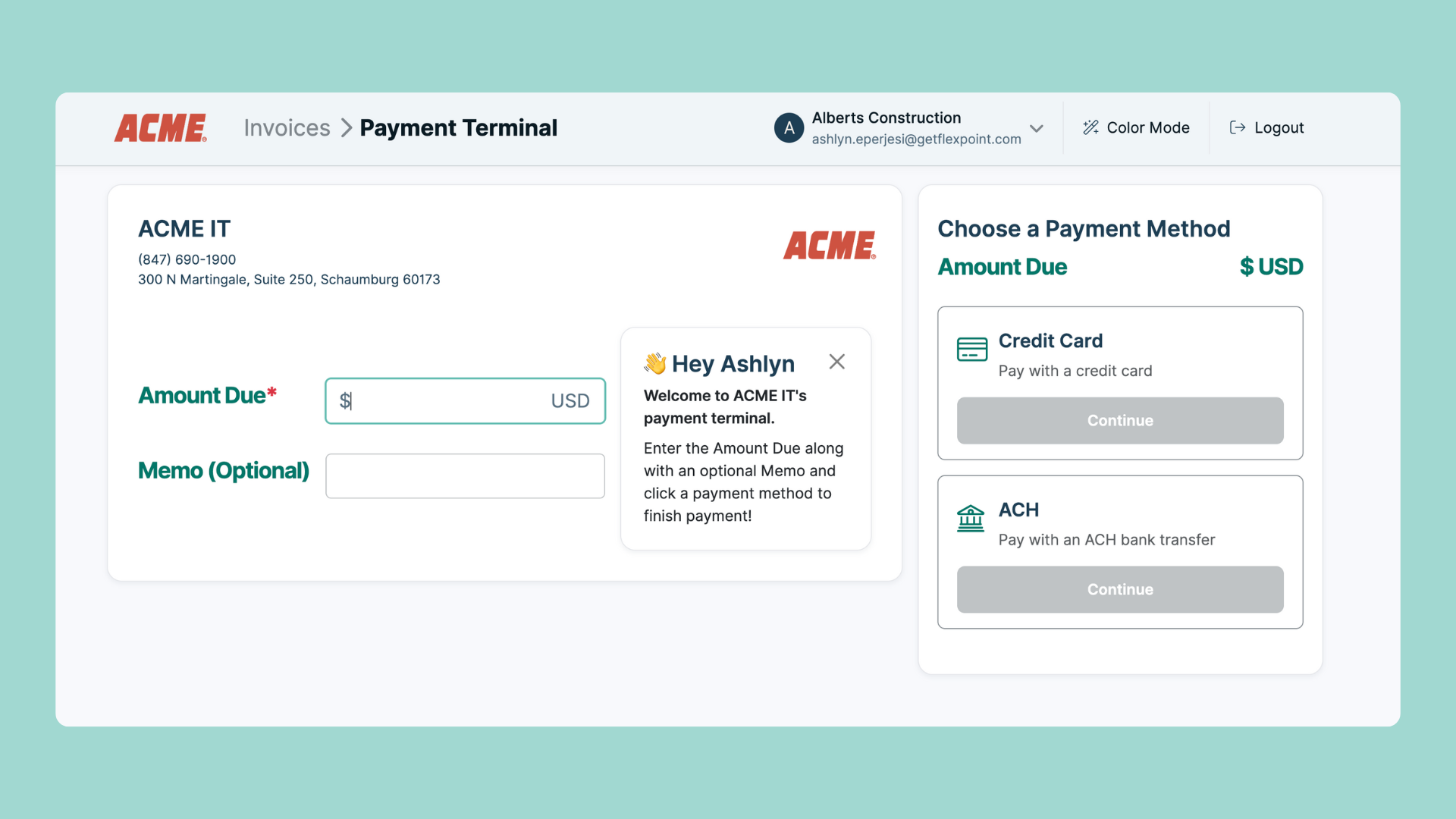
From the customer’s perspective, the process is straightforward.
- The client receives the quote
- The client approves the quote
- The confirmation message includes a FlexPoint payment link
- The client clicks the link and completes payment
This flow allows customers to pay without leaving the moment of approval.
After the Payment Is Complete
After the customer submits payment:
- FlexPoint records the transaction
- You control how Payment Terminal transactions sync into your accounting system. Choose between Sales Receipts or Unapplied Payments.
- The deposit is automatically reconciled across FlexPoint and your accounting integration.
This approach keeps quoting and payment connected without custom development.
Collect Payments Faster with FlexPoint’s Virtual Payment Terminal
ConnectWise CPQ makes creating and sending quotes simple, but collecting payment usually requires extra steps. FlexPoint’s Virtual Payment Terminal removes that friction and helps MSPs get paid faster without complex integrations.
The Virtual Terminal works with any tool you already use. You don’t need to build integrations. Simply share a link, and your customers can pay immediately. This approach skips the invoice step, speeds up cash flow, and reduces administrative overhead.
Adding a FlexPoint billing link to your ConnectWise CPQ workflow lets you turn quote approvals into immediate action. Customers can pay securely right away, your team saves time, and your business sees faster, cleaner cash flow.
Ready to get started? FlexPoint’s Virtual Terminal is available now for all customers. Streamline your ConnectWise CPQ processes and get paid faster. Skip the sales call, take a tour of FlexPoint now.